This page explains how Console administrators manage the new room-based live streams: create direct and co-streams, tag products, monitor broadcast status, review moderation results, and manage stream details. This is the current live stream management system — for streams created before migration, see Live Stream Management (Legacy).

Create Streams

Set up direct streams with title, description & thumbnail from the Console

Stream Types

Support for direct streams and co-streams with multiple participants

Monitor Status

Track live, finished, not started, and terminated broadcasts

Product Tagging

Tag products to live streams for shoppable experiences

Content Moderation

Review AI moderation results across all live stream feeds

Stream Details

View and edit stream information, thumbnails, and feed configuration

Overview

The new Live Stream Management page displays room-based livestreams created after migration to the room-based architecture. This system supports two stream types — Direct streams (single broadcaster) and Co-streams (multiple participants) — and introduces features like product tagging and enhanced moderation visibility. Live Stream Management Dashboard
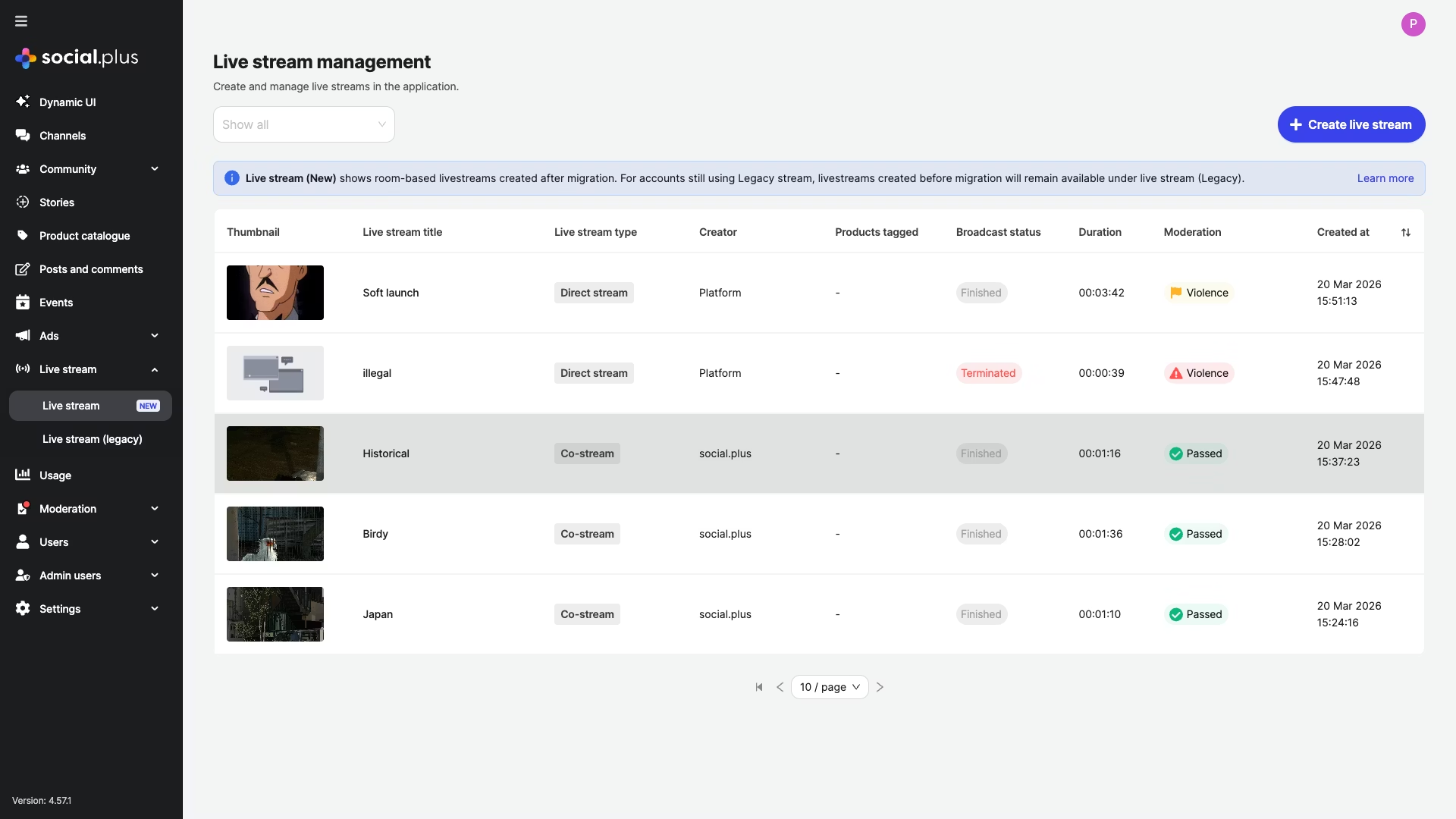
Migration Notice: Live stream (New) shows room-based livestreams created after migration. For accounts still using Legacy stream, livestreams created before migration will remain available under Live stream (Legacy).
The live stream list displays all streams with the following information at a glance:
ColumnDescription
ThumbnailPreview image of the live stream
Live stream titleThe name of the stream
Live stream typeStream type — Direct stream or Co-stream
CreatorThe user who created the stream
Products taggedNumber of products tagged to the stream
Broadcast statusCurrent status — Not started, Live, Finished, or Terminated
DurationTotal broadcast duration (displayed after stream ends)
ModerationAI content moderation result (e.g., Passed, Violence)
Created atTimestamp of stream creation
You can filter streams by broadcast status using the dropdown filter at the top of the page.

Quick Start

1

Navigate to Live Streams

Go to Console → Live stream → Live stream from the left sidebar navigation.
2

Create a New Stream

Click the Create live stream button in the top-right corner.
3

Enter Stream Details

Fill in the title, description (optional), and upload a thumbnail image (optional).
4

Publish

Review all details and click Create live stream to generate the stream.

Creating a Live Stream

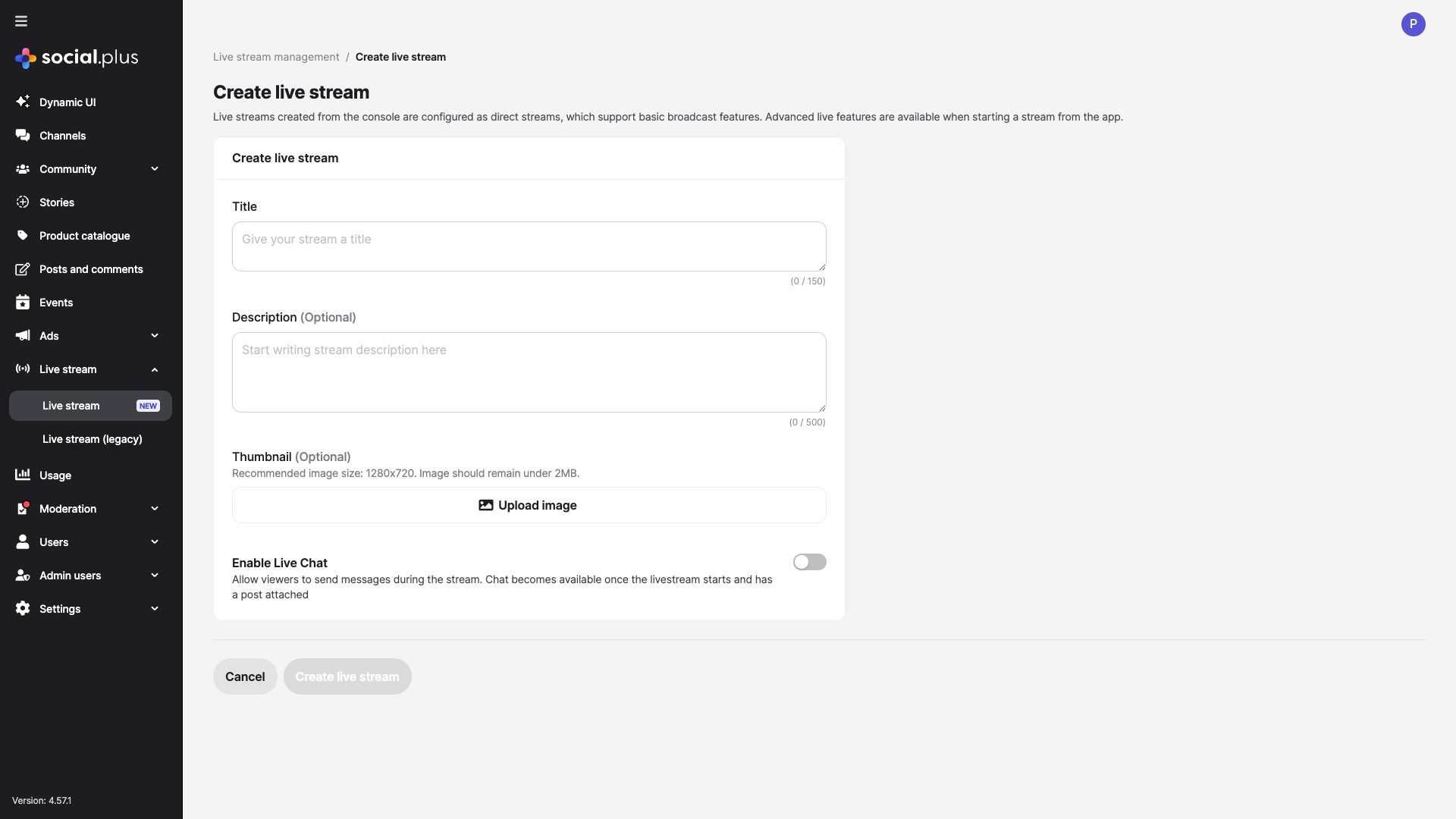
To create a new live stream, click the Create live stream button from the management dashboard. Streams created from the Console are configured as direct streams, which support basic broadcast features. Advanced live features (such as co-streaming) are available when starting a stream from the app. Create Live Stream Form

Stream Details

Type: Text Required: Yes Character limit: 150A clear, descriptive name for the live stream event. This is displayed in the stream list and detail pages.
Type: Text Required: No Character limit: 500Additional context about the stream event. Helps viewers understand what to expect.
Type: Image upload Required: No Recommended size: 1280×720 Max file size: 2MBA preview image for the stream. Displayed in the stream list and as the cover before broadcast begins.
Console vs App: Streams created from the Console are always configured as direct streams. To create co-streams or access advanced live features, start the stream from your application using the SDK or API.

Live Stream Types

Direct Stream

A single-broadcaster stream created from the Console or app. Supports basic broadcast features with one video feed.

Co-Stream

A multi-participant stream that allows multiple broadcasters to stream together. Created from the app using the SDK or API.

Viewing Stream Details

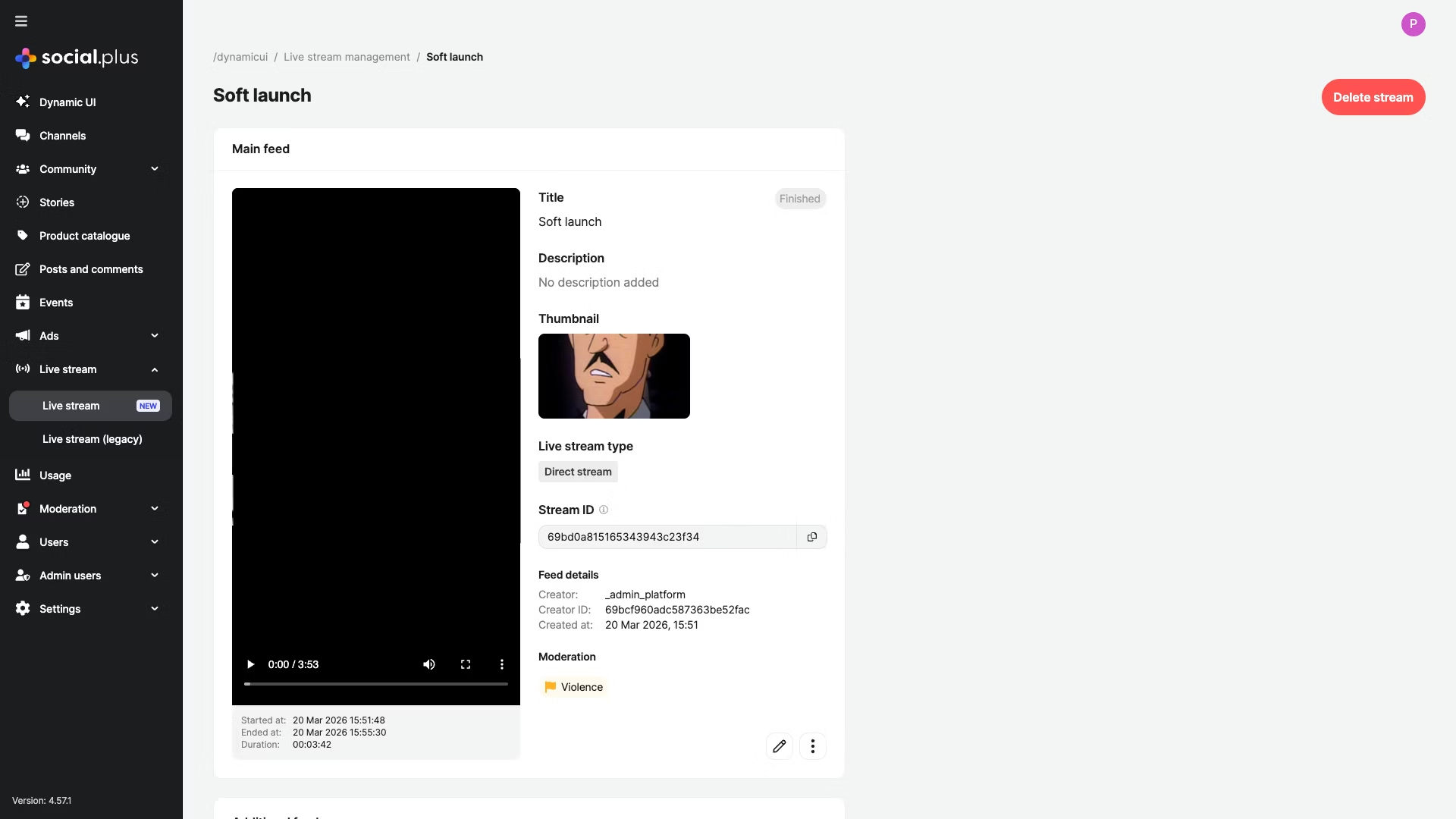
Click on any stream row in the list to view its full details. The detail page shows: Live Stream Detail View
  • Title: Stream name with broadcast status badge
  • Description: Event description (or “No description added”)
  • Thumbnail: Preview image
  • Live stream type: Direct stream or Co-stream
  • Stream ID: Unique identifier (with copy button)

Stream Actions

From the detail page, you can:
  • Edit stream: Update title, description, and thumbnail using the edit button
  • Delete stream: Permanently remove the stream using the Delete stream button
  • Copy stream ID: Copy the unique stream identifier to clipboard
Deletion is permanent: Deleting a stream cannot be undone. All associated data, including recordings and moderation history, will be removed.

Broadcast Status

The broadcast status reflects the current state of the stream:
The stream has been created but broadcasting has not begun. The stream is waiting for the broadcaster to go live.
The stream is currently broadcasting. Viewers can join and watch the live content in real-time.
The broadcast has ended normally. The recorded stream is available for playback and the final duration is displayed.
The stream was forcibly ended, typically due to a moderation action or policy violation. This status indicates the stream was stopped before the broadcaster chose to end it.

Content Moderation

Live streams are automatically reviewed by AI content moderation. Results are displayed both in the list view and on the stream detail page.
StatusIndicatorDescription
Passed🟢 GreenStream content passed all moderation checks
Violence🟡 Yellow / 🔴 RedViolent content detected — severity varies
Nudity🔴 RedAdult or explicit content detected
Other flagsVariousAdditional content policy violations
Moderation Priority: Focus on red-flagged streams first, as they indicate critical content that may violate community guidelines or require immediate action.

Product Tagging

Live streams support product tagging for shoppable live commerce experiences. The Products tagged column in the list view shows how many products are associated with each stream.
  • Products are tagged to streams via the SDK or API
  • Tagged products appear in the stream detail page
  • Viewers can browse and purchase tagged products during or after the stream
  • The Console displays the count of tagged products in the list view
  • Live Shopping Events: Tag featured products for instant purchase during broadcasts
  • Product Demos: Associate demonstrated products for viewer convenience
  • Influencer Streams: Enable product recommendations with direct links

Best Practices

  • Use descriptive titles: Help viewers find and understand your stream content
  • Upload thumbnails: Streams with thumbnails (recommended: 1280×720) get better engagement
  • Add descriptions: Provide context about what viewers can expect
  • Plan ahead: Create streams in advance and share details before going live
  • Monitor broadcast status: Keep the Console open during live events to track stream health
  • Review moderation flags: Check flagged streams promptly and take appropriate action
  • Use status filters: Filter by broadcast status to quickly find active or problematic streams
  • Track terminated streams: Investigate terminated streams to understand policy violations
  • Tag before going live: Ensure products are tagged before the broadcast starts
  • Limit product count: Focus on featured items rather than overwhelming viewers
  • Update tags post-stream: Keep product associations current for replay viewers
  • Bandwidth planning: Ensure sufficient upload capacity for high-quality streams
  • Test before events: Verify stream configuration with a test broadcast
  • Monitor duration: Track stream lengths for capacity and billing planning

Troubleshooting

IssueLikely CauseResolution
Cannot create streamMissing required title fieldEnter a stream title (required, max 150 characters)
Thumbnail upload failsImage exceeds 2MB or wrong formatUse an image under 2MB in a supported format (PNG, JPG)
Stream shows “Not started”Broadcaster hasn’t gone live yetWait for the broadcaster to start the stream from the app
Stream terminated unexpectedlyContent moderation flag triggeredReview moderation details on the stream detail page
Products not showingProducts tagged via SDK/API not yet syncedRefresh the page; verify product tagging via API
Co-stream not in ConsoleCo-streams are created from the appCo-streams created from the app will appear in the list automatically
Duration not displayingStream hasn’t finished yetDuration appears after the broadcast ends
Cannot find legacy streamsLegacy streams are in a separate viewGo to Live stream → Live stream (legacy) in the sidebar

Use Cases

Live Shopping Events

Create direct streams with tagged products for real-time shopping experiences during broadcasts.

Interactive Co-Streams

Enable multiple participants to broadcast together for interviews, panels, or collaborative content.

Content Moderation Review

Monitor AI moderation results across all streams to maintain community safety standards.

Event Broadcasting

Set up and manage scheduled live stream events with pre-configured titles, descriptions, and thumbnails.

Live Stream Moderation

Review and manage content moderation for live stream broadcasts

Live Stream (Legacy)

Manage legacy live streams created before migration to room-based architecture

Product Catalogue

Manage products available for tagging in live streams