

Events are created inside communities. Use this page for Console administration workflows such as scheduling, attendee monitoring, and event-detail review.
Dashboard overview
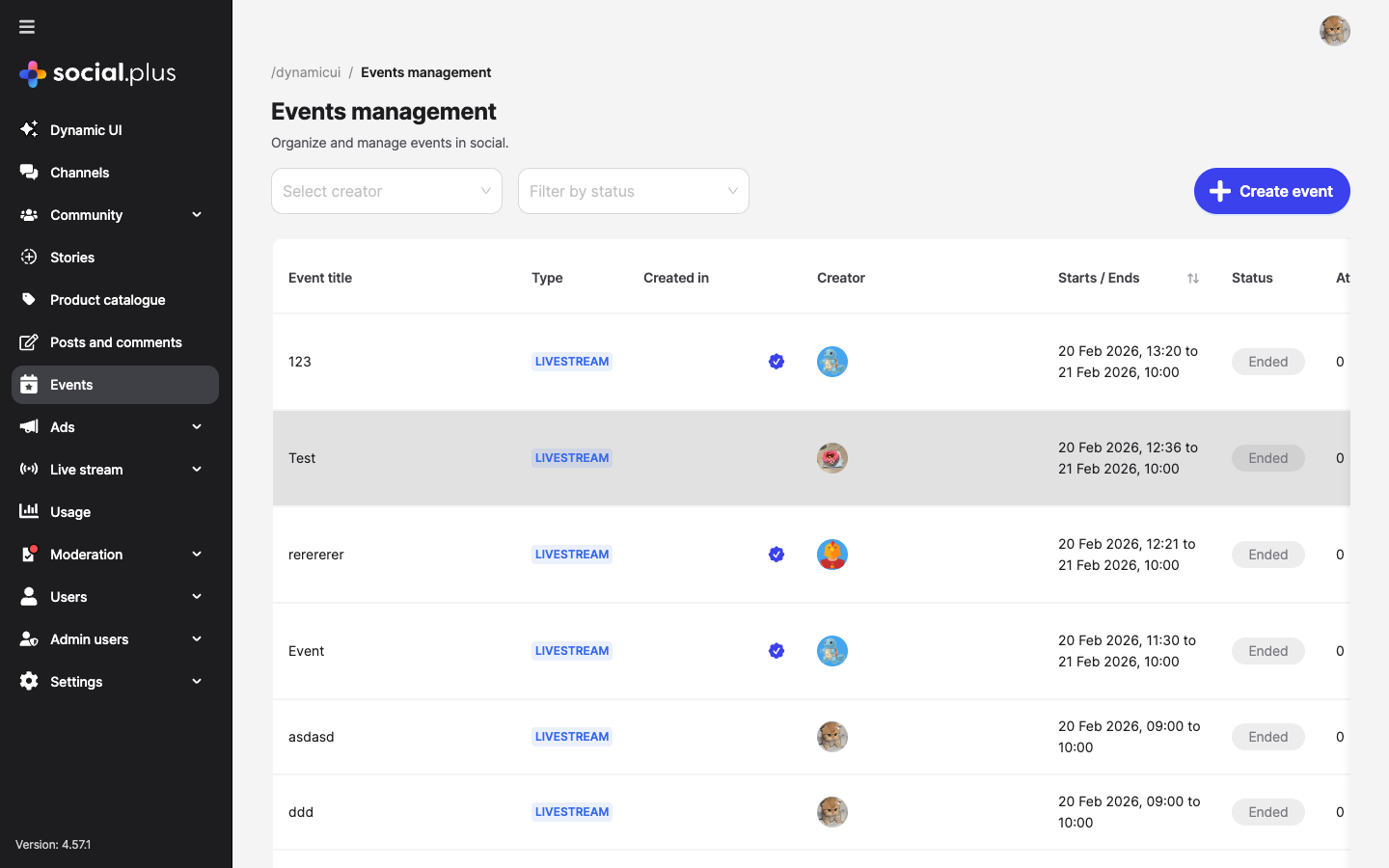
You can filter events by creator and status using the dropdown filters at the top of the page.
Quick start
1
Navigate to Events
Go to Console > Events from the left sidebar navigation.
2
Create a new event
Click the Create event button in the top-right corner of the events dashboard.
3
Select feed and account
Choose the target community and the account that will create the event.
4
Fill in event details
Enter the event name, description, thumbnail, and set the schedule.
5
Configure event type
Select whether the event is virtual (livestream or external link) or in-person, and provide the relevant address or link.
6
Publish
Review all details and click Create event to publish.
Create an event
To create a new event, click the Create event button from the events dashboard. The creation form is organized into four sections.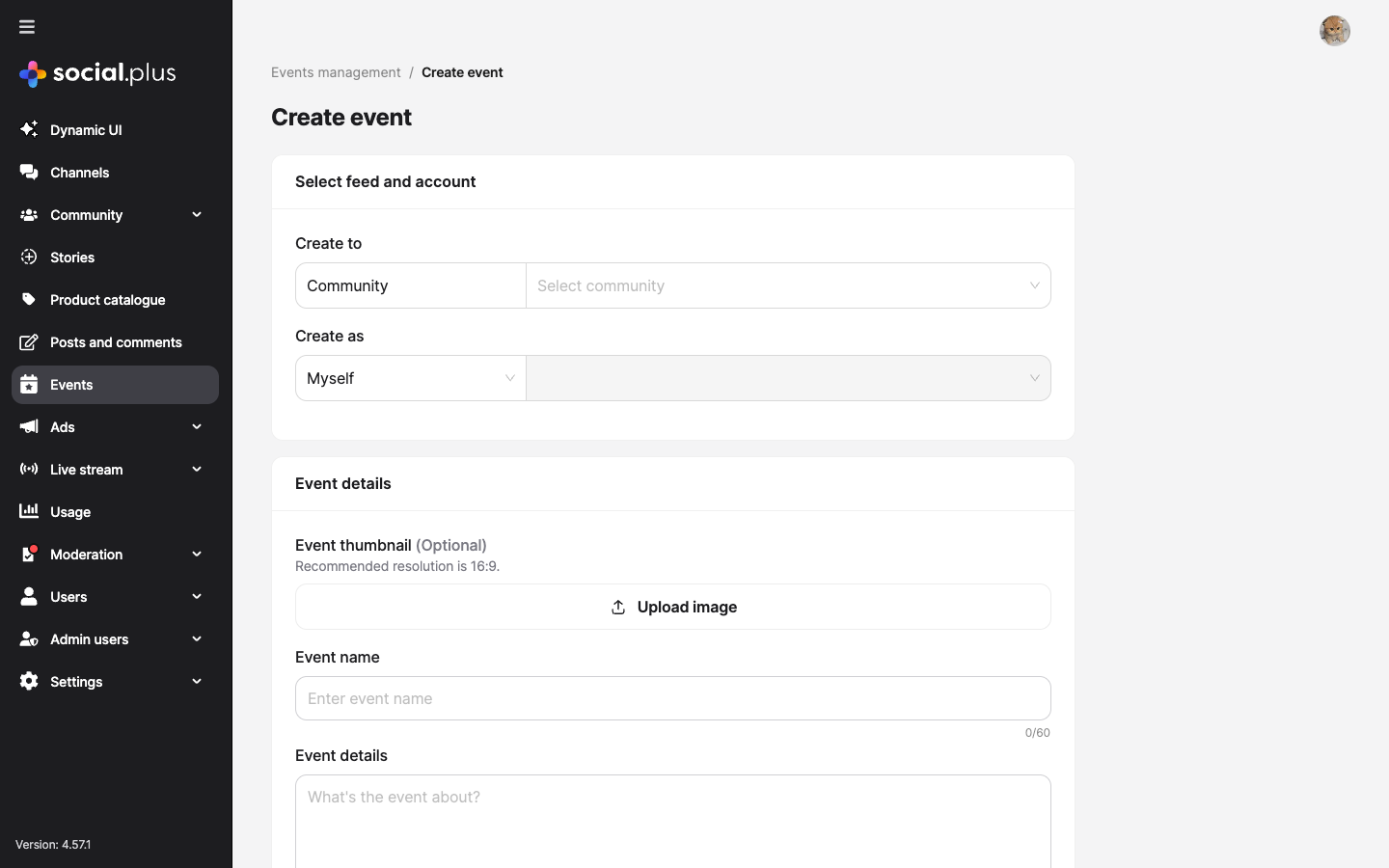
Feed and account
Event details
Date and time
Event type and address
Event types
Livestream
Virtual event where users join a live broadcast directly within your app or website. Ideal for webinars, Q&A sessions, and live content.
External Link
Virtual event that redirects attendees to an external platform (e.g., Zoom, Google Meet). Provide the event URL during creation.
In-Person
Physical event at a specified address. Attendees can see the location details and plan to attend in person.
View event details
Click on any event row in the events list to open its detail page. The detail view provides a comprehensive overview with three tabs.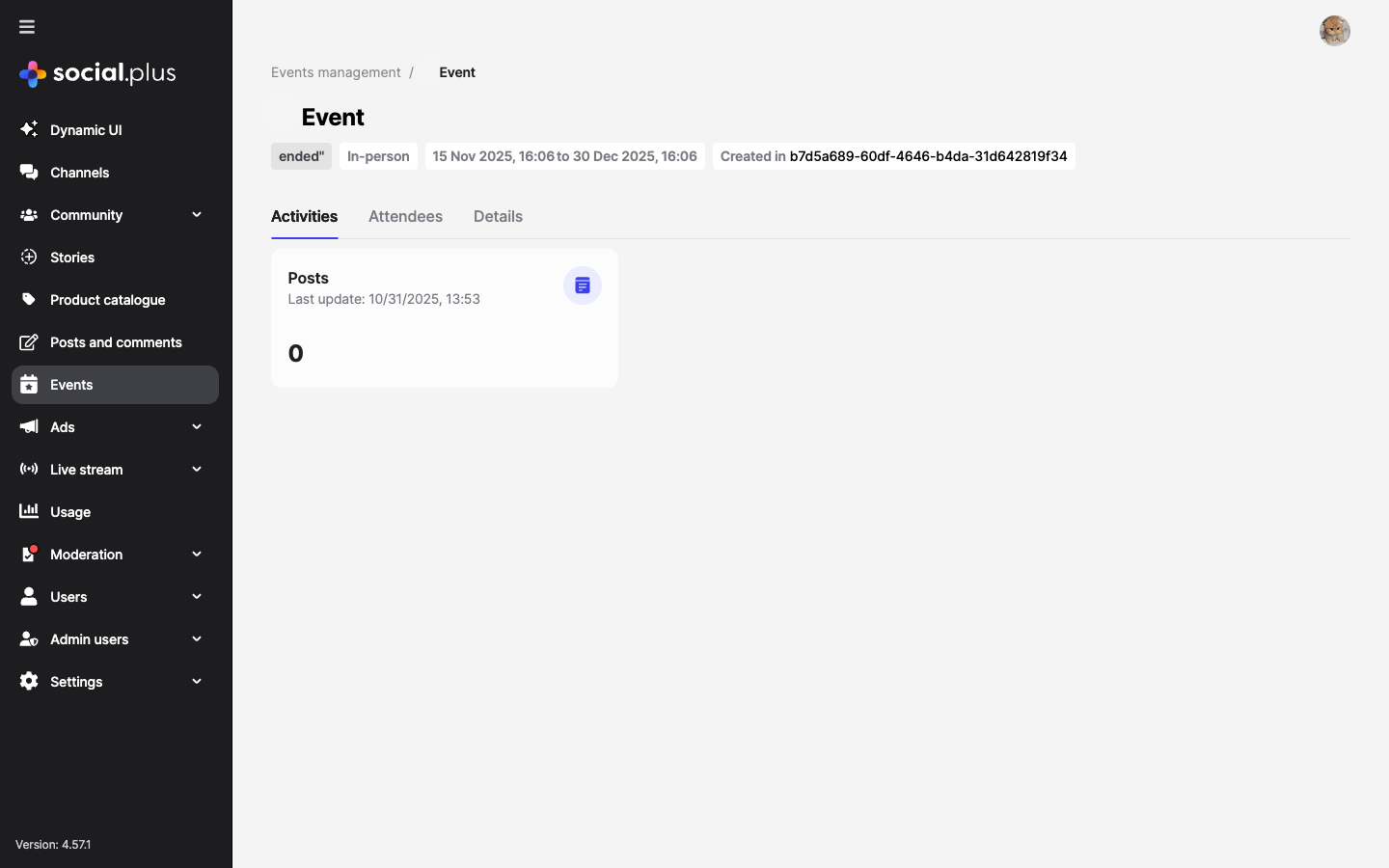
Activities tab
The Activities tab shows all engagement associated with the event, including:- Posts — Content created within the event context
- Engagement metrics and last update timestamps
Attendees tab
The Attendees tab displays a list of users who have joined or RSVP’d to the event, allowing you to monitor participation.Details tab
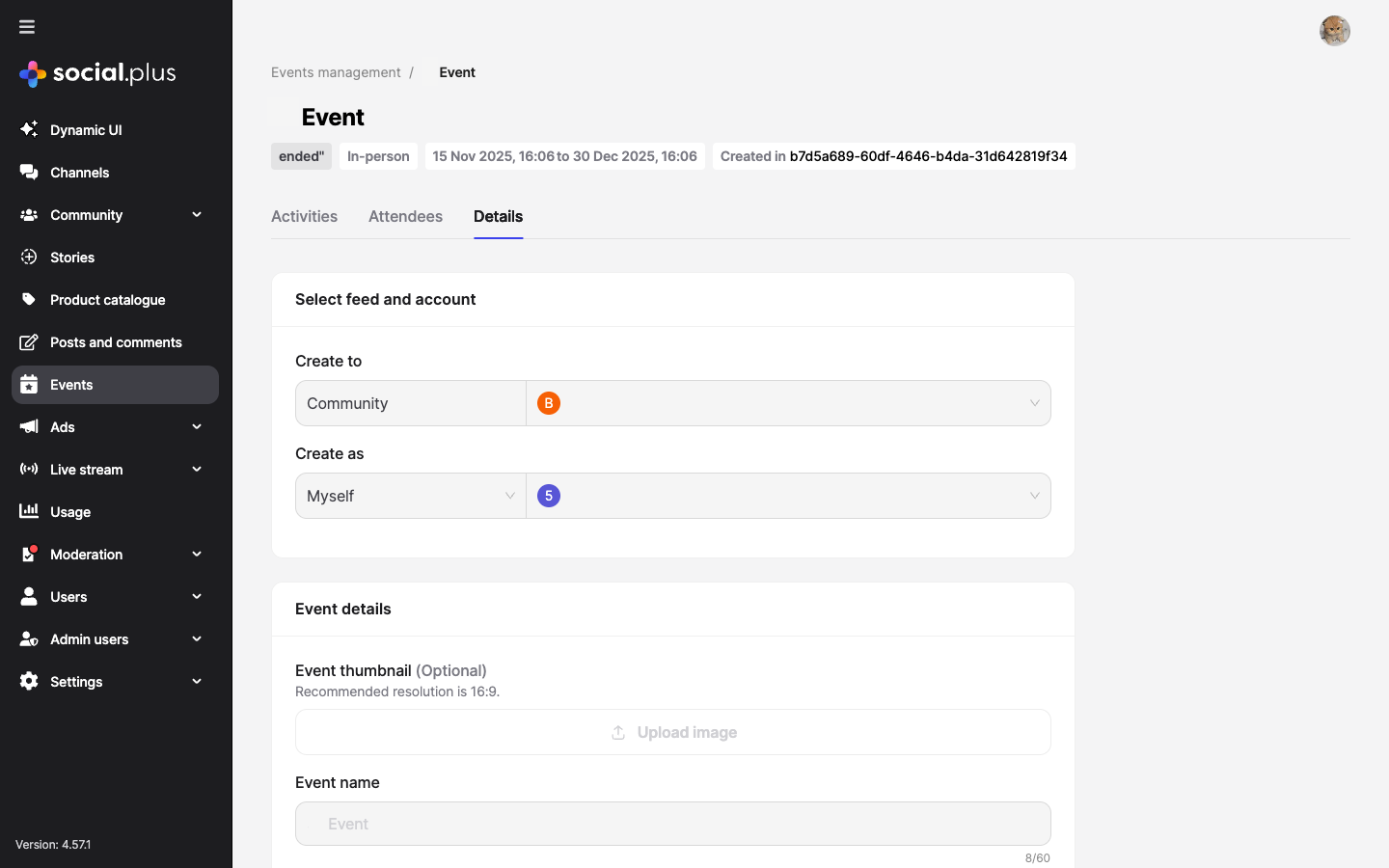
The Details tab shows the full event configuration in a read-only format, including:- Feed and account information (community, creator)
- Event name and description
- Thumbnail image
- Timezone, start date, and end date
- Event type and address/link
Event status lifecycle
Events automatically transition through statuses based on the current time relative to the scheduled dates:Filtering and search
Use the filters at the top of the events dashboard to narrow down the event list:- Select creator — Filter events by the user who created them
- Filter by status — Show only events with a specific status (
Upcoming,Ongoing, orEnded)
Best practices
Event planning
Event planning
- Use descriptive titles — Make event names clear and informative so users can quickly understand the event purpose
- Set accurate timezones — Always verify the timezone matches the intended audience or event location
- Add thumbnails — Events with images attract more attention; use 16:9 ratio for best display
- Write detailed descriptions — Include what attendees can expect, any prerequisites, and relevant links
Community engagement
Community engagement
- Create events in relevant communities — Target the right audience by selecting the appropriate community
- Schedule in advance — Give users enough lead time to plan for attendance
- Monitor activities — Regularly check the Activities tab for engagement and respond to posts
- Track attendees — Use the Attendees tab to understand participation rates
Event type selection
Event type selection
- Livestream — Best for interactive sessions where you want attendees to stay within your platform
- External link — Use when leveraging established conferencing tools (Zoom, Meet, Teams)
- In-person — Provide complete address details so attendees can easily find the venue
Troubleshooting
Cannot create event
Cannot create event
Symptoms: The Create event button is disabled or creation fails.Solutions:
- Ensure all required fields are filled in (event name, dates, community)
- Verify the end date is after the start date
- Check that you have the appropriate admin role and permissions
- Confirm the selected community exists and is active
Event not showing in list
Event not showing in list
Symptoms: A recently created event does not appear in the dashboard.Solutions:
- Clear any active status or creator filters
- Refresh the page to fetch the latest data
- Check pagination — the event may be on a different page
- Verify the event was created successfully (no error messages during creation)
Livestream not starting
Livestream not starting
Symptoms: A livestream event shows as Upcoming even after the start time.Solutions:
- Verify the timezone is set correctly for the event
- Ensure the livestream infrastructure is properly configured
- Check with Live Stream Management for stream status
- Confirm the event creator has streaming permissions
Related topics
Live Stream Management
Manage live streams with multi-stream support for device-optimized viewing experiences
Communities
Manage communities where events are created and hosted
Admin Access Control
Configure admin roles and permissions for event management capabilities