

Documentation Index
Fetch the complete documentation index at: https://learn.social.plus/llms.txt
Use this file to discover all available pages before exploring further.
This page explains how Console moderators and administrators manage comment visibility, quality, safety, and engagement. Comments support multi-level threading, allowing nested conversations at multiple depths.
Locate
Open comment threads from Posts module
Evaluate
Assess content quality & context
Moderate
Flag, edit, delete, or copy comment/reply IDs
Engage
Reply using self or Brand identity
Track
Monitor reactions, replies, AI moderation status
Optimize
Apply best-practice tone & governance
Accessing Comments
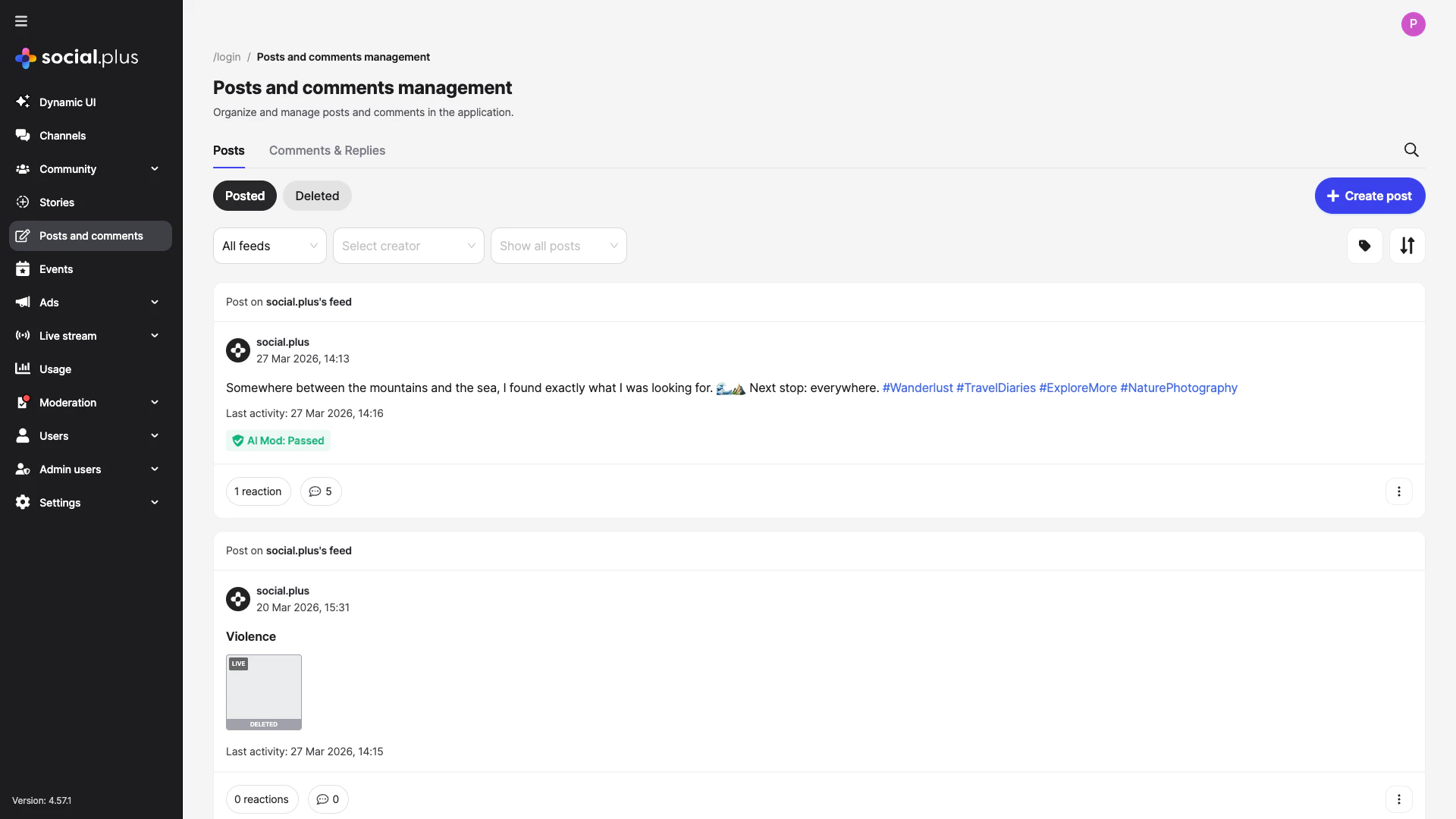
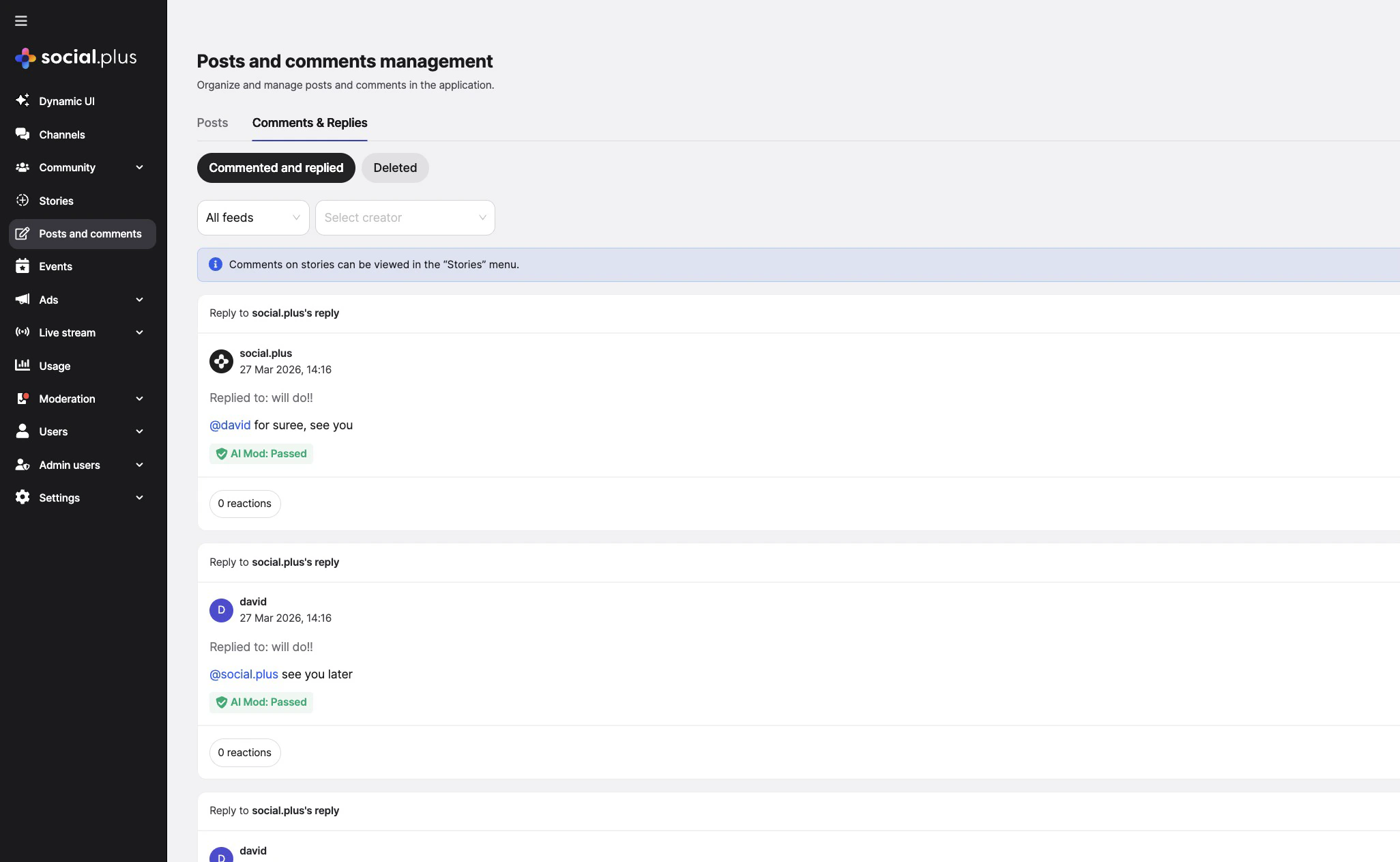
There are two ways to access comments in the Console:- From a Post
- From Comments & Replies Tab
Find Post
Use the filter options (feed type, creator, post status) or search to locate the target post.
Open Comment Panel
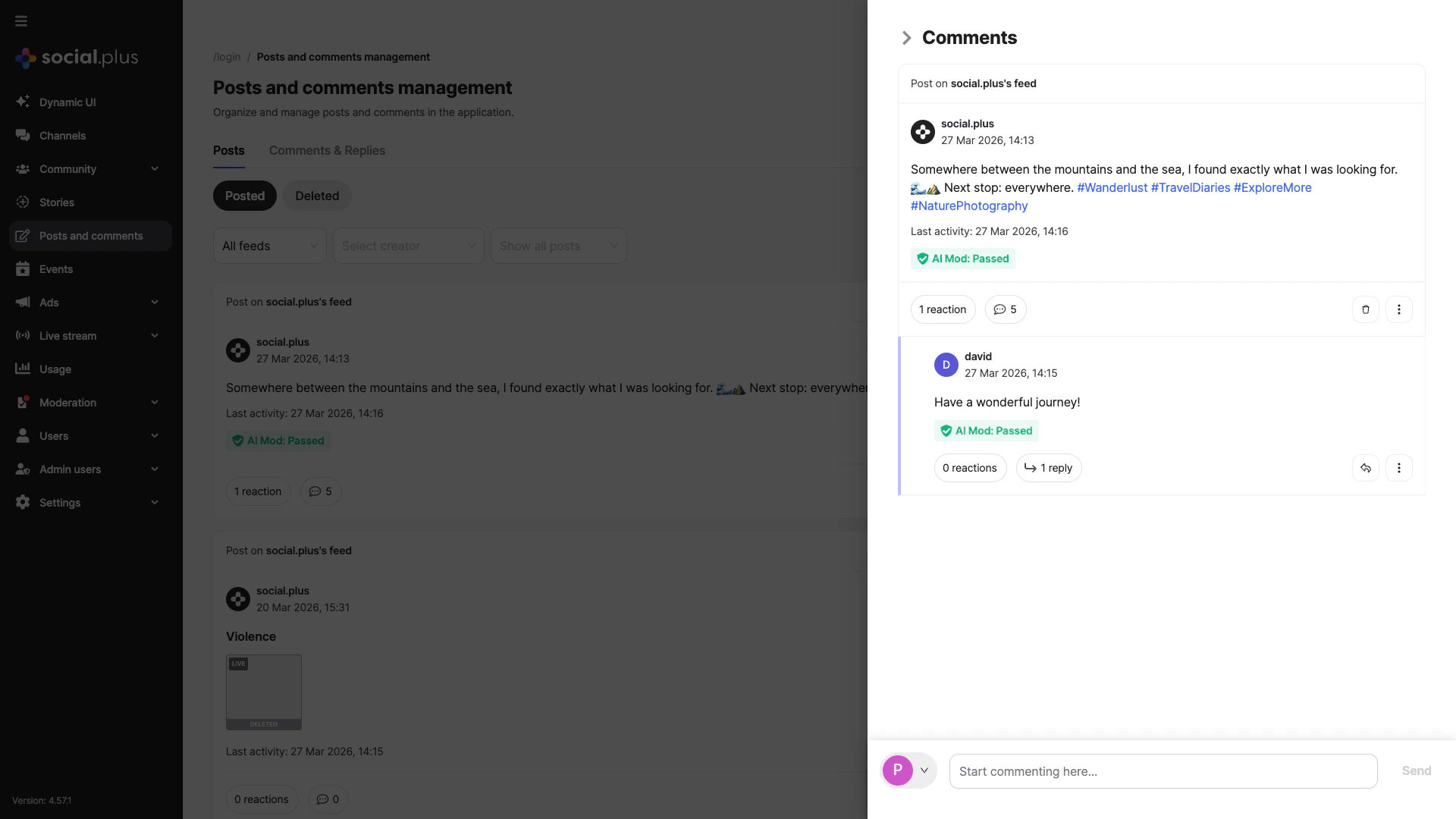
Click the comment count (💬 icon with number) on any post card. A panel slides open on the right showing the full comment thread for that post.
Comment Thread Structure
Comments support multi-level threading — replies can be nested multiple levels deep, creating branching conversations within a single post.Displayed Data
Displayed Data
Each comment or reply shows:
- Author photo & name — click to view the user’s history
- Timestamp — date and time the comment was posted
- Comment text — including @mentions (e.g.,
@username) that link to the mentioned user - AI Moderation status — shows “AI Mod: Passed” in green, or the flagged category (e.g., “Harassment or bullying”)
- Engagement counts — number of reactions and replies; click to expand replies
- Flag button — quickly flag a comment for review
- More options menu (⋮) — additional actions like edit, delete, and copy ID (see Moderation Actions)
Multi-Level Threading
Multi-Level Threading
Comments are organized in a nested tree structure: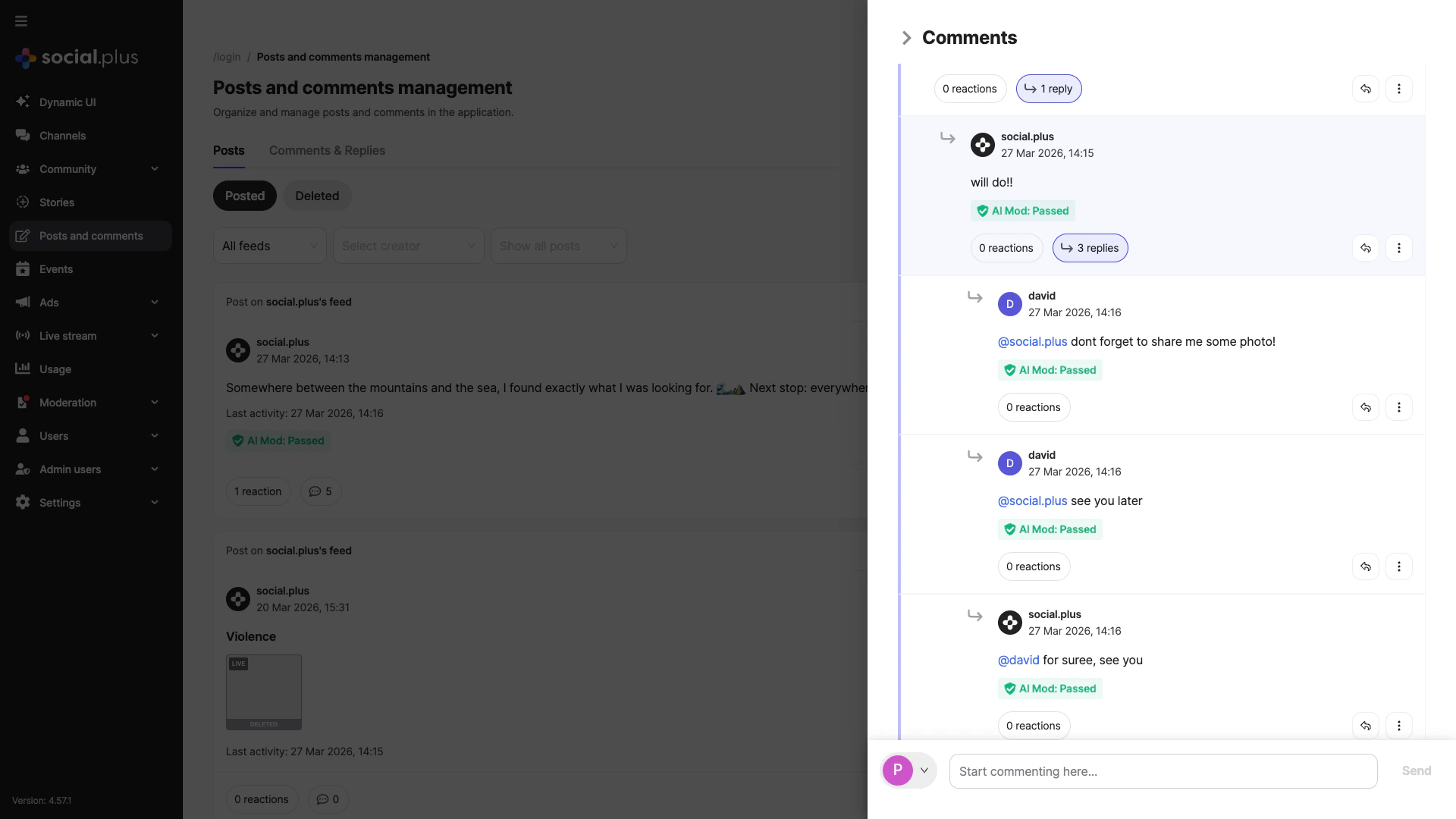
- Level 1: Top-level comments on a post
- Level 2: Replies to top-level comments
- Level 3+: Replies to replies, allowing deep conversational threads
- Indentation and a reply arrow (↩) to show which comment is being replied to
- “X replies” link — click to expand or collapse replies underneath
- “Hide replies” — collapse an expanded reply thread to keep the view tidy
@Mentions
@Mentions
Users can mention other users in comments and replies using the
@username syntax. Mentions are:- Displayed as clickable links that navigate to the mentioned user’s profile/history
- Visually distinguished from regular text
- Supported at all comment nesting levels
Engagement Signals
Engagement Signals
Use reaction & reply counts to surface:
- Emerging discussions needing moderation
- Popular threads for community amplification
- Potential hotspots for policy enforcement
- Deep reply chains that may indicate heated discussions
AI Content Moderation
AI Content Moderation
Every comment and reply is automatically checked by the AI moderation system:
- Passed — a green “AI Mod: Passed” label appears on the comment
- Flagged — the specific violation category is shown (e.g., “Harassment or bullying”)
- This status is visible on every comment at any nesting level
Flag Handling
Flag Handling
- Flagged comments are highlighted in the thread
- Each comment has a flag button for quick flagging
- Prioritize review based on severity & volume
- Clearing a flag removes it from escalation metrics
Moderation Actions
Each comment and reply has a more options menu (⋮) with actions tailored to the item. The wording adjusts depending on whether it is a top-level comment or a nested reply.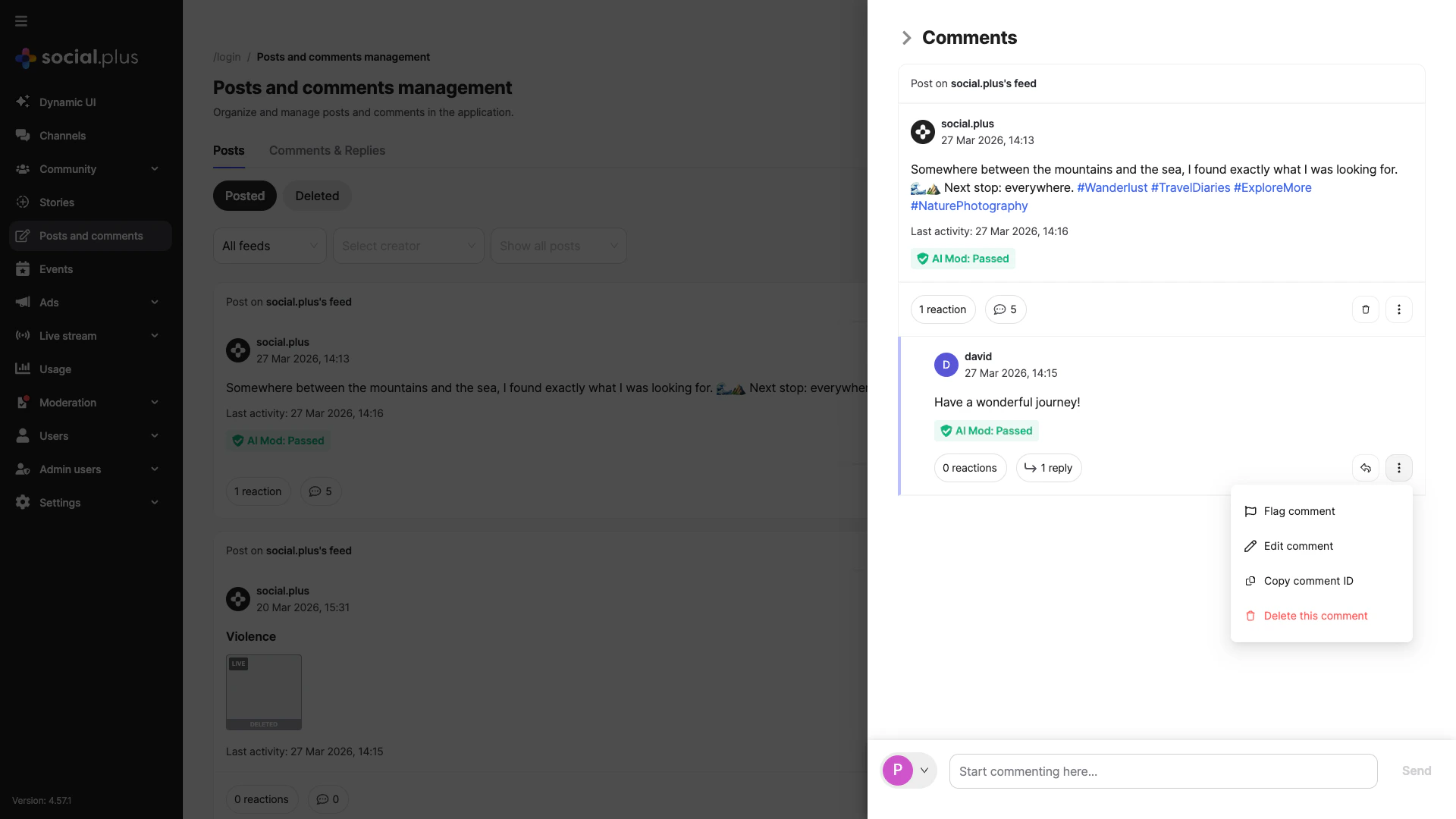
- Flag
- Edit
- Copy ID
- Delete
Flag comment / Flag reply — mark content for review. Also available via the flag button next to the more options menu.
Replying & Engagement
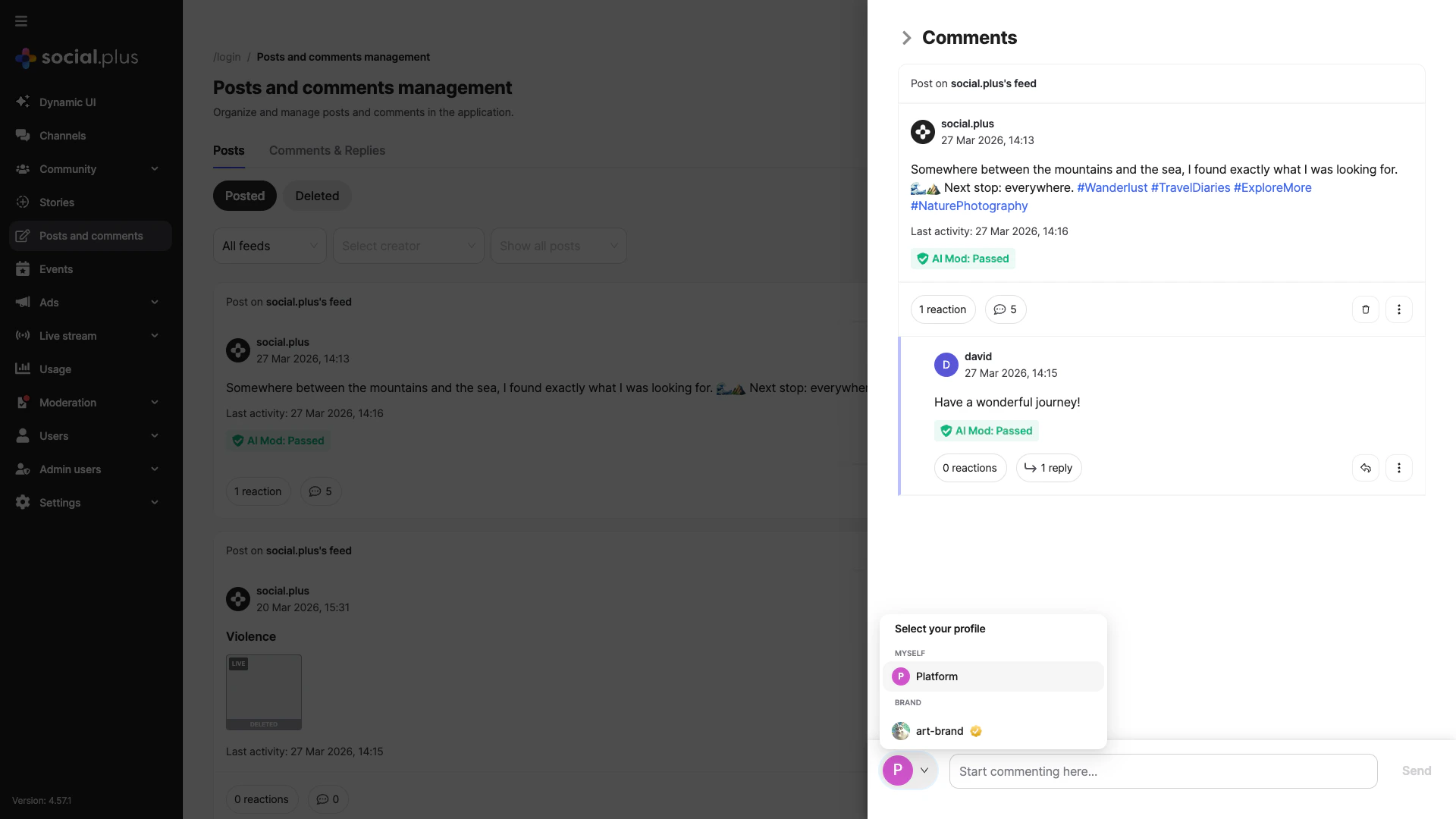
The comment panel includes a comment bar at the bottom where you can select your identity, type your message, and send.Select Identity
Click your profile picture at the bottom-left of the panel. A “Select your profile” menu appears with two sections: MYSELF (your admin account) and BRAND (your official brand account).
Compose Message
Type in the “Start commenting here…” field. You can use @mentions to tag other users. The Send button becomes active once you start typing.
Identity Usage
Myself (Admin User)
Myself (Admin User)
Found under the MYSELF section. Shows your admin name and photo. Use for routine clarifications, community encouragement, and light moderation nudges.
Brand (Official)
Brand (Official)
Found under the BRAND section, marked with a verified badge. Use for formal statements, policy clarifications, resolution confirmations, and official announcements.
Switching Guidance
Switching Guidance
You can switch your identity at any time from the comment bar. Avoid switching identities mid-thread unless you need to escalate the tone (e.g., from a casual response to a formal resolution). Always check which identity is selected before sending.
Brand profile requires prior configuration in Settings → Brand Settings. If no brand is configured, only the MYSELF option will appear.
Quality & Tone Guidelines
- Clarity
- Neutrality
- De-escalation
- Brand Consistency
- Audit Readiness
Use short sentences. Lead with resolution or key message. Avoid jargon.
Monitoring & Metrics
Track:- Comment volume per high-traffic posts
- Reaction-to-reply ratio (engagement depth)
- Flag rate (flags per 100 comments)
- Response latency (time to first moderator/admin reply)
- Recurring offenders (repeat policy friction)
Use metrics trends to refine staffing schedules and escalation thresholds.
Best Practices
Operational Cadence
Operational Cadence
- Review high-activity posts at scheduled intervals.
- Prioritize flagged + high-engagement threads.
- Batch moderation actions to reduce context switching.
Consistency
Consistency
- Apply deletion criteria uniformly.
- Use saved internal templates for common responses (if available).
- Avoid over-moderating constructive critique.
Community Health
Community Health
- Encourage positive contributors with timely acknowledgment.
- Address misinformation early with factual, sourced replies.
- Track topics generating recurring friction for potential policy updates.
Risk Management
Risk Management
- Escalate threats, self-harm, or legal incidents per protocol.
- Archive (externally) severe violation context before deletion.
- Document patterns leading to account-level enforcement.
Troubleshooting
| Issue | Likely Cause | Resolution |
|---|---|---|
| Comment not appearing | Network delay / stale view | Refresh thread; confirm submission |
| Cannot switch to Brand | Brand not configured / permission | Configure Brand or adjust role |
| Reply posted under wrong identity | Identity not re-selected | Verify identity before sending |
| Flag won’t clear | Insufficient permission / state change | Confirm role & refresh thread |
| High duplicate spam | Automated/bot activity | Apply broader anti-spam measures / escalate |
| Reactions not updating | Cached metrics | Refresh or wait for sync cycle |
| Deleted comment inquiries | User confusion | Provide neutral explanation referencing guidelines |
Quick Reference
Reply Workflow
Reply → Identity → Compose → Send
Moderation Focus
Flags + High Activity
Key Metric
Flags / 100 Comments
Audit Trigger
Sensitive deletions
Next Steps
Posts Management
Manage posts & visibility
Moderation Overview
Refine enforcement processes
Branding
Configure Brand identity
Analytics
Analyze engagement trends