

Organize your user base with custom tags that make segmentation, search, and bulk operations effortless. Tag Management lets you create labeled categories — from “Verified ✅” to “New Joiner” — and assign them to users directly or in bulk, so you can filter, track, and act on specific groups instantly.
Create
Define custom tags with name, color, and description
Assign
Tag individual users or assign in bulk
Filter
Instantly find users by tag on Manage Users
Customize
Set background and text colors for visual distinction
Search
Find tags quickly by name or ID
Manage
Edit, delete, and track tag usage over time
Overview
As your community grows, managing users at scale requires more than just names and roles. Tag Management provides a flexible labeling system that lets you categorize users by any criteria meaningful to your organization — expertise areas, membership tiers, geographic regions, behavioral segments, or program participation. Tags appear directly in the Manage Users table, can be used as filters to narrow down user lists, and are visible on individual tag detail pages where you can see and manage all assigned users at a glance.Key Benefits
Flexible Segmentation
Create unlimited tags for any categorization need — roles, regions, programs, behaviors, or custom segments
Visual Identification
Color-coded tags make it easy to spot user groups at a glance in the Manage Users table
Efficient Filtering
Filter the entire user base by one or more tags (up to 10 simultaneously) to quickly find target groups
Centralized Control
Manage all tags from a single page — create, edit, assign users, and track usage in one place
Accessing Tag Management
1
Open Users Section
In the sidebar, click Users to expand the submenu
2
Select Tag Management
Click Tag management from the expanded Users submenu
3
Browse Tags
View all existing tags in a sortable table with name, ID, description, user count, and timestamps
Tag Management List
The main Tag Management page displays all tags in a table with the following columns: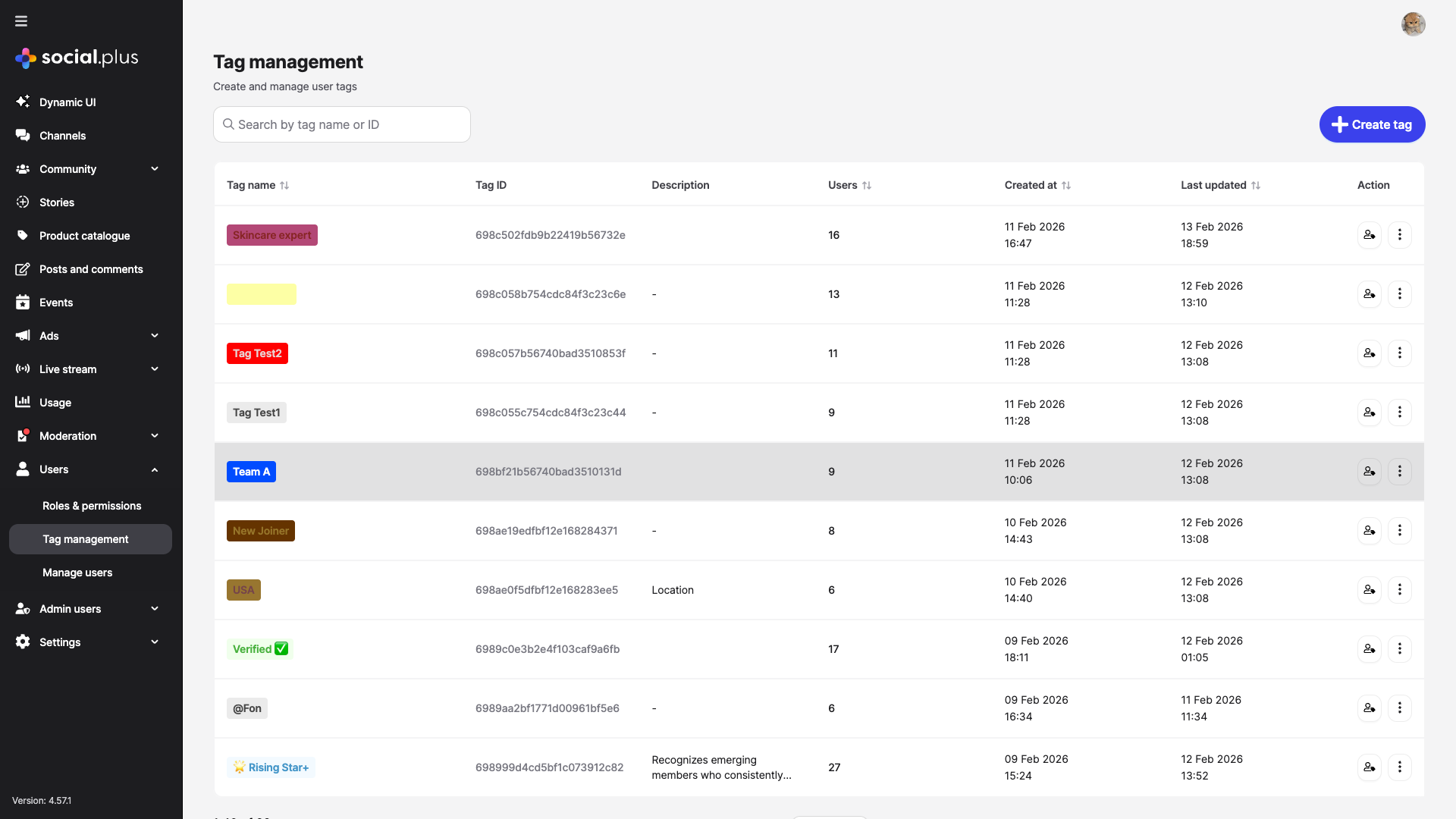
Creating a Tag
1
Click Create Tag
Click the Create tag button in the top-right corner of the Tag Management page
2
Enter Tag Details
Fill in the tag creation form:
- Tag name (required): A unique name up to 20 characters
- Background color: Hex color code for the tag background (default:
#EBEBEB) - Text color: Hex color code for the tag text (default:
#464646) - Tag description (optional): A brief explanation up to 140 characters
3
Save
Click Save to create the tag. It will immediately appear in the Tag Management list and become available for assignment.
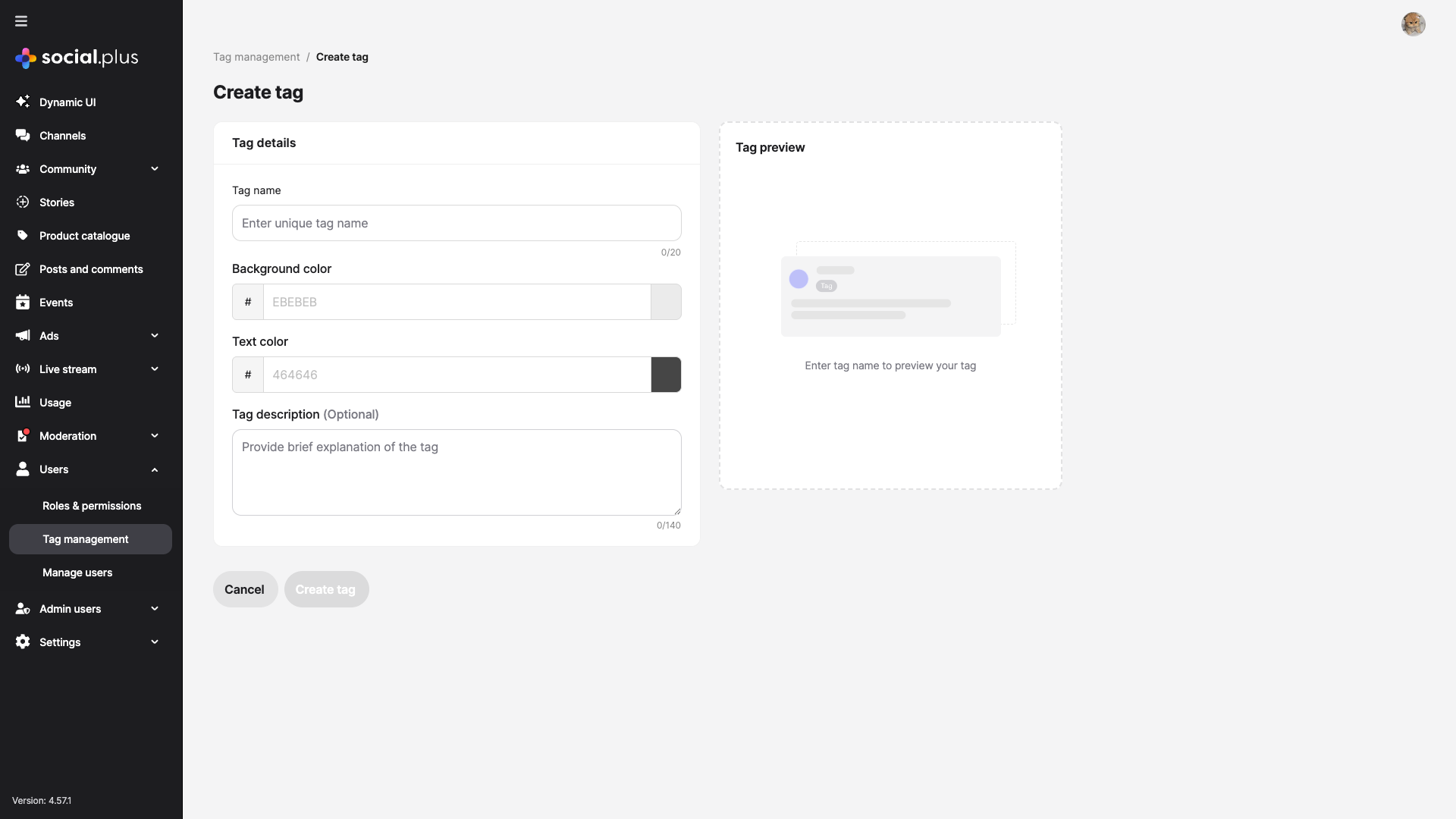
Tag Creation Parameters
Tag name
Tag name
Type:
string
Required: Yes
Max length: 20 charactersThe display name shown in the tag list, user profiles, and filter dropdowns. Must be unique across all tags.Examples: Verified ✅, New Joiner, Skincare expert, Team A, USABackground color
Background color
Type: Hex color code
Required: No
Default:
#EBEBEBThe background fill color of the tag badge. Use contrasting colors to make tags visually distinct.Text color
Text color
Type: Hex color code
Required: No
Default:
#464646The text color displayed on top of the background. Ensure sufficient contrast for readability.Tag description
Tag description
Type:
string
Required: No
Max length: 140 charactersAn optional explanation of the tag’s purpose. Visible in the tag list table to help team members understand each tag’s intent.Example: “Recognizes emerging members who consistently contribute and show strong engagement within the community.”Editing a Tag
1
Open Tag Actions
On the Tag Management list, click the more options button (⋯) in the Action column for the tag you want to edit
2
Select Edit Tag
Choose Edit tag from the dropdown menu
3
Modify Details
Update the tag name, colors, or description as needed on the tag detail page
4
Manage Assigned Users
On the tag detail page, you can also view, search, assign, and remove users directly
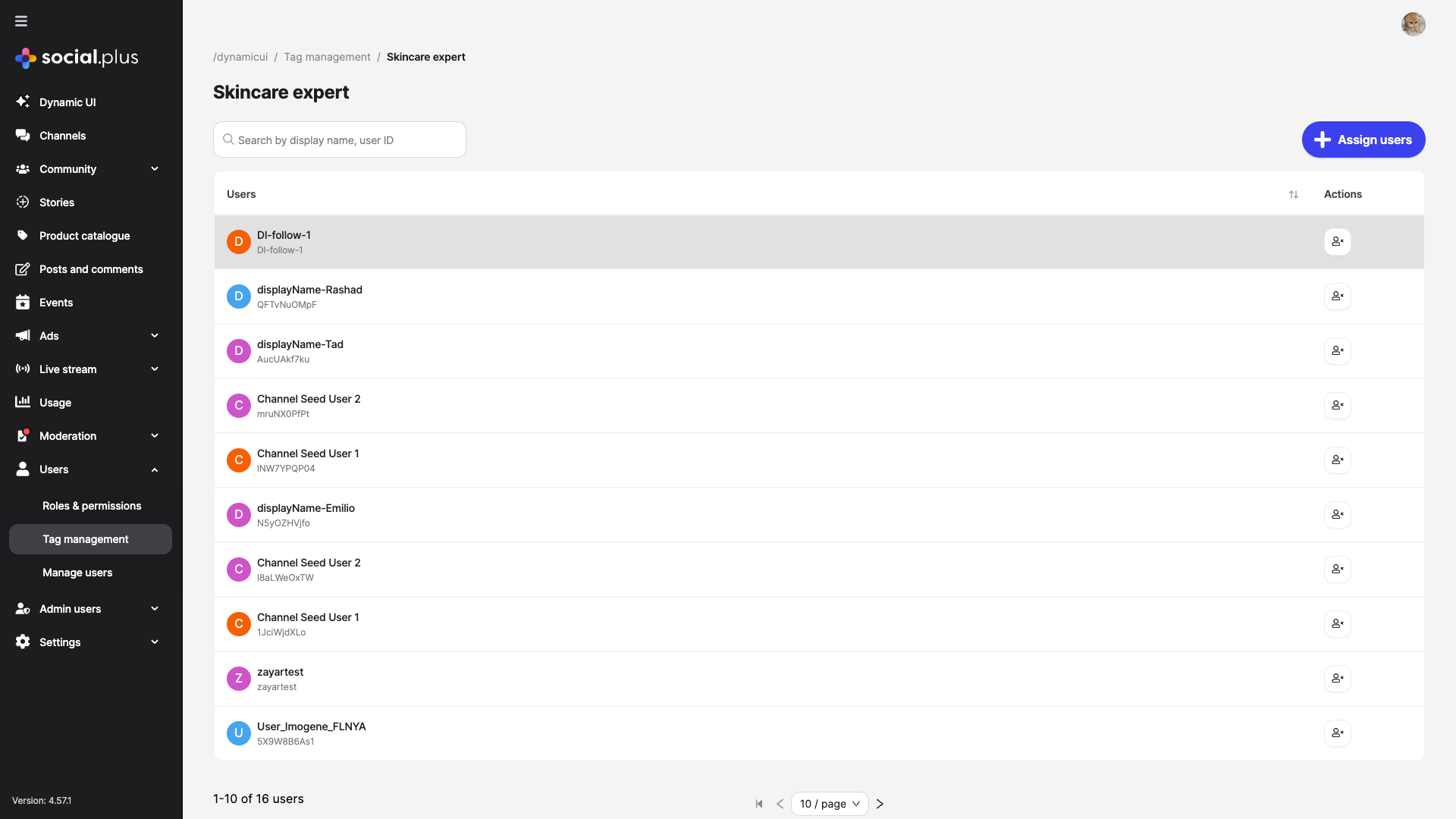
Tag Detail Page
When you open a tag for editing, the detail page shows:- Breadcrumb navigation: Tag management → Tag name
- Tag header: The tag’s display name
- Search bar: Search assigned users by display name or user ID
- Assign users button: Add new users to this tag
- User table: Lists all assigned users with a remove action for each
- Pagination: Navigate through assigned users (with configurable page size)
Assigning Users to Tags
You can assign users to tags from the tag detail page:1
Open a Tag
Navigate to the tag detail page by clicking Edit tag from the more options menu
2
Click Assign Users
Click the Assign users button at the top of the user list
3
Search and Select
Search for users by display name or user ID, then select the users you want to tag
4
Confirm Assignment
The selected users will be immediately assigned to the tag and appear in the user list
Removing Users from Tags
To remove a user from a tag, click the remove button (trash icon) next to the user’s name on the tag detail page. The user will be untagged immediately.Deleting a Tag
1
Open Tag Actions
Click the more options button (⋯) for the tag you want to delete
2
Select Delete
Choose Delete this tag from the dropdown menu
3
Confirm Deletion
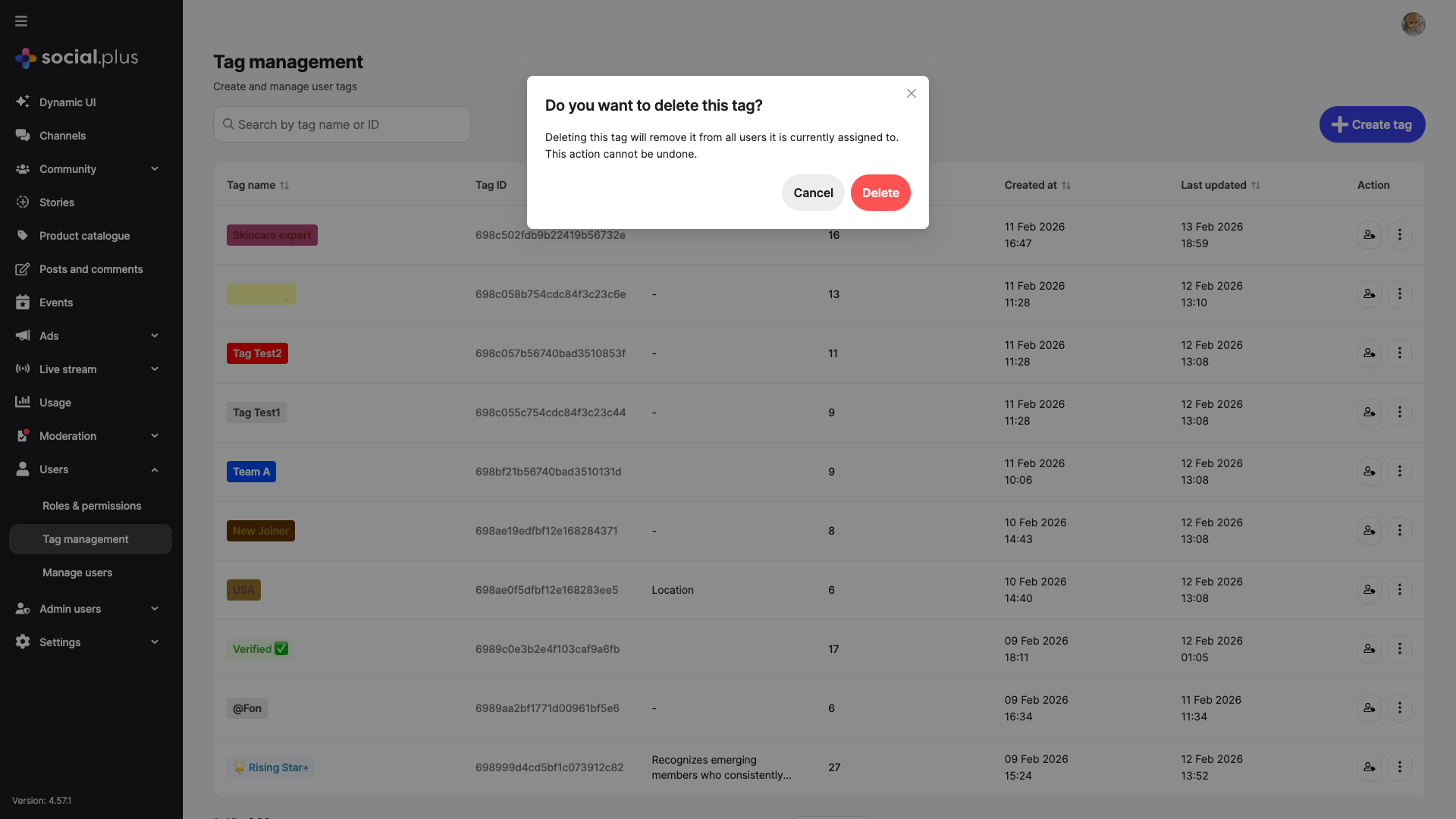
A confirmation dialog will appear with the message: “Deleting this tag will remove it from all users it is currently assigned to. This action cannot be undone.”
4
Delete or Cancel
Click Delete to permanently remove the tag, or Cancel to keep it
Additional Actions
The more options menu (⋯) on each tag row provides:Filtering Users by Tags
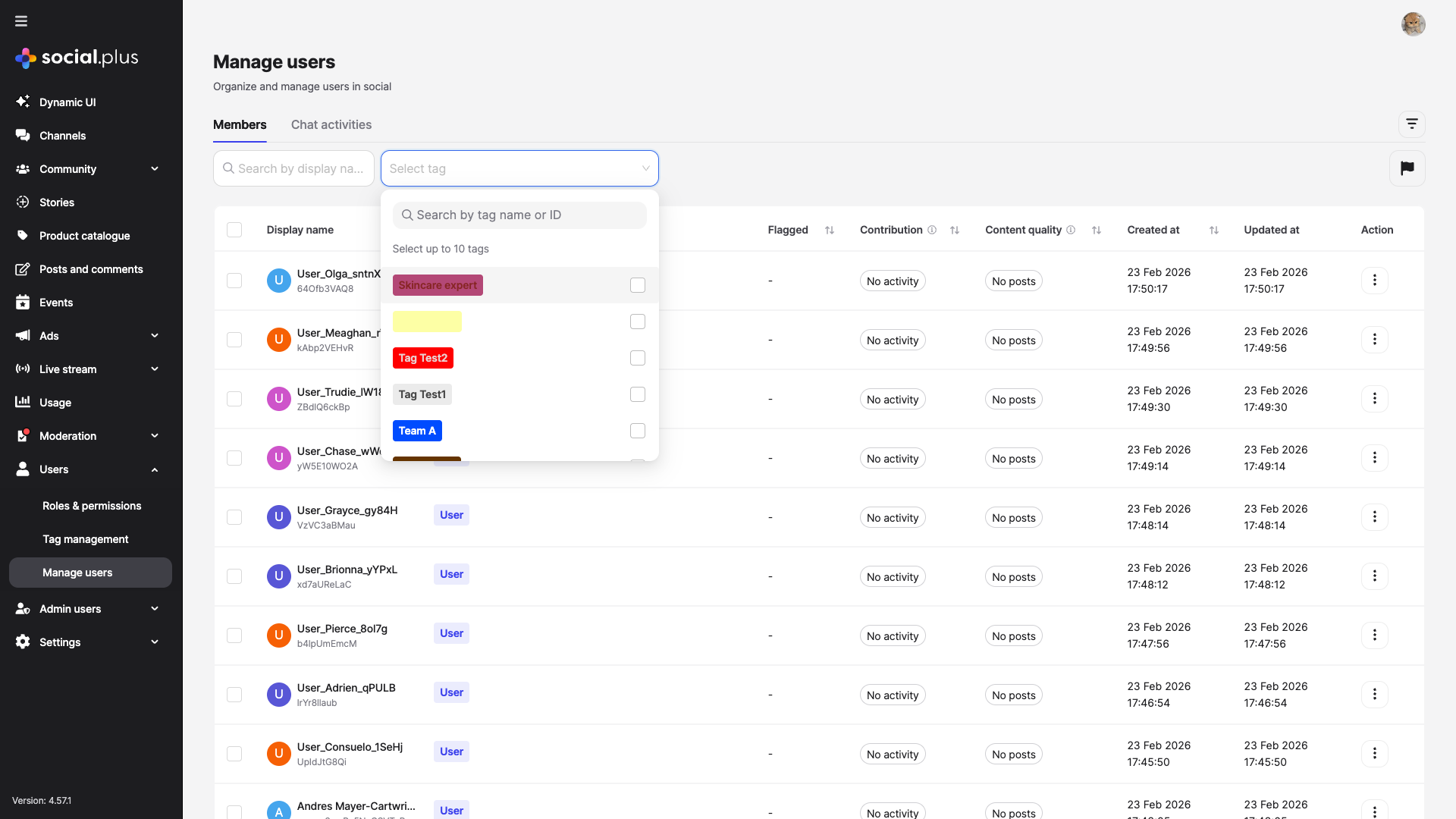
Tags integrate directly into the Manage Users page for powerful user filtering:1
Navigate to Manage Users
Sidebar → Users → Manage Users
2
Open Tag Filter
Click the Select tag dropdown next to the search bar
3
Select Tags
Choose one or more tags from the dropdown (up to 10 tags simultaneously). You can search by tag name or ID within the dropdown.
4
View Filtered Results
The user table updates to show only users matching the selected tags. The Tag column displays each user’s assigned tags.
Use Cases
Membership Tiers
Create tags like “Premium”, “VIP”, or “Free Tier” to segment users by subscription level and customize their experience
Expertise Labels
Tag subject matter experts (e.g., “Skincare expert”, “Tech Guru”) so community members can identify knowledgeable contributors
Geographic Segments
Use location-based tags (“USA”, “APAC”, “EU”) to organize users by region for targeted communication or compliance
Program Participation
Track users enrolled in specific programs (“Beta Tester”, “Ambassador”, “New Joiner”) for streamlined management
Behavioral Segments
Combine with User Insights to tag high performers (”🌟 Rising Star+”) and track them over time
Team Organization
Organize internal teams or external partner groups with clear, color-coded labels
Best Practices
Naming Conventions
Naming Conventions
- Use clear, descriptive tag names that any team member can understand
- Keep names concise (under 20 characters)
- Consider using emojis for quick visual identification (e.g., ✅, 🌟, 🏆)
- Establish a consistent naming convention across your organization
Color Strategy
Color Strategy
- Assign distinct colors to different tag categories for quick visual scanning
- Use high-contrast text/background combinations for readability
- Reserve bright or alert colors (red, orange) for tags that need attention
- Keep neutral colors for informational or low-priority tags
Tag Hygiene
Tag Hygiene
- Regularly review and clean up unused tags
- Monitor the Users count column to identify underused tags
- Use tag descriptions to document the purpose and criteria for each tag
- Delete deprecated tags to keep the list manageable
Workflow Integration
Workflow Integration
- Combine tag filtering with Contribution Level and Content Quality filters for powerful segmentation
- Use the Copy tag ID action to integrate tags with your SDK or API workflows
- Assign tags during user onboarding or milestone events for consistent categorization
- Leverage tags in conjunction with User Insights to identify and reward top contributors
Troubleshooting
Tag not appearing in filter dropdown
Tag not appearing in filter dropdown
Symptoms: A newly created tag doesn’t show in the Manage Users tag filterSolutions:
- Refresh the Manage Users page
- Verify the tag was saved successfully on the Tag Management page
- Check that you have the correct permissions to view tags
Cannot delete a tag
Cannot delete a tag
Symptoms: Delete option is not available or failsSolutions:
- Ensure you have admin-level permissions
- Confirm you’re clicking the correct more options button (⋯) for the intended tag
- Try refreshing the page and attempting again
Tag color not displaying correctly
Tag color not displaying correctly
Symptoms: Tag badge shows unexpected colorsSolutions:
- Verify the hex color codes are valid 6-character hex values
- Ensure you’re using the
#prefix in the color fields - Edit the tag and re-enter the correct color values
Related Topics
User Insights
Combine tags with contribution and content quality scoring for comprehensive user segmentation
User Social History
View detailed activity history for tagged users to support moderation and recognition decisions
Moderation Feed
Review flagged content from specific user segments identified through tags