

SDK v7.x · Last verified March 2026 · iOS · Android · Web · Flutter
Speed run — just the code
Speed run — just the code
Prerequisites: SDK installed and authenticated → SDK Setup. For image, video, or file posts: media upload configured → Media Handling. You’ll need a
targetType (user or community) and targetId.Also recommended: Complete Build a Social Feed first so you can see posts appear in a feed as you create them.After completing this guide you’ll have:
- A post creation flow supporting text, image, video, and poll post types
- Media upload wired up with progress tracking
- @mentions and hashtag parsing enabled
Limits at a Glance
Quick Start: Create a Text Post
UseAmityPostRepository to create a text post on a community feed. The same pattern applies to all post types — just add attachments or poll data as needed.
Full reference → Text Post
Step-by-Step Implementation
1
Upload media (for image/video/file posts)
For image, video, audio, and file posts, upload the media first and use the returned file ID in the post builder.Full reference → Image Handling · Video Handling
TypeScript
2
Choose the right post type
Each reference page includes full multi-platform code examples (iOS, Android, TypeScript, Flutter).
3
Create image, poll, or other post types
Follow the same pattern as text posts — instantiate a post builder, set the target, attach media or data, and submit.Full reference → Image Post · Poll Post
4
Add @mentions
Mentions trigger notifications to the mentioned users. Pass user IDs alongside their text positions in the post.Full reference → Mentions in Posts
TypeScript
5
Edit or delete a post
Update a post’s text, tags, or media attachments after creation. You can also soft-delete (hides from feeds) or hard-delete (permanent removal).Full reference → Edit Post · Delete Post
TypeScript
Connect to Moderation & Analytics
The Admin Console Posts and comments management page is the central hub for moderating content. Moderators can filter posts by feed, creator, and status, and create posts directly from the console. AI moderation status is shown inline for every post.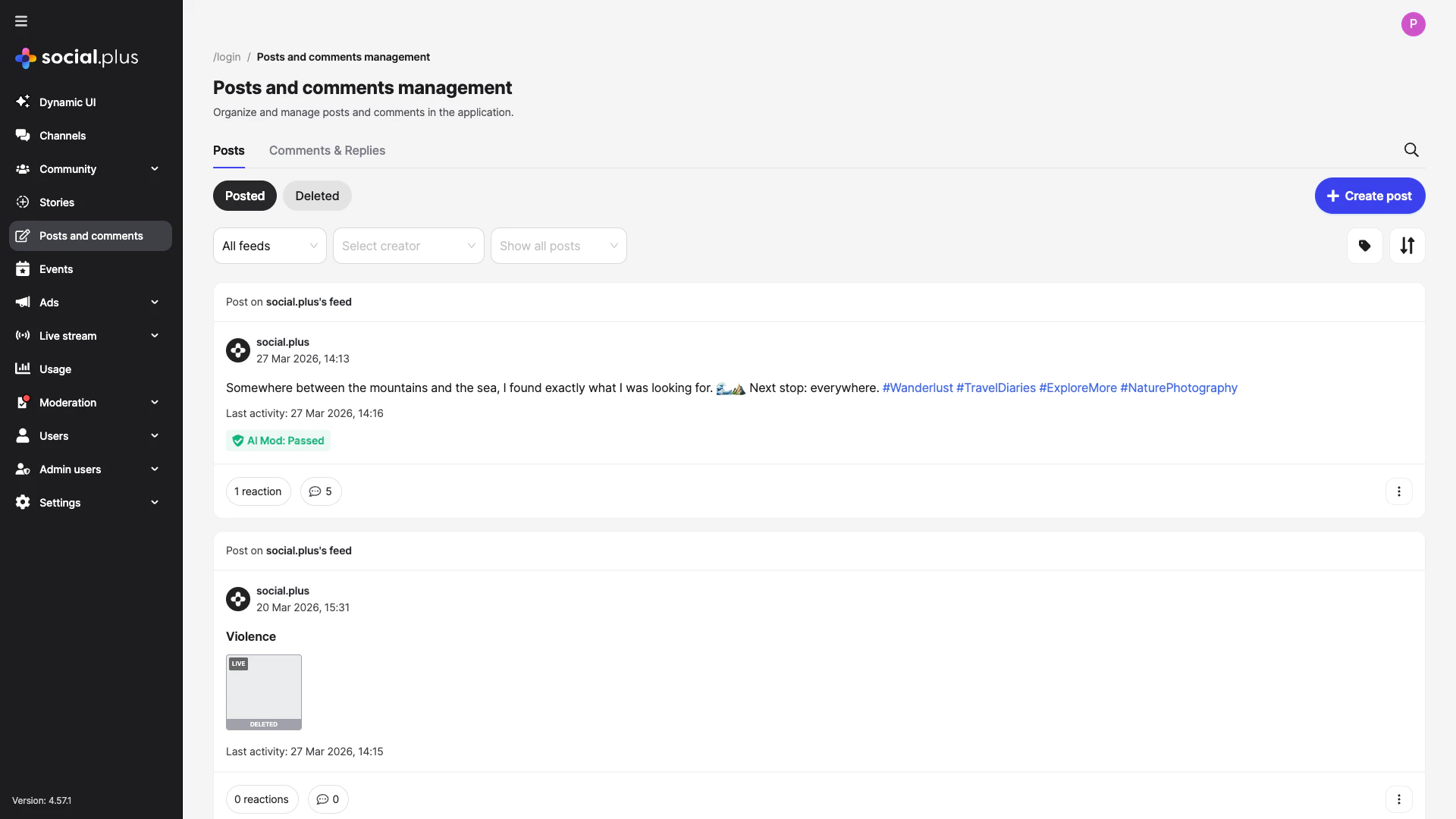
Admin Console — Posts & comments management page for reviewing and moderating content
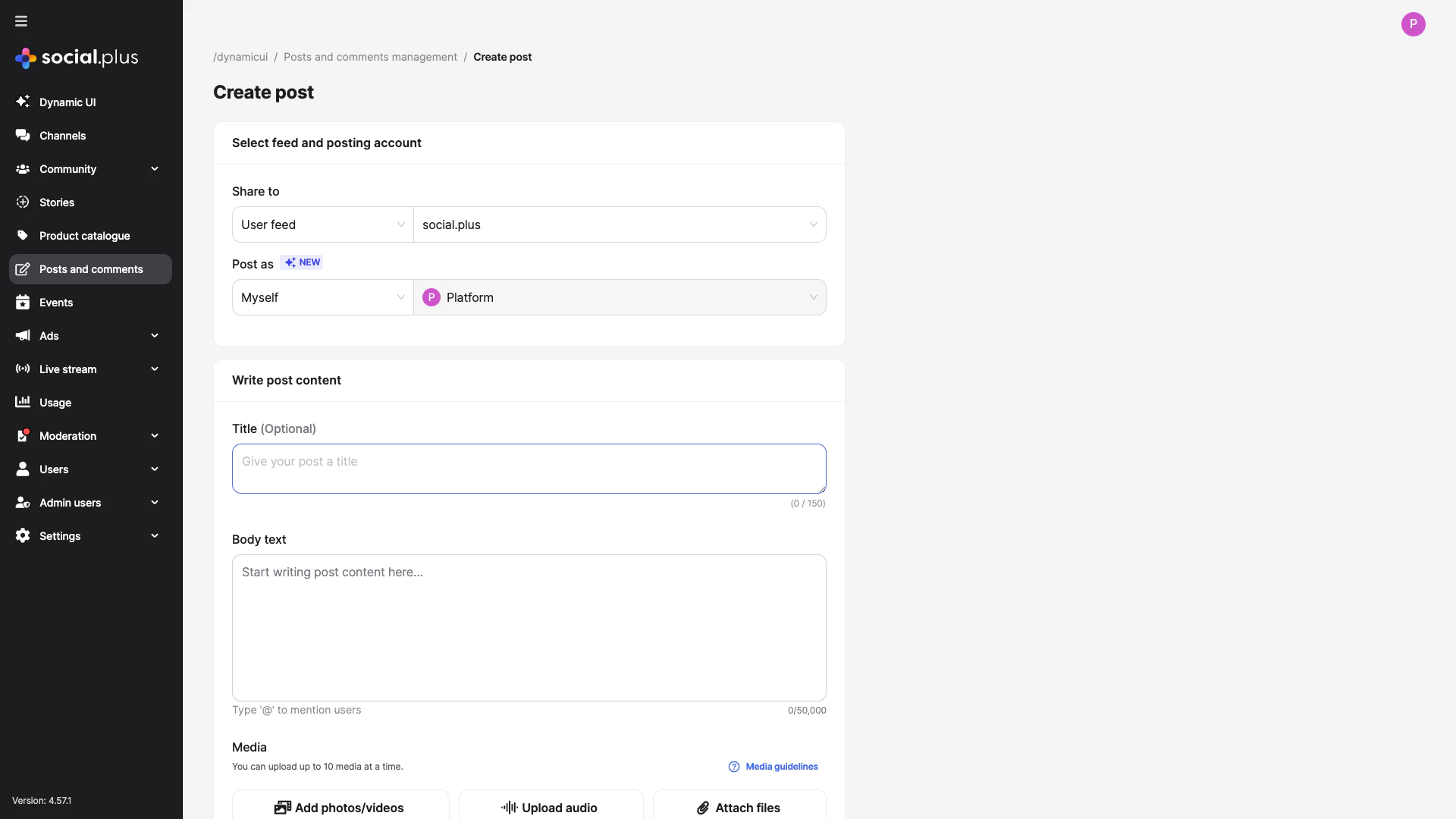
Create posts directly from the Admin Console — useful for announcements and seeded content
Post review queues
Post review queues
If your community uses
ADMIN_REVIEW_POST_REQUIRED, new posts land in a review queue in the Admin Console. Moderators can approve, reject, or edit posts before they go live.→ Post Review · Admin Console: PostsAI content moderation
AI content moderation
Enable automatic AI screening of post text and images in Admin Console → Settings → AI Content Moderation. Posts with policy violations can be auto-rejected or flagged for human review.→ AI Content Moderation
Post impression tracking
Post impression tracking
Track how many unique users viewed each post using impression analytics. Call
markAsViewed() when a post enters the viewport.→ Post ImpressionsProduct-tagged posts in the console
Product-tagged posts in the console
Posts with product tags surface in the console with linked product cards — admins can see which products are referenced and filter posts by tag. Manage your product catalogue at Admin Console → Product catalogue.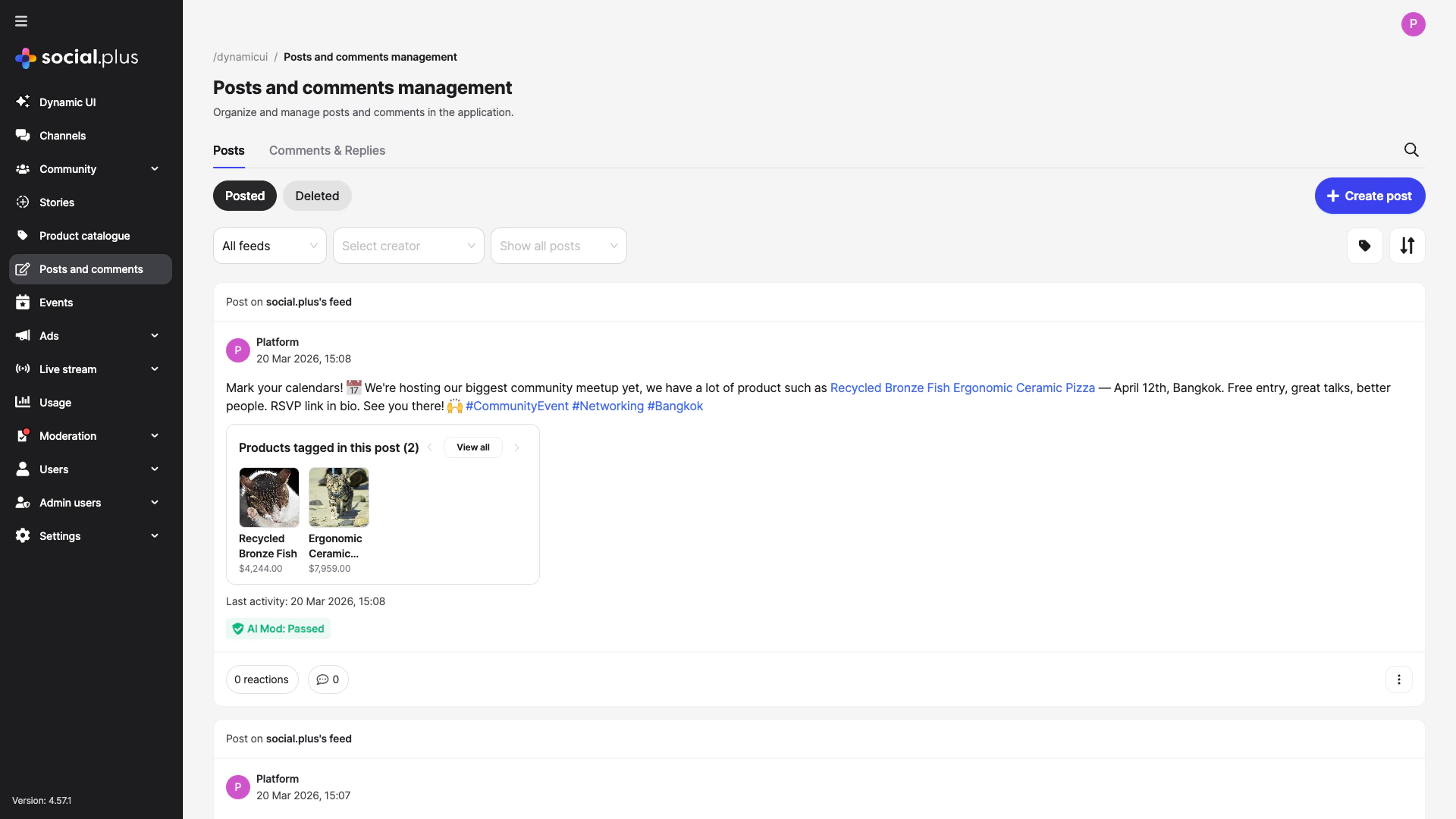
Common Mistakes
Best Practices
Media upload
Media upload
- Always show an upload progress indicator for image and video posts
- Compress images client-side before upload (recommended max: 1MB per image)
- Implement resumable uploads for video files over 10MB
- Handle upload failures gracefully — store the draft locally and retry
User experience
User experience
- Auto-save drafts so users don’t lose work if the app is backgrounded
- Show character count for text posts (max 20,000 characters)
- Preview images before submission
- Give clear feedback when a post is pending review vs. immediately published
Custom posts
Custom posts
- Use custom posts to store structured data (product cards, event summaries, etc.)
- Always version your custom post
dataTypestring so you can evolve the schema - Provide a fallback renderer for unknown custom post types
Next Steps
Your next step → Comments & Reactions
Content is live — now let users engage with threaded comments and emoji reactions.
Comments & Reactions
Add engagement features to the posts you create
Build a Social Feed
Display posts in a feed with real-time updates
Content Moderation Pipeline
Set up review queues and AI moderation