

SDK v7.x · Last verified March 2026 · iOS · Android · Web · Flutter
Speed run — just the code
Speed run — just the code
Prerequisites: SDK installed and authenticated. For push notifications: APNs certificate (iOS) or FCM credentials (Android) configured in Admin Console → Settings → Integrations.Also recommended: Complete Build a Social Feed and Community Platform first — notifications are triggered by feed and community events.
After completing this guide you’ll have:
- An in-app notification tray with seen/unseen state and real-time delivery
- Push notifications (APNs and FCM) registered and firing for key events
- Notification triggers mapped to SDK events and webhook callbacks
Quick Start: Query Notification Tray
TypeScript
Part 1: In-App Notification Tray
1
Get unseen notification count
Use the tray status to show a badge count on your notification icon. The Full reference → Notification Tray Status
unseenCount updates in real-time.2
Mark notifications as seen
When the user opens the tray, mark all unseen items as seen. Or mark individual items as seen on tap. Both bulk and per-item marking are supported.Full reference → Notification Tray Status
3
Navigate from a notification tap
Each notification item contains
targetType and targetId fields you can use to deep-link to the source content (post, comment, user, or community).Reference all notification types → Notification Events ReferencePart 2: Push Notifications
1
Configure push credentials in Admin Console
Before registering devices, add your push credentials in Admin Console → Settings → Push Notifications:
- iOS: Upload your APNs certificate or key
- Android: Add your FCM Server Key
- React Native / Flutter: Configure per platform
2
Register the device for push
After the user logs in, retrieve the device token and register it with the SDK. This associates the device with the authenticated user so the backend can route pushes correctly.Full reference → Register Push Notifications
3
Unregister on logout
Always unregister the device token when the user logs out to prevent push notifications being sent to the wrong user’s device.Full reference → Register Push Notifications
Part 3: User Notification Preferences
Let users control what they’re notified about at a granular level. Settings are organised by module (SOCIAL, CHAT, LIVE_STREAM) and apply across all of the user’s devices.
1
Get current notification settings
Read the user’s current preferences to populate a settings screen.
2
Update notification module settings
Enable or disable individual modules, or turn off all notifications at once.Full reference → User Notification Settings
3
Configure community-level settings (optional)
For finer control, users can configure which notification types they receive per community (new post, new comment, mentions). This is separate from the global user setting above.Full reference → Community Notification Settings
Connect to Moderation & Analytics
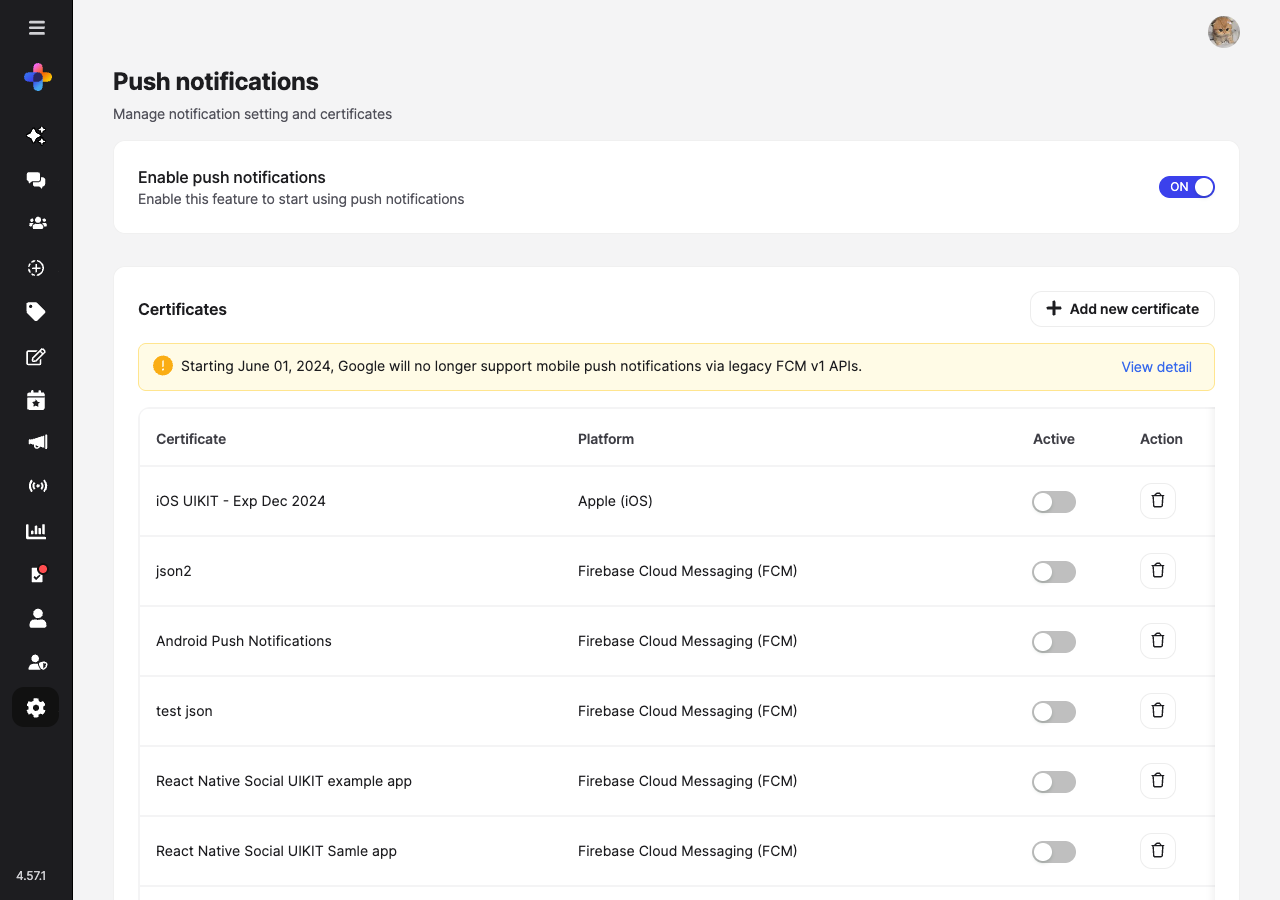
Admin Console — Push notification settings for community and chat events
Webhook: trigger notifications for moderation actions
Webhook: trigger notifications for moderation actions
When a moderator removes content, use webhook events (
post.deleted, user.banned) to send a custom in-app or push notification explaining the action to the affected user.→ Webhook EventsNotification analytics
Notification analytics
Track notification open rates and click-through rates in Admin Console → Analytics Dashboard → Engagement Metrics to understand which notification types drive the most re-engagement.
Common Mistakes
Best Practices
Notification tray UX
Notification tray UX
- Group related notifications (e.g., “5 reactions on your post”) instead of showing individual items
- Show a relative timestamp (“2 min ago”) that updates while the tray is open
- Mark all as seen when the tray is closed, not opened — allows the user to scan without losing unseen state
- Include a thumbnail of the content the notification relates to
Push notification best practices
Push notification best practices
- Keep push payloads minimal — fetch full content on tap, not in the payload
- Include
userIdin the notification payload to support multi-account scenarios - Group pushes by thread on iOS using
threadIdentifier - Respect iOS Critical Alert restrictions — social notifications should never be critical
Avoiding notification fatigue
Avoiding notification fatigue
- Default to email digest for low-activity users rather than per-event push
- Respect platform quiet hours (iOS Focus mode, Android DND)
- Provide granular opt-out: users should be able to mute a specific community without turning off all notifications
- Rate-limit push if a post gets hundreds of reactions — send “50+ reactions on your post” not one push per reaction
Next Steps
Your next step → Content Moderation Pipeline
Notifications are flowing — now ensure content quality with flagging, AI moderation, and admin review.
User Profiles & Social Graph
Follow activity that drives notification events
Comments & Reactions
Engagement events that trigger notification items
Content Moderation Pipeline
Use webhooks to notify users of moderation actions