> ## Documentation Index
> Fetch the complete documentation index at: https://learn.social.plus/llms.txt
> Use this file to discover all available pages before exploring further.
# Product Tagging
> Tag products on a livestream, pin featured items for viewers, grant co-host permissions, and track engagement analytics.
**SDK v7.x** · Last verified March 2026 · iOS · Android · Web
**Platform note** — code samples below use TypeScript. Every method has an equivalent in the iOS (Swift) and Android (Kotlin) SDKs — see the linked SDK reference in each step.
```typescript theme={null}
import { PostRepository } from '@amityco/ts-sdk';
// 1. Create a room post with product tags + pinned product
const post = await PostRepository.createRoomPost({
targetType: 'community', targetId: communityId,
data: { roomId: room.roomId, title: 'Flash Sale Live!' },
productTags: [
{ productId: 'prod_001', text: 'Nike Air Max', index: 0, length: 12 },
{ productId: 'prod_002', text: 'Adidas Ultra', index: 13, length: 12 },
],
pinnedProductId: 'prod_001',
});
// 2. Swap pinned product mid-stream (uses CHILD post ID)
await PostRepository.pinProduct(childPostId, 'prod_002');
// 3. Unpin when done showcasing
await PostRepository.unpinProduct(childPostId);
```
Full walkthrough below ↓
 Product tagging turns a livestream into a shoppable experience. Hosts tag products from the catalog, pin one at a time as a prominent overlay, and viewers can browse and click through — all without leaving the stream.
```mermaid theme={null}
graph LR
A[Create Room Post
Product tagging turns a livestream into a shoppable experience. Hosts tag products from the catalog, pin one at a time as a prominent overlay, and viewers can browse and click through — all without leaving the stream.
```mermaid theme={null}
graph LR
A[Create Room Post
with productTags] --> B[Pin a product]
B --> C[Viewers see overlay]
C --> D[Swap pin mid-stream]
D --> E[Unpin / remove tags]
E --> F[Analytics:
views + clicks]
```
**Prerequisites**:
* A room and livestream post already exist → [Go Live & Room Management](/use-cases/social/livestream/go-live-and-room-management)
* **Product Catalog** is configured and enabled in your Admin Console
* Available on **iOS, Android, and Web** only (Flutter / React Native not yet supported)
**Child Post ID** — `pinProduct`, `unpinProduct`, and `updateProductTags` all operate on the **child** room post, not the parent. Use the child post ID returned at creation.
***
## How Product Tagging Works
| Phase | Who can tag | Who can pin |
| -------------------------- | --------------------------- | --------------------------- |
| **Pre-live** (backstage) | Host only | Host only |
| **During livestream** | Host + co-host (if granted) | Host + co-host (if granted) |
| **Post-live** (management) | Host only | — |
Viewers can browse and open tagged products during all phases, including replay.
| Limit | Value |
| ------------------------------ | ----- |
| Max products per livestream | 20 |
| Simultaneously pinned products | 1 |
***
## Admin Console: Set Up Your Product Catalogue
Before you can tag products in a livestream, your catalogue must be populated in **Admin Console → Product catalogue**.
Navigate to **Product catalogue** in the Admin Console sidebar.
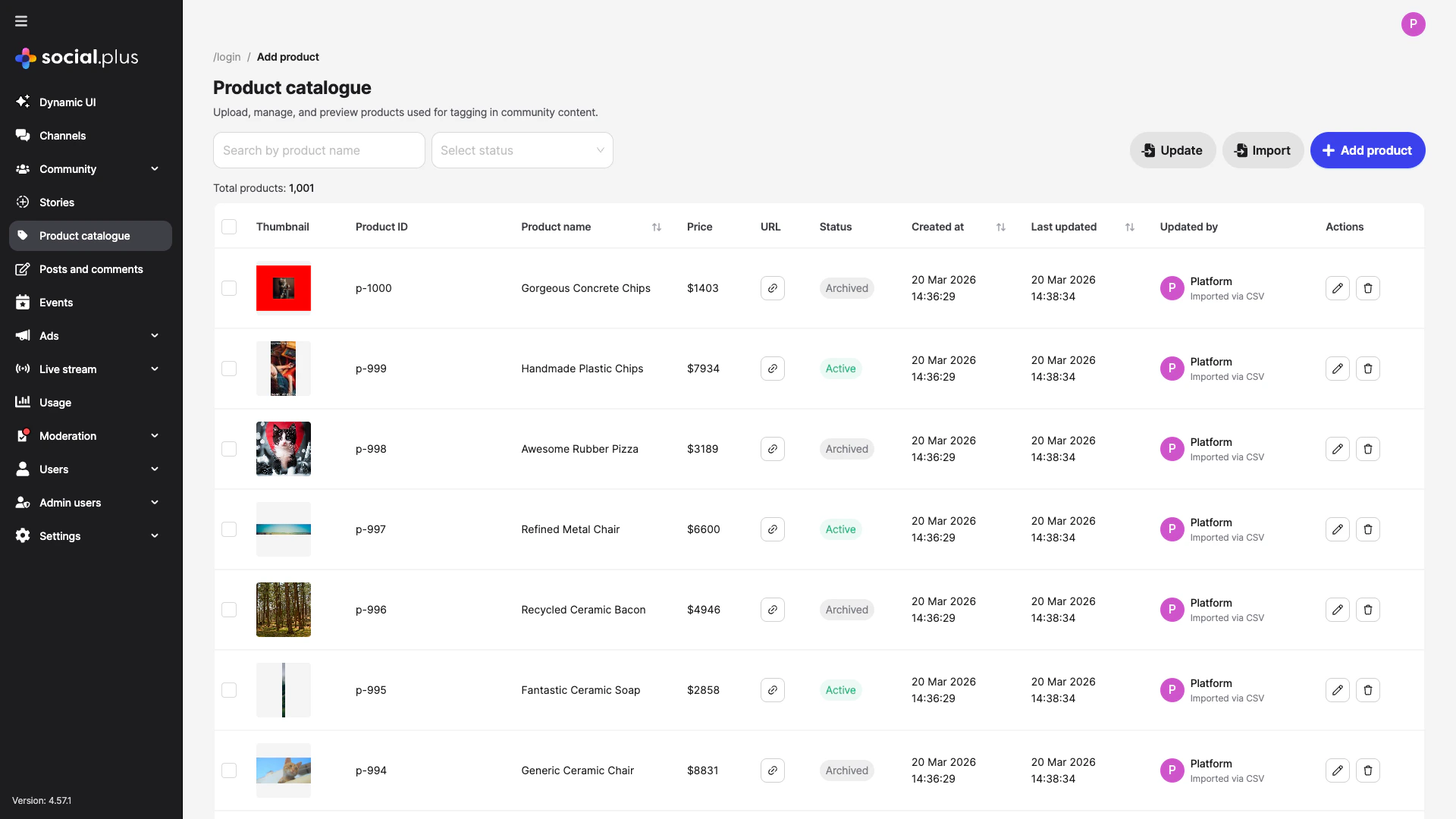 Click **+ Add product** to create products individually, or use **Import** to upload a CSV for bulk creation. Each product needs an ID, name, URL, and status set to **Active**.
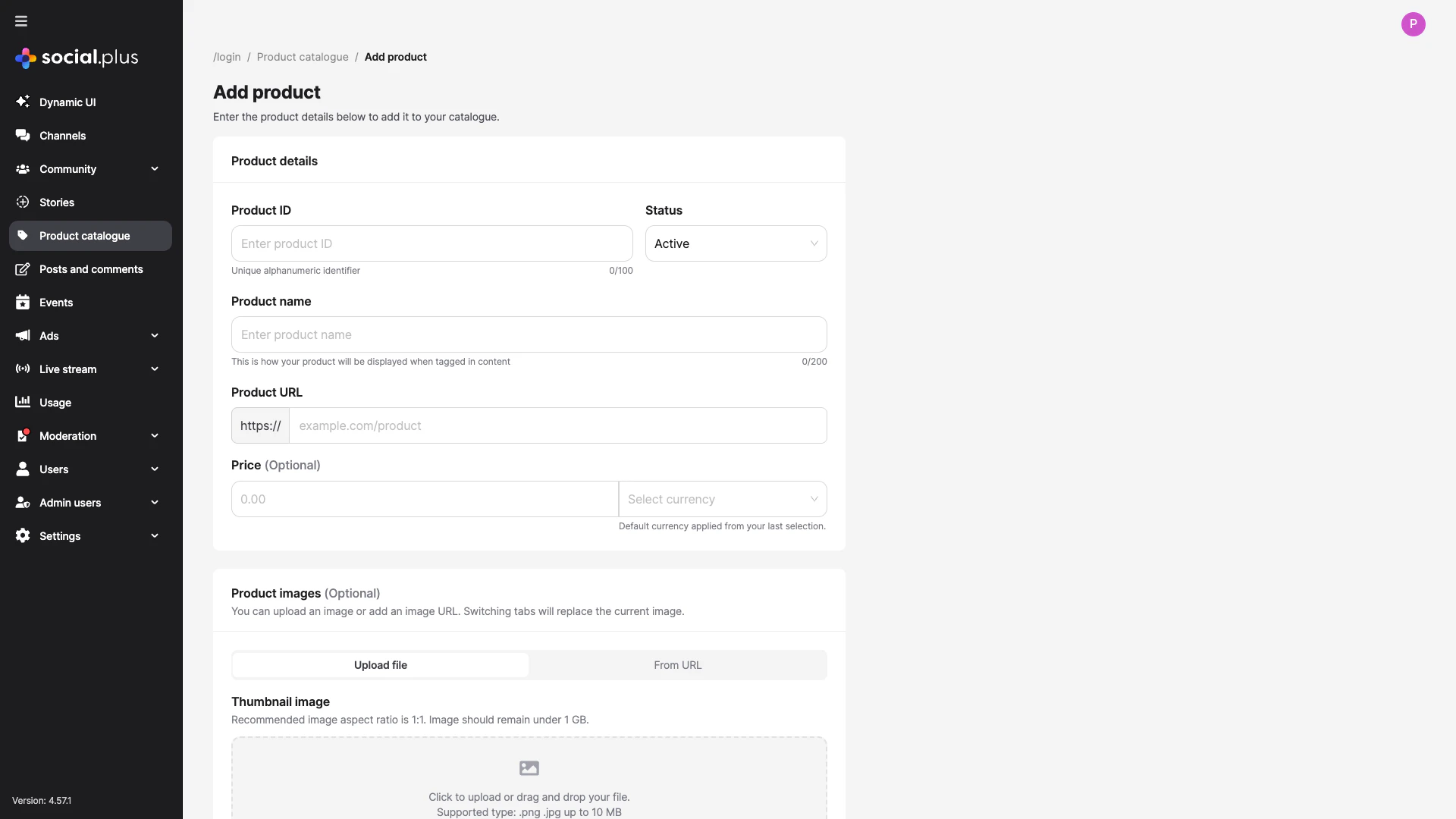 Only products with **Active** status show up in the tag-product search on the app side. Archived products are hidden from tagging.
Full Admin Console guide → [Product Catalogue](/analytics-and-moderation/console/product-management/overview)
***
## In-App: Tag & Pin Products
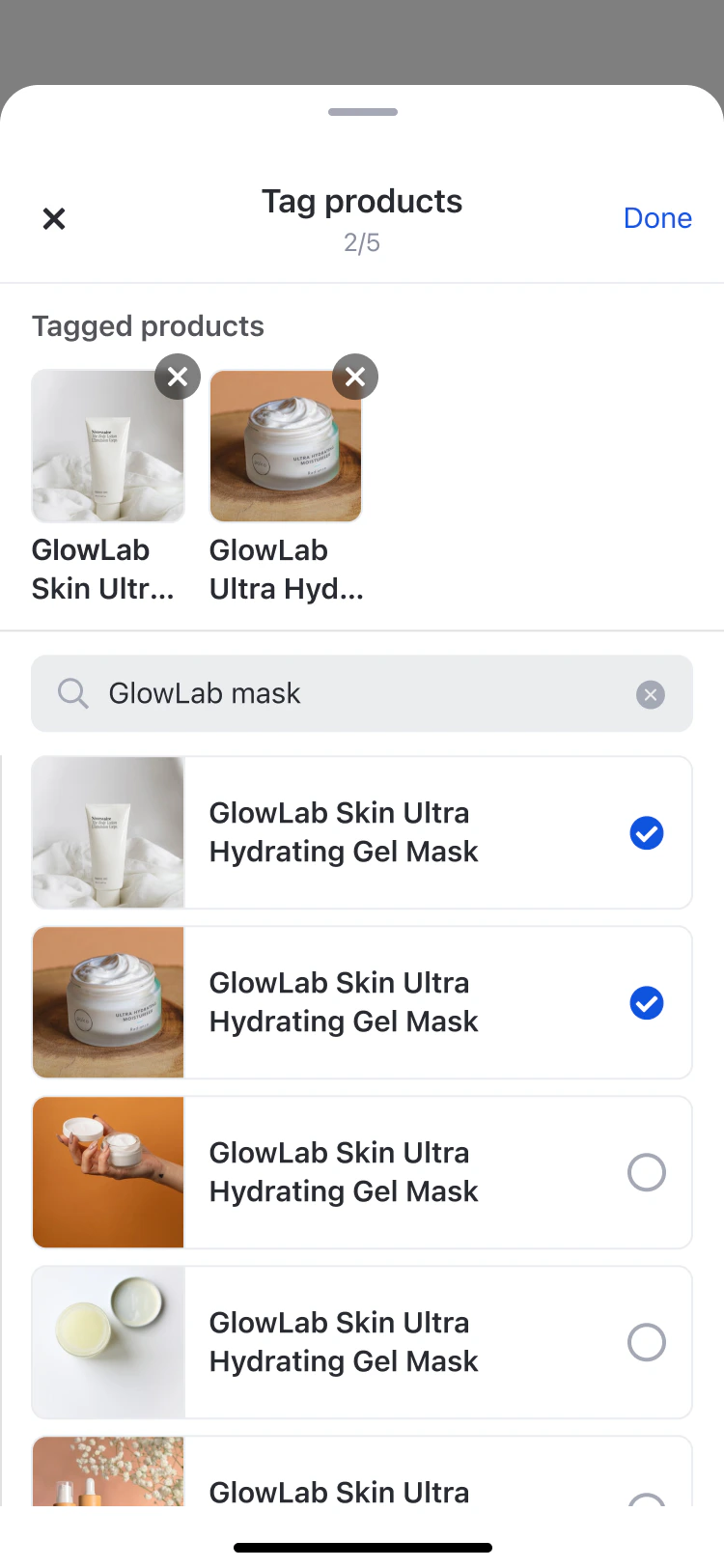
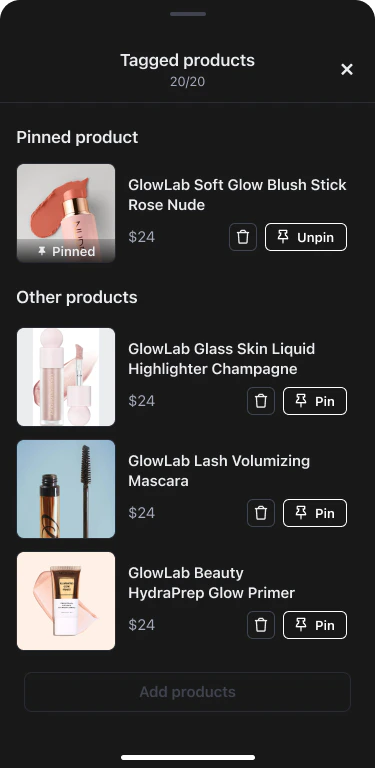
Once products exist in the catalogue, hosts (and co-hosts with permission) can tag and pin them during the stream.
Only products with **Active** status show up in the tag-product search on the app side. Archived products are hidden from tagging.
Full Admin Console guide → [Product Catalogue](/analytics-and-moderation/console/product-management/overview)
***
## In-App: Tag & Pin Products
Once products exist in the catalogue, hosts (and co-hosts with permission) can tag and pin them during the stream.
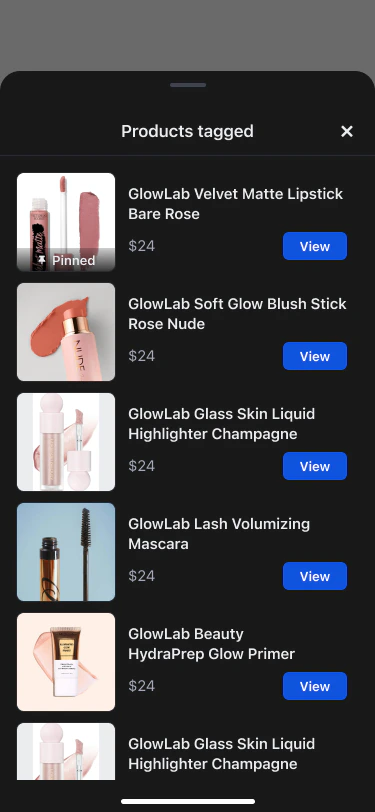
 ### Viewer experience
Viewers see a tag icon with a badge count. Tapping opens a scrollable product list with prices and "View" buttons.
### Viewer experience
Viewers see a tag icon with a badge count. Tapping opens a scrollable product list with prices and "View" buttons.
 ***
## Step-by-Step Implementation
Attach products at creation time. Optionally pre-pin one.
```typescript theme={null}
const post = await PostRepository.createRoomPost({
targetType: 'community',
targetId: communityId,
data: {
roomId: room.roomId,
title: 'Flash Sale',
text: 'Flash Sale Live! Check out Nike Air Max!',
},
productTags: [
{ productId: 'prod_001', text: 'Nike Air Max', index: 38, length: 12 },
],
pinnedProductId: 'prod_001',
});
```
Full reference → [Product Tagging SDK](/social-plus-sdk/video-new/broadcasting/overview)
Only one product can be pinned at a time. Pinning a new product automatically replaces the previous one — no need to unpin first.
```typescript theme={null}
// Pin a product (uses CHILD post ID)
await PostRepository.pinProduct(childPostId, 'prod_002');
// Unpin the current product
await PostRepository.unpinProduct(childPostId);
```
`updateProductTags` does a full replacement. To add a product, merge it with the existing array. If the currently pinned product is not in the new array, it is automatically unpinned.
```typescript theme={null}
await PostRepository.updateProductTags(childPostId, [
{ productId: 'prod_001' },
{ productId: 'prod_002' },
{ productId: 'prod_003' },
]);
```
By default co-hosts cannot manage products. The host must explicitly grant permission.
```typescript theme={null}
await RoomRepository.updateCohostPermission(
room.roomId,
'cohost_456',
true, // canManageProductTags
);
```
Full reference → [Co-Host Management](/social-plus-sdk/video-new/broadcasting/co-host-management)
Fire view and click analytics to measure which products drive the most interest.
```typescript theme={null}
// When a product card becomes visible
product.analytics.markAsViewed(
'livestream_page/product_list/product_item',
AnalyticsSourceTypeEnum.ROOM,
roomId,
);
// When a viewer taps the product link
product.analytics.markAsClicked(
'livestream_page/product_list/product_item',
AnalyticsSourceTypeEnum.ROOM,
roomId,
);
```
Events are fire-and-forget and automatically deduplicated per product per source.
***
## UIKit: Pre-Built Product Tagging Components
If you're using UIKit, the product tagging UI is handled with two shared components:
| Component | Used for | Platforms |
| ------------------------------- | -------------------------------------------------------------------------------------------------- | ----------------- |
| `ProductTagSelectionComponent` | Searching and selecting products to tag (up to 20 in livestream mode) | iOS, Android, Web |
| `ManageProductTagListComponent` | Managing tagged products with pin/unpin/remove (host view); browsable read-only list (viewer view) | iOS, Android, Web |
The viewer sees a tag icon with a badge count. Tapping it opens a scrollable product list overlay. Tapping a product opens its link in an in-app browser while the stream continues playing.
Full component reference → [Product Tagging Components](/uikit/components/social/product-tagging) · [Livestream Components](/uikit/components/social/livestream)
***
## Common Mistakes
**Using the parent post ID instead of the child post ID** — `pinProduct`, `unpinProduct`, and `updateProductTags` all require the **child** room post ID. Using the parent ID silently fails or throws an error.
**Calling `updateProductTags` with just the new product** — This is a full replacement, not an append. If you pass only the new product, all existing tags are removed. Always merge with the existing array first.
**Pinning a product that isn't in `productTags`** — The product must already exist in the tag list. Pin it after adding it via `createRoomPost` or `updateProductTags`.
## Best Practices
* Pre-tag all products before going live so they're ready immediately
* Pin the highest-margin or most-relevant product first
* Swap the pinned product every 3–5 minutes to keep the showcase fresh
* Remove sold-out products from the tag list in real-time
* Grant product permissions to a dedicated "product manager" co-host
* Have the host focus on presenting while the co-host manages pin swaps
* Revoke permissions if a co-host leaves mid-stream
* Call `markAsViewed` when the product card enters the viewport (use intersection observer on Web)
* Call `markAsClicked` on tap/click before opening the product URL
* Review view-to-click ratios in the Admin Console to optimize product placement
* A/B test pin timing to find the optimal pin duration per product category
***
## Next Steps
Room creation, broadcast setup, and lifecycle management.
Invite co-hosts to share the stage during a broadcast.
Wire up chat, reactions, and viewer count alongside the video.
***
## Step-by-Step Implementation
Attach products at creation time. Optionally pre-pin one.
```typescript theme={null}
const post = await PostRepository.createRoomPost({
targetType: 'community',
targetId: communityId,
data: {
roomId: room.roomId,
title: 'Flash Sale',
text: 'Flash Sale Live! Check out Nike Air Max!',
},
productTags: [
{ productId: 'prod_001', text: 'Nike Air Max', index: 38, length: 12 },
],
pinnedProductId: 'prod_001',
});
```
Full reference → [Product Tagging SDK](/social-plus-sdk/video-new/broadcasting/overview)
Only one product can be pinned at a time. Pinning a new product automatically replaces the previous one — no need to unpin first.
```typescript theme={null}
// Pin a product (uses CHILD post ID)
await PostRepository.pinProduct(childPostId, 'prod_002');
// Unpin the current product
await PostRepository.unpinProduct(childPostId);
```
`updateProductTags` does a full replacement. To add a product, merge it with the existing array. If the currently pinned product is not in the new array, it is automatically unpinned.
```typescript theme={null}
await PostRepository.updateProductTags(childPostId, [
{ productId: 'prod_001' },
{ productId: 'prod_002' },
{ productId: 'prod_003' },
]);
```
By default co-hosts cannot manage products. The host must explicitly grant permission.
```typescript theme={null}
await RoomRepository.updateCohostPermission(
room.roomId,
'cohost_456',
true, // canManageProductTags
);
```
Full reference → [Co-Host Management](/social-plus-sdk/video-new/broadcasting/co-host-management)
Fire view and click analytics to measure which products drive the most interest.
```typescript theme={null}
// When a product card becomes visible
product.analytics.markAsViewed(
'livestream_page/product_list/product_item',
AnalyticsSourceTypeEnum.ROOM,
roomId,
);
// When a viewer taps the product link
product.analytics.markAsClicked(
'livestream_page/product_list/product_item',
AnalyticsSourceTypeEnum.ROOM,
roomId,
);
```
Events are fire-and-forget and automatically deduplicated per product per source.
***
## UIKit: Pre-Built Product Tagging Components
If you're using UIKit, the product tagging UI is handled with two shared components:
| Component | Used for | Platforms |
| ------------------------------- | -------------------------------------------------------------------------------------------------- | ----------------- |
| `ProductTagSelectionComponent` | Searching and selecting products to tag (up to 20 in livestream mode) | iOS, Android, Web |
| `ManageProductTagListComponent` | Managing tagged products with pin/unpin/remove (host view); browsable read-only list (viewer view) | iOS, Android, Web |
The viewer sees a tag icon with a badge count. Tapping it opens a scrollable product list overlay. Tapping a product opens its link in an in-app browser while the stream continues playing.
Full component reference → [Product Tagging Components](/uikit/components/social/product-tagging) · [Livestream Components](/uikit/components/social/livestream)
***
## Common Mistakes
**Using the parent post ID instead of the child post ID** — `pinProduct`, `unpinProduct`, and `updateProductTags` all require the **child** room post ID. Using the parent ID silently fails or throws an error.
**Calling `updateProductTags` with just the new product** — This is a full replacement, not an append. If you pass only the new product, all existing tags are removed. Always merge with the existing array first.
**Pinning a product that isn't in `productTags`** — The product must already exist in the tag list. Pin it after adding it via `createRoomPost` or `updateProductTags`.
## Best Practices
* Pre-tag all products before going live so they're ready immediately
* Pin the highest-margin or most-relevant product first
* Swap the pinned product every 3–5 minutes to keep the showcase fresh
* Remove sold-out products from the tag list in real-time
* Grant product permissions to a dedicated "product manager" co-host
* Have the host focus on presenting while the co-host manages pin swaps
* Revoke permissions if a co-host leaves mid-stream
* Call `markAsViewed` when the product card enters the viewport (use intersection observer on Web)
* Call `markAsClicked` on tap/click before opening the product URL
* Review view-to-click ratios in the Admin Console to optimize product placement
* A/B test pin timing to find the optimal pin duration per product category
***
## Next Steps
Room creation, broadcast setup, and lifecycle management.
Invite co-hosts to share the stage during a broadcast.
Wire up chat, reactions, and viewer count alongside the video.