> ## Documentation Index
> Fetch the complete documentation index at: https://learn.social.plus/llms.txt
> Use this file to discover all available pages before exploring further.
# Go Live & Room Management
> Create broadcast rooms, connect to LiveKit, monitor room lifecycle, query live rooms, and access recordings.
**SDK v7.x** · Last verified March 2026 · iOS · Android · Web
```typescript theme={null}
import { RoomRepository, PostRepository } from '@amityco/ts-sdk';
import { Room as LiveKitRoom } from 'livekit-client';
// 1. Create a room with live chat enabled
const room = await RoomRepository.createRoom({
title: 'Friday AMA', channelEnabled: true,
});
// 2. Publish a livestream post
await PostRepository.createPost({
targetType: 'community', targetId: communityId,
dataType: 'livestream', data: { streamId: room.roomId },
});
// 3. Get broadcaster credentials & connect
const bd = await RoomRepository.getBroadcasterData(room.roomId);
const lk = new LiveKitRoom();
await lk.connect(bd.coHostUrl, bd.coHostToken);
await lk.localParticipant.setCameraEnabled(true);
await lk.localParticipant.setMicrophoneEnabled(true);
// 4. Stop & get recording
await lk.disconnect();
await RoomRepository.stopRoom(room.roomId);
```
Full walkthrough below ↓
**Platform note** — code samples below use TypeScript. Every method has an equivalent in the iOS (Swift) and Android (Kotlin) SDKs — see the linked SDK reference in each step.
.png?fit=max&auto=format&n=Whepx2DgDzjvHcd8&q=85&s=a8651e1aaa0802192f782616280d1ffc) This guide covers the host's journey: create a room, wire up the broadcast, monitor lifecycle transitions, query live rooms for a "Live Now" section, and access recordings after the stream ends.
```mermaid theme={null}
sequenceDiagram
participant Host
participant SDK as social.plus SDK
participant LK as LiveKit
participant Viewers
Host->>SDK: createRoom()
SDK-->>Host: room (IDLE)
Host->>SDK: createPost(livestream)
Host->>SDK: getBroadcastData(roomId)
SDK-->>Host: coHostUrl + coHostToken
Host->>LK: connect(url, token)
Host->>LK: setCameraEnabled(true)
Note over Host,LK: Room is now LIVE
Viewers->>LK: Watch stream
Host->>LK: disconnect()
Host->>SDK: stop(roomId)
Note over SDK: Room → ENDED → RECORDED
Viewers->>SDK: getRecordedUrls(roomId)
```
**Prerequisites**: SDK + Video SDK installed and authenticated → [Video Getting Started](/social-plus-sdk/video-new/broadcasting/overview). A `communityId` is required — rooms are community-only.
***
## Quick Start: Create a Room and Go Live
```typescript theme={null}
const room = await RoomRepository.createRoom({
title: 'Product Launch Event',
description: 'Join us for the unveiling',
channelEnabled: true, // auto-creates a live chat channel
});
console.log('Room created:', room.roomId, '— status:', room.status); // IDLE
```
Full reference → [Create Room](/social-plus-sdk/video-new/broadcasting/create-room)
***
## Step-by-Step Implementation
A room is the container for a livestream session. Set `channelEnabled: true` to automatically create a live chat channel for viewer comments.
```typescript theme={null}
import { RoomRepository } from '@amityco/ts-sdk';
const room = await RoomRepository.createRoom({
title: 'Weekly Q&A Session',
description: 'Ask us anything',
thumbnailFileId: null,
metadata: { category: 'education' },
channelEnabled: true,
parentRoomId: null,
});
```
Full reference → [Create Room](/social-plus-sdk/video-new/broadcasting/create-room)
Create a post in the community feed that links to the room. This shows a "LIVE" badge in the feed while the room is broadcasting.
```typescript theme={null}
import { PostRepository, PostContentType } from '@amityco/ts-sdk';
const { data: post } = await PostRepository.createPost({
dataType: PostContentType.LIVESTREAM,
targetType: 'community',
targetId: communityId,
data: { text: 'We are live!', streamId: room.roomId },
});
```
Full reference → [Live Stream Post](/social-plus-sdk/social/content-management/posts/creation/live-stream-post)
Fetch the LiveKit URL and token, then connect the host's camera and microphone.
```typescript theme={null}
import { Room as LiveKitRoom, RoomEvent } from 'livekit-client';
const broadcastData = await RoomRepository.getBroadcasterData(room.roomId);
const liveKitRoom = new LiveKitRoom();
liveKitRoom.on(RoomEvent.Connected, () => console.log('Connected!'));
liveKitRoom.on(RoomEvent.Disconnected, (reason) => console.log('Disconnected:', reason));
await liveKitRoom.connect(broadcastData.coHostUrl, broadcastData.coHostToken);
await liveKitRoom.localParticipant.setCameraEnabled(true);
await liveKitRoom.localParticipant.setMicrophoneEnabled(true);
// Room status is now LIVE
```
Full reference → [Start Broadcasting](/social-plus-sdk/video-new/broadcasting/start-broadcasting)
Observe the room to update your UI for each status transition.
```typescript theme={null}
const roomLiveObject = RoomRepository.getRoom(room.roomId);
roomLiveObject.on('dataUpdated', (room) => {
switch (room.status) {
case 'idle': showUI('Ready to start'); break;
case 'live': showUI('Broadcasting'); break;
case 'ended': showUI('Stream ended — processing recording…'); break;
case 'recorded': showUI('Recording available'); break;
}
});
```
Full reference → [Manage Rooms](/social-plus-sdk/video-new/broadcasting/manage-rooms)
Show currently-active livestreams in your app.
```typescript theme={null}
const liveRooms = RoomRepository.getRooms({
statuses: ['live'],
types: ['co_hosts'],
isDeleted: false,
sortBy: 'lastCreated',
});
liveRooms.on('dataUpdated', (rooms) => {
console.log('Currently live:', rooms.length, 'rooms');
});
```
Full reference → [Manage Rooms](/social-plus-sdk/video-new/broadcasting/manage-rooms)
Disconnect LiveKit first, then stop the room. Recordings become available within a few minutes.
```typescript theme={null}
// 1. Disconnect from LiveKit
await liveKitRoom.disconnect();
// 2. Stop the room
await RoomRepository.stopRoom(room.roomId);
// 3. Poll for recording (room status transitions: ENDED → RECORDED)
const recordedUrls = await RoomRepository.getRecordedUrl(room.roomId);
recordedUrls.forEach(url => console.log('Recording:', url));
```
Full reference → [Recorded Playback](/social-plus-sdk/video-new/broadcasting/recorded-playback)
***
## Admin Console: Manage & Monitor Streams
After streams are created, you can manage them from **Admin Console → Live stream**.
This guide covers the host's journey: create a room, wire up the broadcast, monitor lifecycle transitions, query live rooms for a "Live Now" section, and access recordings after the stream ends.
```mermaid theme={null}
sequenceDiagram
participant Host
participant SDK as social.plus SDK
participant LK as LiveKit
participant Viewers
Host->>SDK: createRoom()
SDK-->>Host: room (IDLE)
Host->>SDK: createPost(livestream)
Host->>SDK: getBroadcastData(roomId)
SDK-->>Host: coHostUrl + coHostToken
Host->>LK: connect(url, token)
Host->>LK: setCameraEnabled(true)
Note over Host,LK: Room is now LIVE
Viewers->>LK: Watch stream
Host->>LK: disconnect()
Host->>SDK: stop(roomId)
Note over SDK: Room → ENDED → RECORDED
Viewers->>SDK: getRecordedUrls(roomId)
```
**Prerequisites**: SDK + Video SDK installed and authenticated → [Video Getting Started](/social-plus-sdk/video-new/broadcasting/overview). A `communityId` is required — rooms are community-only.
***
## Quick Start: Create a Room and Go Live
```typescript theme={null}
const room = await RoomRepository.createRoom({
title: 'Product Launch Event',
description: 'Join us for the unveiling',
channelEnabled: true, // auto-creates a live chat channel
});
console.log('Room created:', room.roomId, '— status:', room.status); // IDLE
```
Full reference → [Create Room](/social-plus-sdk/video-new/broadcasting/create-room)
***
## Step-by-Step Implementation
A room is the container for a livestream session. Set `channelEnabled: true` to automatically create a live chat channel for viewer comments.
```typescript theme={null}
import { RoomRepository } from '@amityco/ts-sdk';
const room = await RoomRepository.createRoom({
title: 'Weekly Q&A Session',
description: 'Ask us anything',
thumbnailFileId: null,
metadata: { category: 'education' },
channelEnabled: true,
parentRoomId: null,
});
```
Full reference → [Create Room](/social-plus-sdk/video-new/broadcasting/create-room)
Create a post in the community feed that links to the room. This shows a "LIVE" badge in the feed while the room is broadcasting.
```typescript theme={null}
import { PostRepository, PostContentType } from '@amityco/ts-sdk';
const { data: post } = await PostRepository.createPost({
dataType: PostContentType.LIVESTREAM,
targetType: 'community',
targetId: communityId,
data: { text: 'We are live!', streamId: room.roomId },
});
```
Full reference → [Live Stream Post](/social-plus-sdk/social/content-management/posts/creation/live-stream-post)
Fetch the LiveKit URL and token, then connect the host's camera and microphone.
```typescript theme={null}
import { Room as LiveKitRoom, RoomEvent } from 'livekit-client';
const broadcastData = await RoomRepository.getBroadcasterData(room.roomId);
const liveKitRoom = new LiveKitRoom();
liveKitRoom.on(RoomEvent.Connected, () => console.log('Connected!'));
liveKitRoom.on(RoomEvent.Disconnected, (reason) => console.log('Disconnected:', reason));
await liveKitRoom.connect(broadcastData.coHostUrl, broadcastData.coHostToken);
await liveKitRoom.localParticipant.setCameraEnabled(true);
await liveKitRoom.localParticipant.setMicrophoneEnabled(true);
// Room status is now LIVE
```
Full reference → [Start Broadcasting](/social-plus-sdk/video-new/broadcasting/start-broadcasting)
Observe the room to update your UI for each status transition.
```typescript theme={null}
const roomLiveObject = RoomRepository.getRoom(room.roomId);
roomLiveObject.on('dataUpdated', (room) => {
switch (room.status) {
case 'idle': showUI('Ready to start'); break;
case 'live': showUI('Broadcasting'); break;
case 'ended': showUI('Stream ended — processing recording…'); break;
case 'recorded': showUI('Recording available'); break;
}
});
```
Full reference → [Manage Rooms](/social-plus-sdk/video-new/broadcasting/manage-rooms)
Show currently-active livestreams in your app.
```typescript theme={null}
const liveRooms = RoomRepository.getRooms({
statuses: ['live'],
types: ['co_hosts'],
isDeleted: false,
sortBy: 'lastCreated',
});
liveRooms.on('dataUpdated', (rooms) => {
console.log('Currently live:', rooms.length, 'rooms');
});
```
Full reference → [Manage Rooms](/social-plus-sdk/video-new/broadcasting/manage-rooms)
Disconnect LiveKit first, then stop the room. Recordings become available within a few minutes.
```typescript theme={null}
// 1. Disconnect from LiveKit
await liveKitRoom.disconnect();
// 2. Stop the room
await RoomRepository.stopRoom(room.roomId);
// 3. Poll for recording (room status transitions: ENDED → RECORDED)
const recordedUrls = await RoomRepository.getRecordedUrl(room.roomId);
recordedUrls.forEach(url => console.log('Recording:', url));
```
Full reference → [Recorded Playback](/social-plus-sdk/video-new/broadcasting/recorded-playback)
***
## Admin Console: Manage & Monitor Streams
After streams are created, you can manage them from **Admin Console → Live stream**.
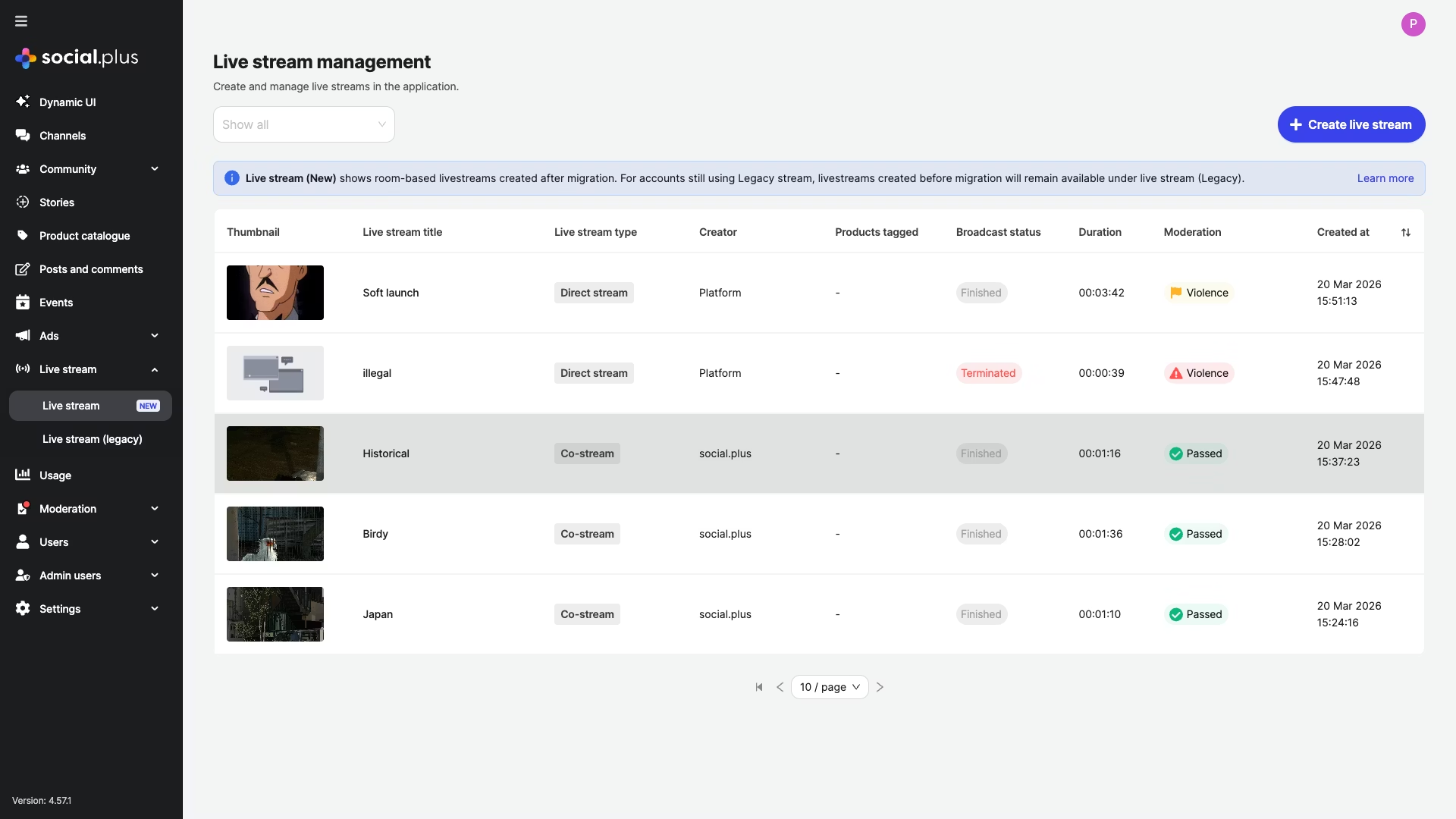 Click any stream to see its detail page with recording playback, metadata, and moderation status.
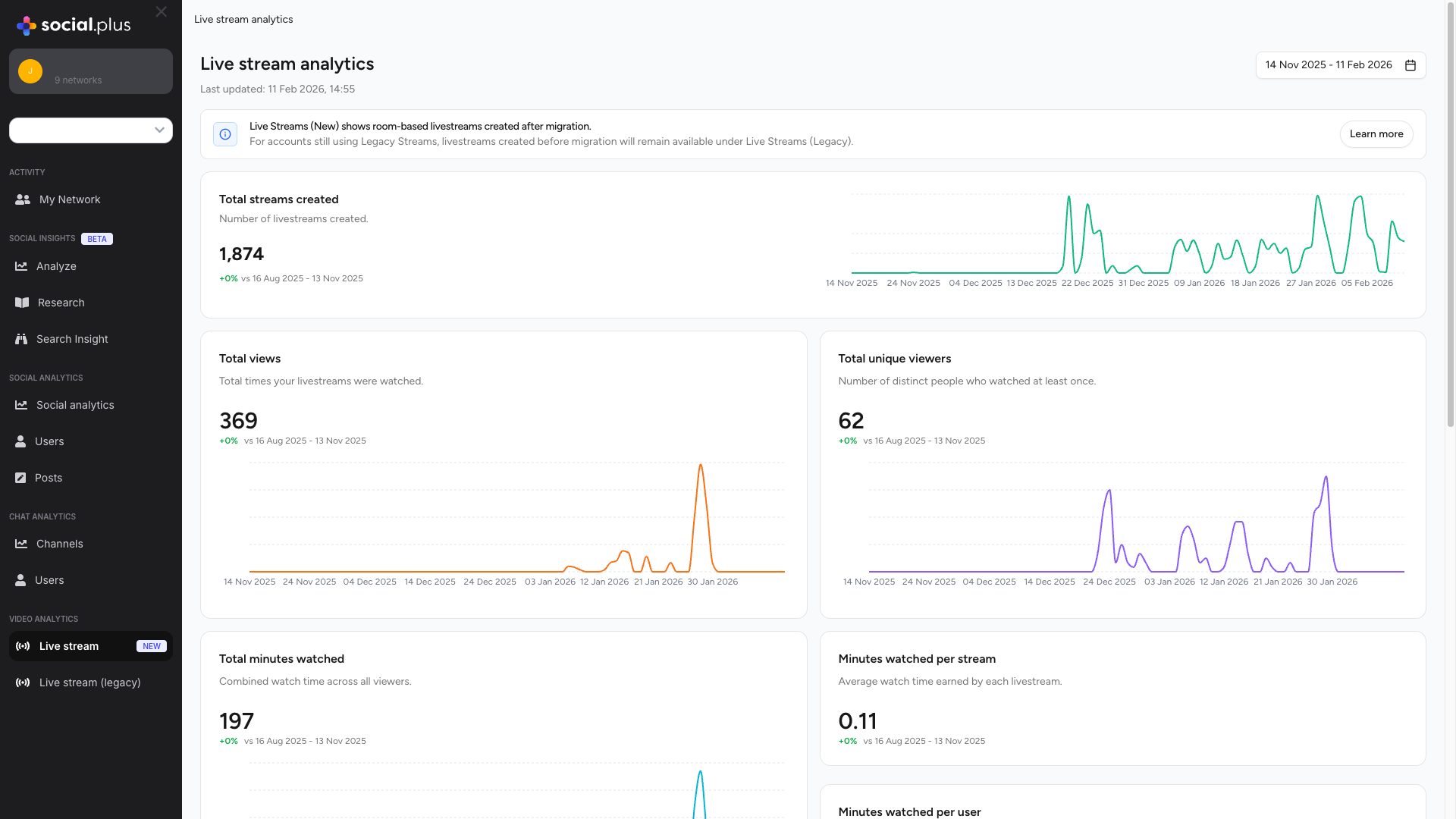
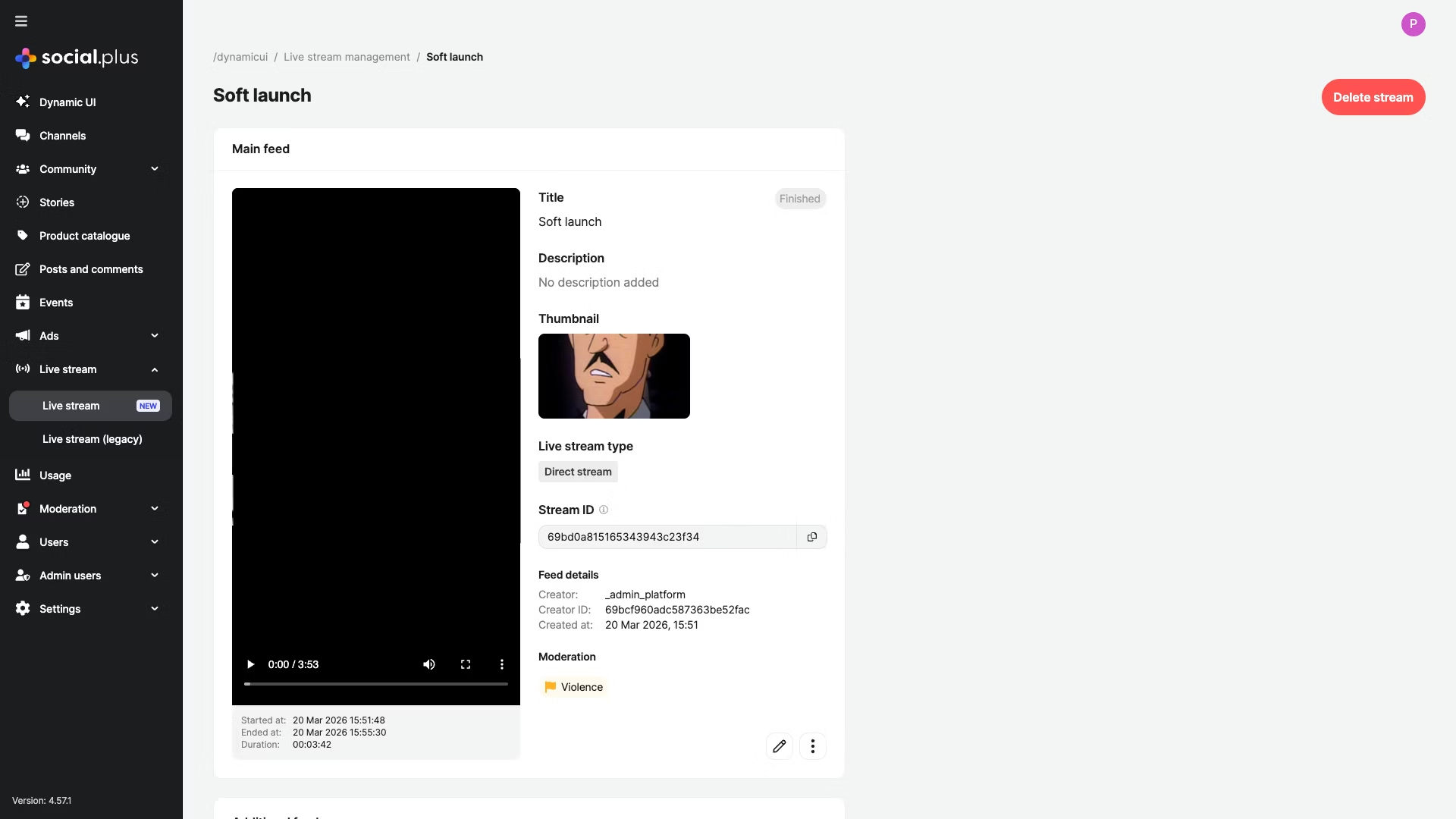 To review stream performance, go to **Admin Console → Video Analytics → Live stream**.
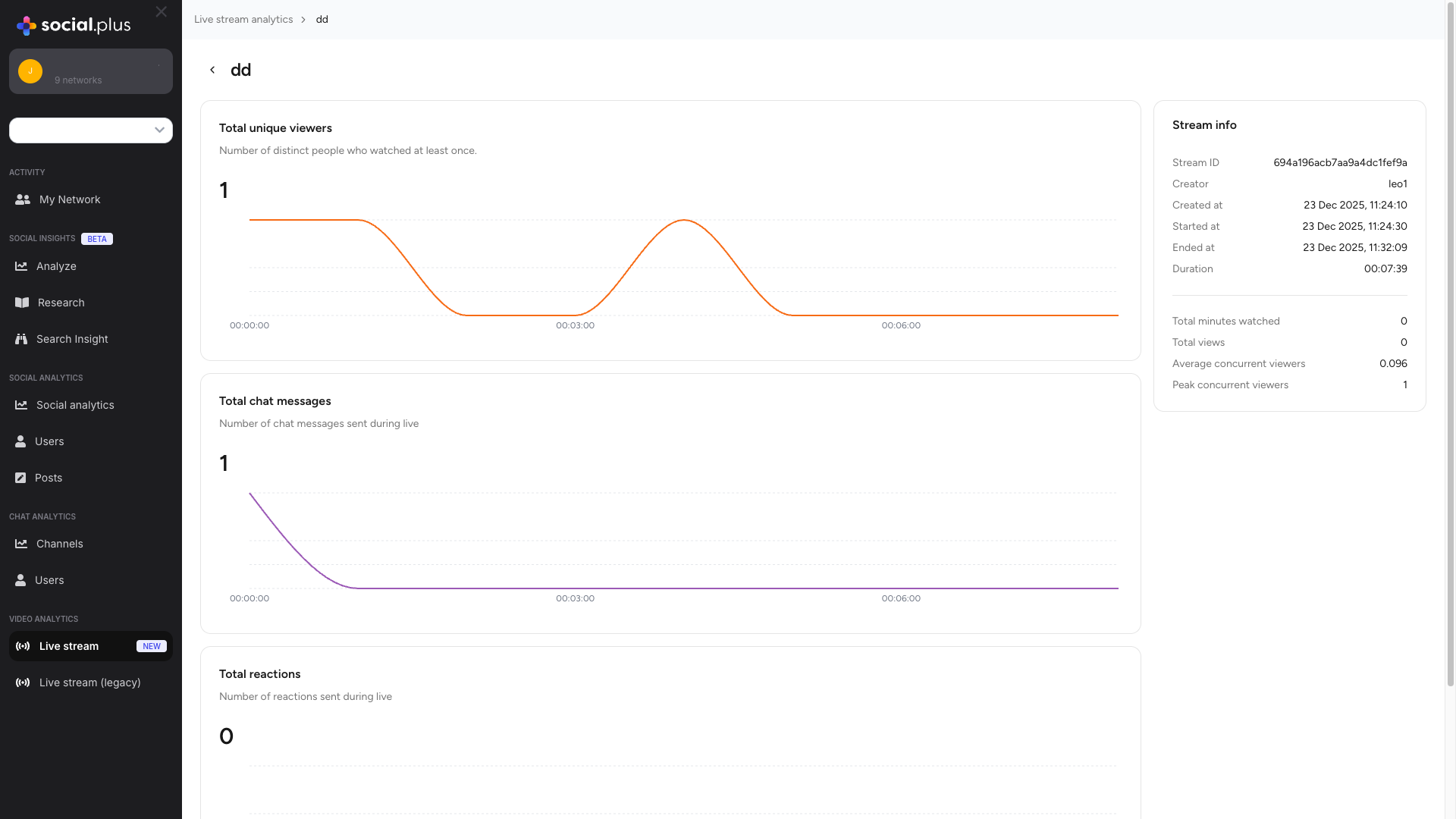
 Click any row in the stream table to see per-stream metrics including concurrent viewers over time and chat messages.
 ***
## Connect to Moderation & Analytics
Track peak concurrent viewers, total watch time, and engagement per stream in **Admin Console → Analytics → Video**.
→ [Video Analytics](/social-plus-sdk/video-new/analytics/overview)
Moderators can view and manage all active and past livestreams in **Admin Console → Moderation → Livestream Moderation**.
→ [Livestream Moderation](/analytics-and-moderation/console/moderation/livestream-moderation)
Receive `stream.started`, `stream.ended`, `recording.completed` webhook events for backend automation (e.g., notify followers, archive recordings).
→ [Stream Events](/social-plus-sdk/video-new/broadcasting/overview) · [Webhooks](/analytics-and-moderation/social+-apis-and-services/webhook-event)
***
## Common Mistakes
**Stopping the room before disconnecting LiveKit** — Always call `liveKitRoom.disconnect()` first, then `RoomRepository.stop(roomId)`. Reversing the order can leave orphaned media tracks.
**Forgetting to end rooms when the stream stops** — If the broadcaster disconnects without calling `stop()`, the room stays in `live` status and appears in "Live Now" feeds as a ghost stream. Always call stop in your cleanup logic.
```typescript theme={null}
// ❌ Bad — broadcaster crashes, room stays live
window.onbeforeunload = () => { /* nothing */ };
// ✅ Good — end room on disconnect
window.onbeforeunload = () => {
RoomRepository.stopRoom(roomId);
};
```
**Not refreshing the LiveKit token** — LiveKit tokens expire. If you don't handle token refresh, the video connection drops mid-stream. Implement a token renewal callback.
**Creating rooms without `channelEnabled: true`** — Without this flag, no live chat channel is created and viewers can't comment during the stream. Almost all livestream UIs need live chat.
**Not observing the room lifecycle** — The status transitions (`idle → live → ended → recorded`) are asynchronous. Hardcoding delays instead of observing the room live object results in brittle UI states.
**Polling for recordings too aggressively** — Recordings take a few minutes to process. Use the room's live object with a `dataUpdated` listener to detect when `status === 'recorded'` rather than polling every second.
## Best Practices
* Pre-fetch `getBroadcastData()` before the user taps "Go Live" to cut startup time
* Request camera and microphone permissions during the room creation step, not at connect time
* Show a preview of the camera feed while the LiveKit connection is establishing
* Listen for `RoomEvent.Reconnecting` and `RoomEvent.Reconnected` from LiveKit
* Show a "Reconnecting…" banner to the host — don't silently drop to ended
* Configure LiveKit's `autoSubscribe` and `reconnectPolicy` for aggressive retry
* Show a 3-second countdown before going live so the broadcaster can prepare
* Display a "LIVE" badge with a pulsing animation on the post card in the feed
* Show concurrent viewer count in real-time using the room's participant data
* Provide camera flip, mute, and end-stream controls in a floating overlay
* Auto-play the livestream on mute when the post enters the viewport — require a tap for audio
* Show the live chat alongside the video in a split-screen layout
* Allow viewers to send reactions (emoji) that float across the video
* When the stream ends, show a "Stream ended" card with a link to the recording when available
* The livestream post stays in the feed after the stream ends — update it to show the recording thumbnail
* Store recording URLs in your backend; platform URLs may have retention policies
* Offer a "Watch replay" CTA on the post once `status === 'recorded'`
***
## Next Steps
Livestreams are running — now add TikTok-style clip posts for shorter, snackable video content.
Or explore related guides:
Invite co-hosts to share the stage during a broadcast.
Wire up chat, reactions, and viewer count alongside the video.
Pin products to the stream for live commerce.
***
## Connect to Moderation & Analytics
Track peak concurrent viewers, total watch time, and engagement per stream in **Admin Console → Analytics → Video**.
→ [Video Analytics](/social-plus-sdk/video-new/analytics/overview)
Moderators can view and manage all active and past livestreams in **Admin Console → Moderation → Livestream Moderation**.
→ [Livestream Moderation](/analytics-and-moderation/console/moderation/livestream-moderation)
Receive `stream.started`, `stream.ended`, `recording.completed` webhook events for backend automation (e.g., notify followers, archive recordings).
→ [Stream Events](/social-plus-sdk/video-new/broadcasting/overview) · [Webhooks](/analytics-and-moderation/social+-apis-and-services/webhook-event)
***
## Common Mistakes
**Stopping the room before disconnecting LiveKit** — Always call `liveKitRoom.disconnect()` first, then `RoomRepository.stop(roomId)`. Reversing the order can leave orphaned media tracks.
**Forgetting to end rooms when the stream stops** — If the broadcaster disconnects without calling `stop()`, the room stays in `live` status and appears in "Live Now" feeds as a ghost stream. Always call stop in your cleanup logic.
```typescript theme={null}
// ❌ Bad — broadcaster crashes, room stays live
window.onbeforeunload = () => { /* nothing */ };
// ✅ Good — end room on disconnect
window.onbeforeunload = () => {
RoomRepository.stopRoom(roomId);
};
```
**Not refreshing the LiveKit token** — LiveKit tokens expire. If you don't handle token refresh, the video connection drops mid-stream. Implement a token renewal callback.
**Creating rooms without `channelEnabled: true`** — Without this flag, no live chat channel is created and viewers can't comment during the stream. Almost all livestream UIs need live chat.
**Not observing the room lifecycle** — The status transitions (`idle → live → ended → recorded`) are asynchronous. Hardcoding delays instead of observing the room live object results in brittle UI states.
**Polling for recordings too aggressively** — Recordings take a few minutes to process. Use the room's live object with a `dataUpdated` listener to detect when `status === 'recorded'` rather than polling every second.
## Best Practices
* Pre-fetch `getBroadcastData()` before the user taps "Go Live" to cut startup time
* Request camera and microphone permissions during the room creation step, not at connect time
* Show a preview of the camera feed while the LiveKit connection is establishing
* Listen for `RoomEvent.Reconnecting` and `RoomEvent.Reconnected` from LiveKit
* Show a "Reconnecting…" banner to the host — don't silently drop to ended
* Configure LiveKit's `autoSubscribe` and `reconnectPolicy` for aggressive retry
* Show a 3-second countdown before going live so the broadcaster can prepare
* Display a "LIVE" badge with a pulsing animation on the post card in the feed
* Show concurrent viewer count in real-time using the room's participant data
* Provide camera flip, mute, and end-stream controls in a floating overlay
* Auto-play the livestream on mute when the post enters the viewport — require a tap for audio
* Show the live chat alongside the video in a split-screen layout
* Allow viewers to send reactions (emoji) that float across the video
* When the stream ends, show a "Stream ended" card with a link to the recording when available
* The livestream post stays in the feed after the stream ends — update it to show the recording thumbnail
* Store recording URLs in your backend; platform URLs may have retention policies
* Offer a "Watch replay" CTA on the post once `status === 'recorded'`
***
## Next Steps
Livestreams are running — now add TikTok-style clip posts for shorter, snackable video content.
Or explore related guides:
Invite co-hosts to share the stage during a broadcast.
Wire up chat, reactions, and viewer count alongside the video.
Pin products to the stream for live commerce.