> ## Documentation Index
> Fetch the complete documentation index at: https://learn.social.plus/llms.txt
> Use this file to discover all available pages before exploring further.
# Post Analytics
> Browse, moderate, and measure individual post performance—view engagement metrics, manage flagged and pinned content, and drill into per-post impression and reach charts.
Use the Posts dashboard to review every piece of content in your network, take moderation actions, and open the **Post Performance** panel to inspect per-post engagement over time.
Browse all posts with real-time metrics
Flag, delete, or pin posts directly
Drill into impressions, reach, reactions & comments per post
## Posts Overview
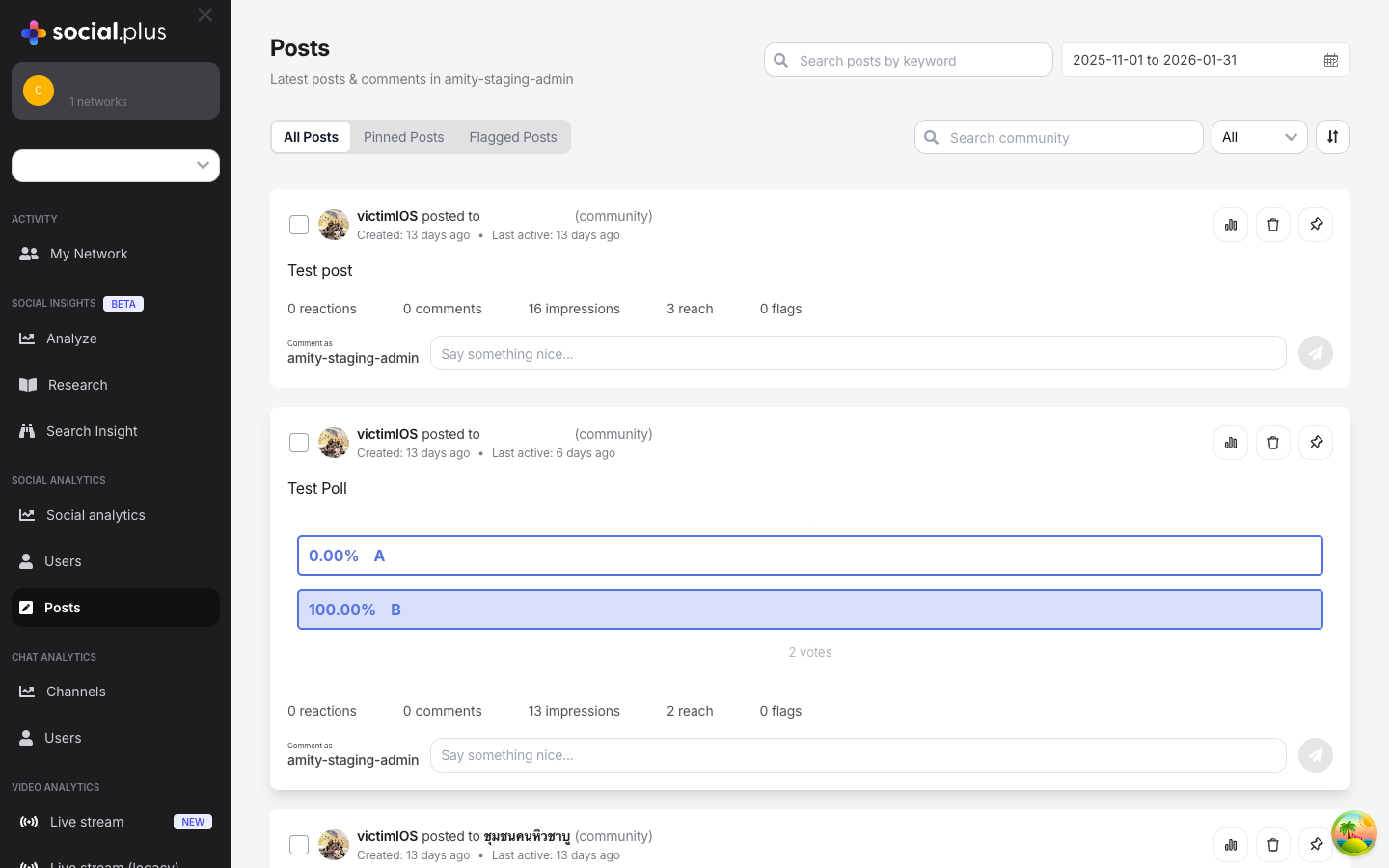
The Posts page displays the latest posts and comments across your network. Each post card shows the author, target community or content feed, creation date, and inline engagement counters.
 ### Post Card Anatomy
Each post in the feed includes:
| Element | Description |
| ------------------- | -------------------------------------------------------------- |
| **Author** | Display name of the user who created the post |
| **Target** | Community or content feed the post belongs to, with type label |
| **Timestamps** | Created date and last-active date |
| **Content Preview** | Text, images, video player, or poll results inline |
| **Engagement Row** | Reactions · Comments · Impressions · Reach · Flags |
| **Comment Box** | Inline "Comment as admin" field for direct engagement |
| **Action Buttons** | Post Performance · Delete · Pin (top-right of each card) |
## Filtering & Search
Click the date picker in the top-right corner to select a custom range. Quick presets include **Last 7 days**, **Last 30 days**, **Last 6 Months**, and **This year**.
Use the search bar to find posts containing specific text.
Use the **Search community** dropdown to isolate posts from a specific community.
Click the sort button (filter icon) to change the ordering of results.
Use the **All** dropdown to filter posts by category.
## Post Tabs
The default view showing every post in your network within the selected date range. Each post displays full content preview with engagement metrics and admin action buttons.
Shows posts that have been pinned by administrators. Pinned posts receive higher visibility in community feeds. Use this tab to manage which content is currently promoted.
Displays posts that have been reported by users or auto-flagged by moderation rules. Use this tab for your moderation workflow to review, approve, or remove flagged content.
Flagged posts require timely review. Establish a daily moderation cadence to keep the flagged queue clear.
## Moderation Actions
Each post card provides three action buttons in the top-right corner:
Opens a detailed side panel with per-post engagement charts for Reactions, Comments, Impressions, and Reach over the selected date range. See [Post Performance Panel](#post-performance-panel) below.
Permanently removes the post and its associated comments from the network. Use with caution—this action cannot be undone.
Pins the post to the top of its community feed, giving it persistent visibility. Unpin by clicking the button again on a pinned post.
You can also comment on any post directly as the network admin using the inline comment box beneath each post.
## Post Performance Panel
Clicking the **Post Performance** button (bar-chart icon) on any post opens a detailed side panel with time-series charts for that specific post.
### Post Card Anatomy
Each post in the feed includes:
| Element | Description |
| ------------------- | -------------------------------------------------------------- |
| **Author** | Display name of the user who created the post |
| **Target** | Community or content feed the post belongs to, with type label |
| **Timestamps** | Created date and last-active date |
| **Content Preview** | Text, images, video player, or poll results inline |
| **Engagement Row** | Reactions · Comments · Impressions · Reach · Flags |
| **Comment Box** | Inline "Comment as admin" field for direct engagement |
| **Action Buttons** | Post Performance · Delete · Pin (top-right of each card) |
## Filtering & Search
Click the date picker in the top-right corner to select a custom range. Quick presets include **Last 7 days**, **Last 30 days**, **Last 6 Months**, and **This year**.
Use the search bar to find posts containing specific text.
Use the **Search community** dropdown to isolate posts from a specific community.
Click the sort button (filter icon) to change the ordering of results.
Use the **All** dropdown to filter posts by category.
## Post Tabs
The default view showing every post in your network within the selected date range. Each post displays full content preview with engagement metrics and admin action buttons.
Shows posts that have been pinned by administrators. Pinned posts receive higher visibility in community feeds. Use this tab to manage which content is currently promoted.
Displays posts that have been reported by users or auto-flagged by moderation rules. Use this tab for your moderation workflow to review, approve, or remove flagged content.
Flagged posts require timely review. Establish a daily moderation cadence to keep the flagged queue clear.
## Moderation Actions
Each post card provides three action buttons in the top-right corner:
Opens a detailed side panel with per-post engagement charts for Reactions, Comments, Impressions, and Reach over the selected date range. See [Post Performance Panel](#post-performance-panel) below.
Permanently removes the post and its associated comments from the network. Use with caution—this action cannot be undone.
Pins the post to the top of its community feed, giving it persistent visibility. Unpin by clicking the button again on a pinned post.
You can also comment on any post directly as the network admin using the inline comment box beneath each post.
## Post Performance Panel
Clicking the **Post Performance** button (bar-chart icon) on any post opens a detailed side panel with time-series charts for that specific post.
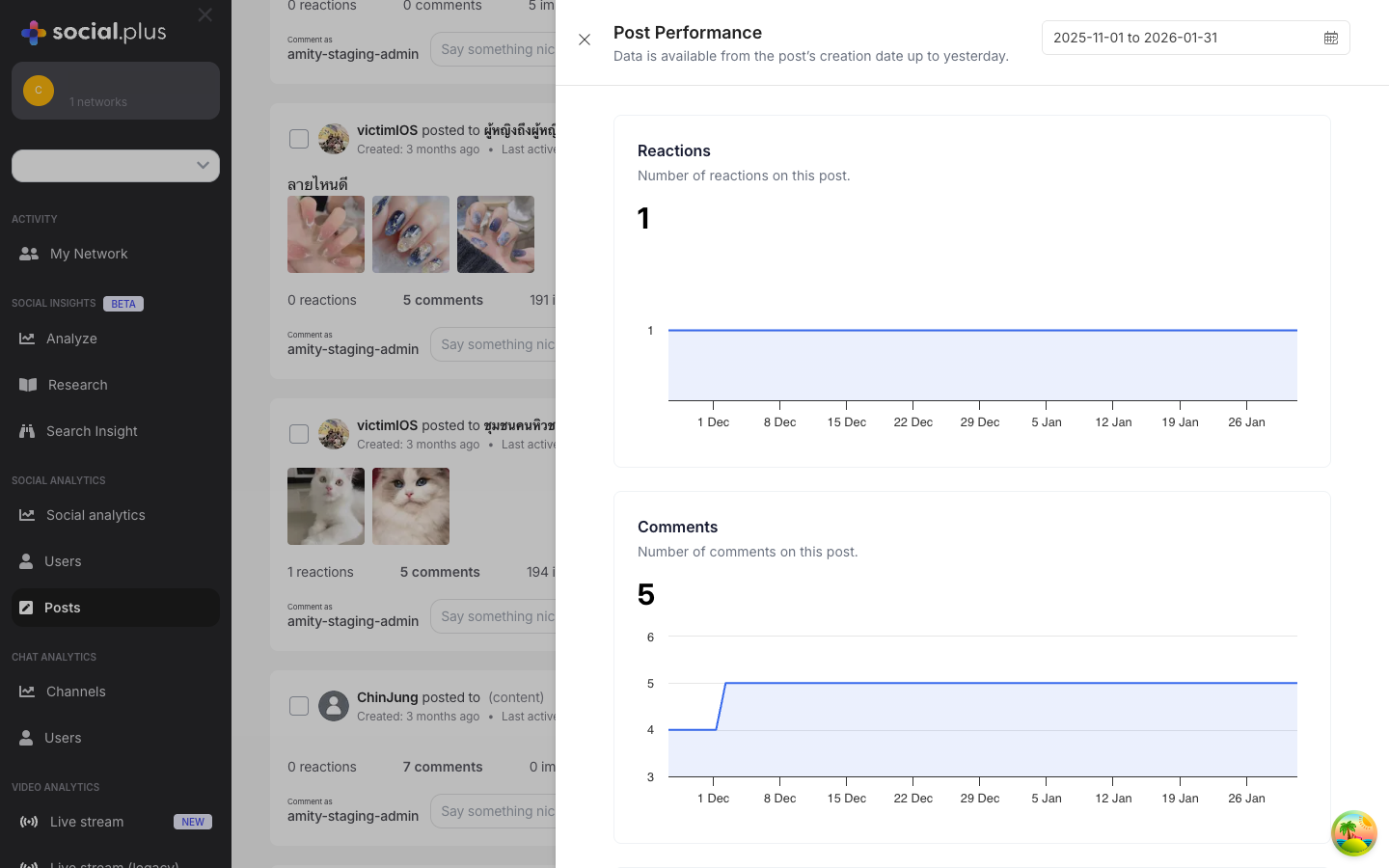
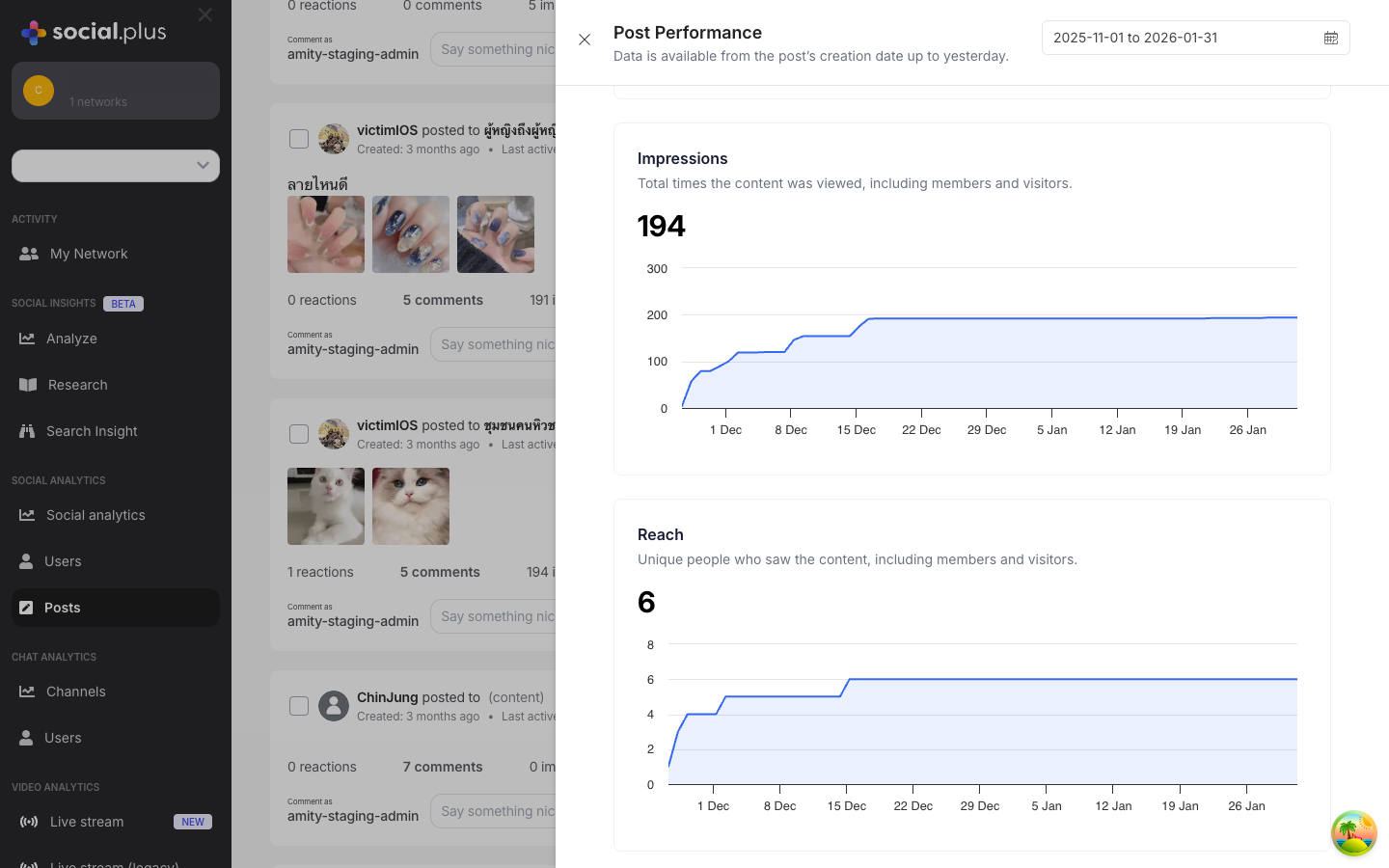 The panel includes its own date range picker, allowing you to analyse performance across different time windows independently of the main feed filter.
Data is available from the post's creation date up to yesterday. Today's data is not yet included.
### Performance Metrics
**Definition:** Number of reactions (likes, emojis) on this post.
Displayed as a daily time-series chart. Use to identify reaction spikes that correlate with distribution events or viral moments.
**Definition:** Number of comments on this post.
Tracks comment volume over time. A healthy post typically sees comments taper gradually after an initial burst—flat-lining immediately may indicate low engagement quality.
**Definition:** Total times the content was viewed, including members and visitors.
Measures raw exposure. Compare with Reach to understand whether the same users are seeing the post repeatedly.
**Definition:** Unique people who saw the content, including members and visitors.
Reach represents distribution breadth. A high Impressions-to-Reach ratio indicates repeated exposure to the same audience—consider broadening distribution.
### Performance Metrics Reference
| Metric | Definition | Why It Matters | Action Trigger |
| ----------- | ------------------------------------------ | ----------------------------- | ----------------------------------------- |
| Reactions | Total reactions on the post | Lightweight engagement signal | Zero reactions after 24h of reach |
| Comments | Total comments on the post | Discussion depth indicator | Comments/Impressions ratio below baseline |
| Impressions | Total content renders (members + visitors) | Exposure volume | Flat despite distribution push |
| Reach | Unique viewers (members + visitors) | Distribution breadth | High impressions but stagnant reach |
## Best Practices
1. Start with the **Flagged Posts** tab to clear the moderation queue
2. Switch to **All Posts** and scan for anomalies (spam bursts, engagement drops)
3. Review **Pinned Posts** to ensure promoted content is still relevant
4. Open **Post Performance** on key posts to validate distribution health
* Compare Impressions vs Reach to detect audience saturation
* Check Reactions and Comments trends to assess engagement quality
* Adjust the date range to isolate specific campaign periods
* Use the per-post data to inform content strategy decisions
* Pin announcements, events, or high-quality community content
* Rotate pinned posts regularly to keep feeds fresh
* Limit pinned posts per community to avoid feed clutter
* Monitor pinned post performance to confirm visibility impact
## Troubleshooting
| Symptom | Likely Cause | Resolution |
| -------------------------------------- | ---------------------------------------- | ------------------------------------------------------------- |
| Posts not appearing | Date range too narrow | Expand the date range or reset to "Last 30 days" |
| Metrics show zero | Post is very new | Data is available from creation date up to yesterday—wait 24h |
| Flagged tab empty | No flagged content | Healthy state; continue monitoring |
| Post Performance panel shows "No data" | Post has no engagement in selected range | Adjust the date range to cover the post's active period |
| Search returns no results | Keyword mismatch | Try broader search terms or clear filters |
## Related
Community-level engagement metrics and growth trends
User-level activity and retention KPIs
Qualitative topic and sentiment analysis
The panel includes its own date range picker, allowing you to analyse performance across different time windows independently of the main feed filter.
Data is available from the post's creation date up to yesterday. Today's data is not yet included.
### Performance Metrics
**Definition:** Number of reactions (likes, emojis) on this post.
Displayed as a daily time-series chart. Use to identify reaction spikes that correlate with distribution events or viral moments.
**Definition:** Number of comments on this post.
Tracks comment volume over time. A healthy post typically sees comments taper gradually after an initial burst—flat-lining immediately may indicate low engagement quality.
**Definition:** Total times the content was viewed, including members and visitors.
Measures raw exposure. Compare with Reach to understand whether the same users are seeing the post repeatedly.
**Definition:** Unique people who saw the content, including members and visitors.
Reach represents distribution breadth. A high Impressions-to-Reach ratio indicates repeated exposure to the same audience—consider broadening distribution.
### Performance Metrics Reference
| Metric | Definition | Why It Matters | Action Trigger |
| ----------- | ------------------------------------------ | ----------------------------- | ----------------------------------------- |
| Reactions | Total reactions on the post | Lightweight engagement signal | Zero reactions after 24h of reach |
| Comments | Total comments on the post | Discussion depth indicator | Comments/Impressions ratio below baseline |
| Impressions | Total content renders (members + visitors) | Exposure volume | Flat despite distribution push |
| Reach | Unique viewers (members + visitors) | Distribution breadth | High impressions but stagnant reach |
## Best Practices
1. Start with the **Flagged Posts** tab to clear the moderation queue
2. Switch to **All Posts** and scan for anomalies (spam bursts, engagement drops)
3. Review **Pinned Posts** to ensure promoted content is still relevant
4. Open **Post Performance** on key posts to validate distribution health
* Compare Impressions vs Reach to detect audience saturation
* Check Reactions and Comments trends to assess engagement quality
* Adjust the date range to isolate specific campaign periods
* Use the per-post data to inform content strategy decisions
* Pin announcements, events, or high-quality community content
* Rotate pinned posts regularly to keep feeds fresh
* Limit pinned posts per community to avoid feed clutter
* Monitor pinned post performance to confirm visibility impact
## Troubleshooting
| Symptom | Likely Cause | Resolution |
| -------------------------------------- | ---------------------------------------- | ------------------------------------------------------------- |
| Posts not appearing | Date range too narrow | Expand the date range or reset to "Last 30 days" |
| Metrics show zero | Post is very new | Data is available from creation date up to yesterday—wait 24h |
| Flagged tab empty | No flagged content | Healthy state; continue monitoring |
| Post Performance panel shows "No data" | Post has no engagement in selected range | Adjust the date range to cover the post's active period |
| Search returns no results | Keyword mismatch | Try broader search terms or clear filters |
## Related
Community-level engagement metrics and growth trends
User-level activity and retention KPIs
Qualitative topic and sentiment analysis