> ## Documentation Index
> Fetch the complete documentation index at: https://learn.social.plus/llms.txt
> Use this file to discover all available pages before exploring further.
# Livestream Analytics
> Monitor and analyze your livestream performance with comprehensive metrics, viewer engagement data, and detailed stream reports
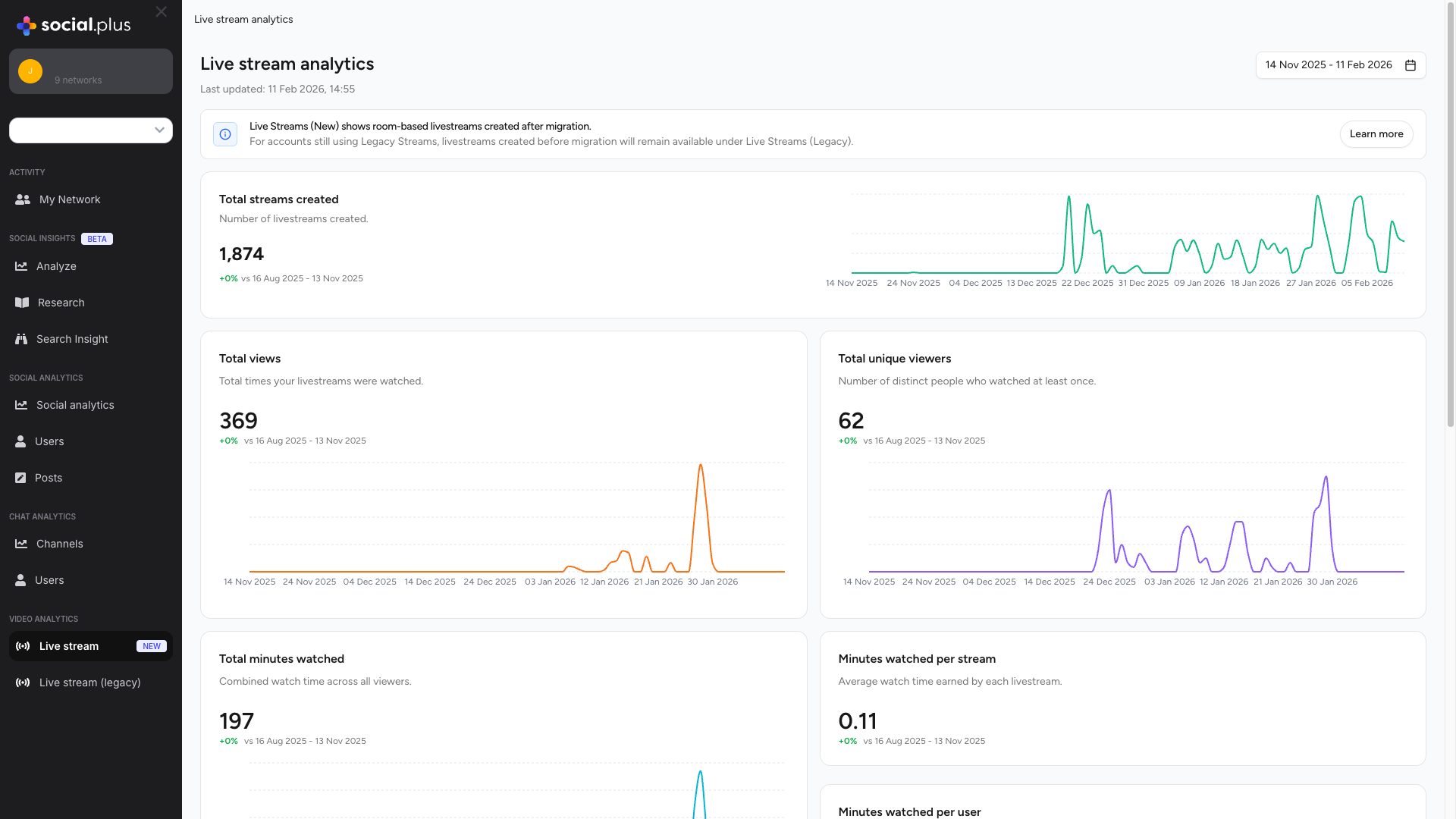
Track and analyze the performance of your livestream content with comprehensive analytics. The Livestream Analytics Dashboard provides real-time insights into viewer engagement, watch time, and stream performance metrics.
 ## Overview
The Livestream Analytics offers a centralized view of all your livestream metrics, helping you understand viewer behavior, content performance, and engagement patterns.
Track total streams created, views, unique viewers, and watch time with historical comparisons
Monitor viewer engagement with per-stream and per-user watch time metrics
Browse all livestreams with detailed performance data including views, duration, messages, and reactions
Compare performance across custom date ranges with percentage change indicators
**Migration Notice**: The new room-based livestreams appear in the Live Streams (New) section, while legacy streams remain available under Live Streams (Legacy) for accounts still using the previous system.
## Accessing the Dashboard
From the social.plus Portal sidebar, locate the **Video Analytics** section
Click on **Live stream** (marked with "New" badge) to access the latest analytics dashboard
Use the date range picker to filter analytics for your desired time period
## Key Metrics
### Total Streams Created
**Description**: Number of livestreams created during the selected period
**Displays**:
* Total count of streams
* Percentage change compared to previous period
* Trend visualization over time
**Use Cases**:
* Monitor content creation frequency
* Identify peak streaming periods
* Track creator activity levels
This metric helps you understand your streaming cadence and content production rate. A consistent or growing number of streams indicates active creator engagement.
**Insights**:
* **High Volume**: Strong creator activity and content supply
* **Low Volume**: May indicate need for creator incentives
* **Fluctuating**: Seasonal or event-driven patterns
### Total Views
**Description**: Total times your livestreams were watched across all streams
**Calculation**: Sum of all view instances, including repeat views from the same user
**Displays**:
* Total view count
* Percentage change vs previous period
* Time-series chart showing view trends
**Use Cases**:
* Measure overall content reach
* Assess audience interest levels
* Compare performance across periods
**Increase Views**:
* Promote upcoming streams through notifications
* Schedule streams during peak audience hours
* Create compelling stream titles and thumbnails
* Encourage repeat viewing with series content
**Benchmarking**:
* Compare views per stream ratio
* Track growth trends month-over-month
* Identify top-performing content types
### Total Unique Viewers
**Description**: Number of distinct users who watched at least once during the period
**Calculation**: Unique user count across all streams, counted once per user regardless of view frequency
**Key Differences**:
* **Total Views**: Counts every view instance (repeats included)
* **Unique Viewers**: Counts each person only once
**Example**: If User A watches 5 times = 5 views, 1 unique viewer
**Insights from Unique Viewers**:
**High Unique Viewers + Low Total Views**:
* Broad reach but low engagement
* Users watching briefly or once
* Consider improving content retention
**Low Unique Viewers + High Total Views**:
* Strong loyal audience
* High repeat viewership
* Good content retention
**Both Growing**:
* Healthy expansion
* Good balance of new and returning viewers
### Total Minutes Watched
**Description**: Combined watch time across all viewers and streams
**Calculation**: Sum of all minutes watched by all viewers across all streams
**Why It Matters**:
* Primary indicator of content value
* Reflects true engagement depth
* Key metric for monetization and growth
**Interpreting Watch Time**:
**High Watch Time**:
* Engaging, valuable content
* Good stream quality and pacing
* Strong audience retention
**Low Watch Time**:
* Short stream durations
* Early viewer drop-off
* Content-audience mismatch
**Optimization**:
* Analyze drop-off points
* Improve content pacing
* Enhance production quality
* Create compelling opening segments
### Minutes Watched Per Stream
**Description**: Average watch time earned by each livestream
**Calculation**: `Total Minutes Watched ÷ Total Streams Created`
**Benchmark Values**:
* **\< 1 minute**: Very low engagement, investigate issues
* **1-5 minutes**: Below average, room for improvement
* **5-15 minutes**: Good engagement
* **> 15 minutes**: Excellent engagement
**What This Tells You**:
* Content quality and appeal
* Stream duration effectiveness
* Topic relevance to audience
**Improving This Metric**:
* Create compelling openings (first 30 seconds critical)
* Maintain consistent pacing
* Deliver value throughout stream
* Use engagement prompts (Q\&A, polls)
* Optimize stream length for content type
### Minutes Watched Per User
**Description**: Average watch time per individual viewer
**Calculation**: `Total Minutes Watched ÷ Total Unique Viewers`
**Insights**:
* Individual user engagement level
* Content value perception
* Audience loyalty indicator
**High Minutes Per User**:
* Loyal, engaged audience
* High-value content
* Strong retention
**Low Minutes Per User**:
* Casual viewers
* Discovery/browsing behavior
* Potential targeting issues
**Strategies to Improve**:
* Build community through interaction
* Create consistent streaming schedules
* Develop content series to encourage return visits
* Implement viewer rewards/recognition
* Enhance production quality
## All Live Streams Table
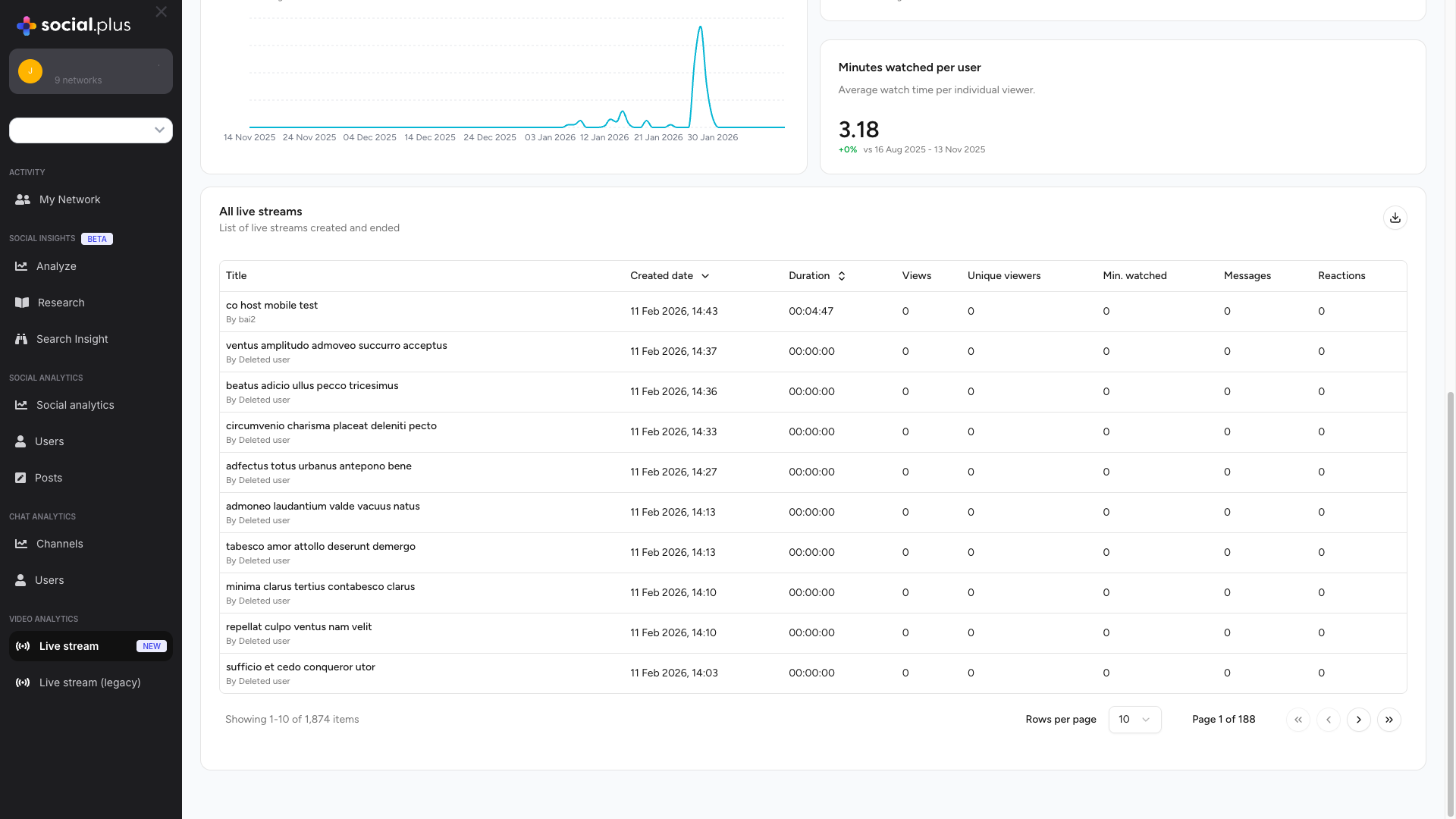
The streams table provides detailed performance data for each individual livestream, allowing you to identify top performers and analyze specific content.
## Overview
The Livestream Analytics offers a centralized view of all your livestream metrics, helping you understand viewer behavior, content performance, and engagement patterns.
Track total streams created, views, unique viewers, and watch time with historical comparisons
Monitor viewer engagement with per-stream and per-user watch time metrics
Browse all livestreams with detailed performance data including views, duration, messages, and reactions
Compare performance across custom date ranges with percentage change indicators
**Migration Notice**: The new room-based livestreams appear in the Live Streams (New) section, while legacy streams remain available under Live Streams (Legacy) for accounts still using the previous system.
## Accessing the Dashboard
From the social.plus Portal sidebar, locate the **Video Analytics** section
Click on **Live stream** (marked with "New" badge) to access the latest analytics dashboard
Use the date range picker to filter analytics for your desired time period
## Key Metrics
### Total Streams Created
**Description**: Number of livestreams created during the selected period
**Displays**:
* Total count of streams
* Percentage change compared to previous period
* Trend visualization over time
**Use Cases**:
* Monitor content creation frequency
* Identify peak streaming periods
* Track creator activity levels
This metric helps you understand your streaming cadence and content production rate. A consistent or growing number of streams indicates active creator engagement.
**Insights**:
* **High Volume**: Strong creator activity and content supply
* **Low Volume**: May indicate need for creator incentives
* **Fluctuating**: Seasonal or event-driven patterns
### Total Views
**Description**: Total times your livestreams were watched across all streams
**Calculation**: Sum of all view instances, including repeat views from the same user
**Displays**:
* Total view count
* Percentage change vs previous period
* Time-series chart showing view trends
**Use Cases**:
* Measure overall content reach
* Assess audience interest levels
* Compare performance across periods
**Increase Views**:
* Promote upcoming streams through notifications
* Schedule streams during peak audience hours
* Create compelling stream titles and thumbnails
* Encourage repeat viewing with series content
**Benchmarking**:
* Compare views per stream ratio
* Track growth trends month-over-month
* Identify top-performing content types
### Total Unique Viewers
**Description**: Number of distinct users who watched at least once during the period
**Calculation**: Unique user count across all streams, counted once per user regardless of view frequency
**Key Differences**:
* **Total Views**: Counts every view instance (repeats included)
* **Unique Viewers**: Counts each person only once
**Example**: If User A watches 5 times = 5 views, 1 unique viewer
**Insights from Unique Viewers**:
**High Unique Viewers + Low Total Views**:
* Broad reach but low engagement
* Users watching briefly or once
* Consider improving content retention
**Low Unique Viewers + High Total Views**:
* Strong loyal audience
* High repeat viewership
* Good content retention
**Both Growing**:
* Healthy expansion
* Good balance of new and returning viewers
### Total Minutes Watched
**Description**: Combined watch time across all viewers and streams
**Calculation**: Sum of all minutes watched by all viewers across all streams
**Why It Matters**:
* Primary indicator of content value
* Reflects true engagement depth
* Key metric for monetization and growth
**Interpreting Watch Time**:
**High Watch Time**:
* Engaging, valuable content
* Good stream quality and pacing
* Strong audience retention
**Low Watch Time**:
* Short stream durations
* Early viewer drop-off
* Content-audience mismatch
**Optimization**:
* Analyze drop-off points
* Improve content pacing
* Enhance production quality
* Create compelling opening segments
### Minutes Watched Per Stream
**Description**: Average watch time earned by each livestream
**Calculation**: `Total Minutes Watched ÷ Total Streams Created`
**Benchmark Values**:
* **\< 1 minute**: Very low engagement, investigate issues
* **1-5 minutes**: Below average, room for improvement
* **5-15 minutes**: Good engagement
* **> 15 minutes**: Excellent engagement
**What This Tells You**:
* Content quality and appeal
* Stream duration effectiveness
* Topic relevance to audience
**Improving This Metric**:
* Create compelling openings (first 30 seconds critical)
* Maintain consistent pacing
* Deliver value throughout stream
* Use engagement prompts (Q\&A, polls)
* Optimize stream length for content type
### Minutes Watched Per User
**Description**: Average watch time per individual viewer
**Calculation**: `Total Minutes Watched ÷ Total Unique Viewers`
**Insights**:
* Individual user engagement level
* Content value perception
* Audience loyalty indicator
**High Minutes Per User**:
* Loyal, engaged audience
* High-value content
* Strong retention
**Low Minutes Per User**:
* Casual viewers
* Discovery/browsing behavior
* Potential targeting issues
**Strategies to Improve**:
* Build community through interaction
* Create consistent streaming schedules
* Develop content series to encourage return visits
* Implement viewer rewards/recognition
* Enhance production quality
## All Live Streams Table
The streams table provides detailed performance data for each individual livestream, allowing you to identify top performers and analyze specific content.
 ### Table Columns
**Content**: Stream title and creator name
**Information Displayed**:
* Stream title (top line)
* Creator name prefixed with "By" (bottom line)
**Usage**:
* Identify specific streams
* Track creator-specific performance
* Analyze title effectiveness
**Content**: Date and time when stream was created
**Format**: `DD MMM YYYY, HH:MM` (e.g., "11 Feb 2026, 14:43")
**Features**:
* Sortable column (click header to sort)
* Helps identify recent vs older content
* Useful for time-based analysis
**Content**: Total length of the livestream
**Format**: `HH:MM:SS` (Hours:Minutes:Seconds)
**Insights**:
* Optimal stream length analysis
* Content pacing evaluation
* Correlation with engagement metrics
**Note**: "00:00:00" indicates a stream that was created but not started or ended immediately
**Content**: Total number of times the stream was viewed
**Includes**:
* Live viewers during broadcast
* Replay/recording views (if enabled)
* Repeated views from same users
**Analysis**: Compare with unique viewers to understand repeat viewing behavior
**Content**: Number of distinct users who watched the stream
**Usage**:
* Measure reach per stream
* Calculate average views per unique viewer
* Identify high-appeal content
**Example**: 10 views with 5 unique viewers = 2 views per person average
**Content**: Total minutes watched for this specific stream
**Calculation**: Sum of watch time from all viewers
**Key Metric**: Indicates overall engagement value of the stream
**Analysis**: Divide by unique viewers to get average watch time per viewer
**Content**: Number of chat messages sent during the livestream
**Indicates**:
* Viewer interaction level
* Community engagement
* Real-time conversation activity
**High Messages**:
* Active, engaged audience
* Interactive content style
* Strong community presence
**Content**: Total number of reactions (likes, emojis) during stream
**Engagement Indicator**:
* Quick engagement metric
* Emotional response to content
* Viewer appreciation level
**Usage**: Reactions require less effort than messages, indicating broader audience sentiment
### Table Features
**Sorting**: Click on column headers marked with sort icons to order streams by that metric (ascending or descending)
**Row Click**: Click on any stream row to view [detailed analytics](#individual-livestream-analytics) for that specific livestream, including time-series charts and comprehensive stream information
**Export**: Use the export button (top right of table) to download stream data for external analysis
## Date Range Comparison
The dashboard automatically compares your selected period with the equivalent previous period, showing percentage changes for all metrics.
### Understanding Comparisons
**Positive Change (+%)**:
* Metric increased compared to previous period
* Growth in the measured activity
**No Change (0%)**:
* Metric remained the same
* Consistent performance
**Negative Change (-%)**:
* Metric decreased compared to previous period
* Requires investigation if significant
**Context Matters**: A 0% change might indicate stagnation in some cases or stable performance in others. Consider your growth goals and market conditions when interpreting trends.
## Best Practices
**Recommended Review Frequency**:
* **Daily**: For active streaming platforms during campaigns
* **Weekly**: For regular content creators
* **Monthly**: For strategic planning and goal setting
**Key Actions**:
* Check percentage changes for significant shifts
* Identify trending streams to replicate success
* Spot issues early (declining metrics)
* Adjust content strategy based on data
**Analyze Metrics Together**:
```
Engagement Rate = Minutes Watched Per User
Retention Rate = Unique Viewers ÷ Views
Content Value = Minutes Watched Per Stream
Reach Efficiency = Unique Viewers ÷ Streams Created
```
**Healthy Patterns**:
* Growing unique viewers + stable watch time per user
* Increasing streams + proportional view growth
* Rising minutes watched across all metrics
**Data-Driven Improvements**:
1. **Identify Top Performers**
* Sort by minutes watched
* Analyze what makes them successful
* Replicate winning patterns
2. **Optimize Timing**
* Review created dates of high-performing streams
* Identify best days/times for your audience
* Schedule streams accordingly
3. **Content Strategy**
* Compare stream titles and topics
* Measure engagement metrics per category
* Focus on high-performing content types
4. **Engagement Enhancement**
* Streams with high messages/reactions = successful interaction
* Study and replicate engagement techniques
* Build community through consistent interaction
**Low Views/Unique Viewers**:
* Improve promotion and discoverability
* Optimize stream titles and descriptions
* Leverage push notifications
* Schedule during peak audience times
**Low Watch Time**:
* Improve content quality and pacing
* Create compelling openings
* Enhance production value
* Reduce technical issues
**Low Messages/Reactions**:
* Encourage interaction through prompts
* Ask questions and respond to viewers
* Create interactive content (Q\&A, polls)
* Build community culture
## Use Cases
Identify which livestreams resonate most with your audience by comparing views, watch time, and engagement metrics across streams
Track individual creator performance by filtering the streams table by creator name to understand productivity and engagement
Analyze viewer patterns through unique viewer counts vs total views to understand audience loyalty and repeat viewing habits
Calculate return on investment for livestream initiatives by tracking engagement metrics against production costs and resources
Use historical data and trends to plan future content calendars, optimal streaming times, and content themes
Monitor platform growth through trending metrics and percentage changes to validate strategy effectiveness
## Comparing with Legacy Analytics
For accounts that have migrated from the legacy livestream system, both analytics dashboards remain accessible during the transition period.
### Key Differences
| Feature | Live Stream (New) | Live Stream (Legacy) |
| --------------------- | ----------------------------------- | -------------------------------- |
| **Stream Type** | Room-based livestreams | Channel-based livestreams |
| **Date Coverage** | Streams created after migration | Streams created before migration |
| **Analytics Depth** | Enhanced metrics and visualizations | Standard metrics |
| **Real-time Updates** | More frequent updates | Standard update frequency |
| **Export Options** | Enhanced export capabilities | Basic export |
**Migration Recommendation**: New livestreams should use the room-based system (Live Stream New) to take advantage of improved features and analytics capabilities.
***
## Individual Livestream Analytics
Access comprehensive analytics for individual livestream sessions by clicking on any stream row in the table above. Each detail page includes viewer engagement metrics, chat activity, reactions, and detailed stream information.
### Table Columns
**Content**: Stream title and creator name
**Information Displayed**:
* Stream title (top line)
* Creator name prefixed with "By" (bottom line)
**Usage**:
* Identify specific streams
* Track creator-specific performance
* Analyze title effectiveness
**Content**: Date and time when stream was created
**Format**: `DD MMM YYYY, HH:MM` (e.g., "11 Feb 2026, 14:43")
**Features**:
* Sortable column (click header to sort)
* Helps identify recent vs older content
* Useful for time-based analysis
**Content**: Total length of the livestream
**Format**: `HH:MM:SS` (Hours:Minutes:Seconds)
**Insights**:
* Optimal stream length analysis
* Content pacing evaluation
* Correlation with engagement metrics
**Note**: "00:00:00" indicates a stream that was created but not started or ended immediately
**Content**: Total number of times the stream was viewed
**Includes**:
* Live viewers during broadcast
* Replay/recording views (if enabled)
* Repeated views from same users
**Analysis**: Compare with unique viewers to understand repeat viewing behavior
**Content**: Number of distinct users who watched the stream
**Usage**:
* Measure reach per stream
* Calculate average views per unique viewer
* Identify high-appeal content
**Example**: 10 views with 5 unique viewers = 2 views per person average
**Content**: Total minutes watched for this specific stream
**Calculation**: Sum of watch time from all viewers
**Key Metric**: Indicates overall engagement value of the stream
**Analysis**: Divide by unique viewers to get average watch time per viewer
**Content**: Number of chat messages sent during the livestream
**Indicates**:
* Viewer interaction level
* Community engagement
* Real-time conversation activity
**High Messages**:
* Active, engaged audience
* Interactive content style
* Strong community presence
**Content**: Total number of reactions (likes, emojis) during stream
**Engagement Indicator**:
* Quick engagement metric
* Emotional response to content
* Viewer appreciation level
**Usage**: Reactions require less effort than messages, indicating broader audience sentiment
### Table Features
**Sorting**: Click on column headers marked with sort icons to order streams by that metric (ascending or descending)
**Row Click**: Click on any stream row to view [detailed analytics](#individual-livestream-analytics) for that specific livestream, including time-series charts and comprehensive stream information
**Export**: Use the export button (top right of table) to download stream data for external analysis
## Date Range Comparison
The dashboard automatically compares your selected period with the equivalent previous period, showing percentage changes for all metrics.
### Understanding Comparisons
**Positive Change (+%)**:
* Metric increased compared to previous period
* Growth in the measured activity
**No Change (0%)**:
* Metric remained the same
* Consistent performance
**Negative Change (-%)**:
* Metric decreased compared to previous period
* Requires investigation if significant
**Context Matters**: A 0% change might indicate stagnation in some cases or stable performance in others. Consider your growth goals and market conditions when interpreting trends.
## Best Practices
**Recommended Review Frequency**:
* **Daily**: For active streaming platforms during campaigns
* **Weekly**: For regular content creators
* **Monthly**: For strategic planning and goal setting
**Key Actions**:
* Check percentage changes for significant shifts
* Identify trending streams to replicate success
* Spot issues early (declining metrics)
* Adjust content strategy based on data
**Analyze Metrics Together**:
```
Engagement Rate = Minutes Watched Per User
Retention Rate = Unique Viewers ÷ Views
Content Value = Minutes Watched Per Stream
Reach Efficiency = Unique Viewers ÷ Streams Created
```
**Healthy Patterns**:
* Growing unique viewers + stable watch time per user
* Increasing streams + proportional view growth
* Rising minutes watched across all metrics
**Data-Driven Improvements**:
1. **Identify Top Performers**
* Sort by minutes watched
* Analyze what makes them successful
* Replicate winning patterns
2. **Optimize Timing**
* Review created dates of high-performing streams
* Identify best days/times for your audience
* Schedule streams accordingly
3. **Content Strategy**
* Compare stream titles and topics
* Measure engagement metrics per category
* Focus on high-performing content types
4. **Engagement Enhancement**
* Streams with high messages/reactions = successful interaction
* Study and replicate engagement techniques
* Build community through consistent interaction
**Low Views/Unique Viewers**:
* Improve promotion and discoverability
* Optimize stream titles and descriptions
* Leverage push notifications
* Schedule during peak audience times
**Low Watch Time**:
* Improve content quality and pacing
* Create compelling openings
* Enhance production value
* Reduce technical issues
**Low Messages/Reactions**:
* Encourage interaction through prompts
* Ask questions and respond to viewers
* Create interactive content (Q\&A, polls)
* Build community culture
## Use Cases
Identify which livestreams resonate most with your audience by comparing views, watch time, and engagement metrics across streams
Track individual creator performance by filtering the streams table by creator name to understand productivity and engagement
Analyze viewer patterns through unique viewer counts vs total views to understand audience loyalty and repeat viewing habits
Calculate return on investment for livestream initiatives by tracking engagement metrics against production costs and resources
Use historical data and trends to plan future content calendars, optimal streaming times, and content themes
Monitor platform growth through trending metrics and percentage changes to validate strategy effectiveness
## Comparing with Legacy Analytics
For accounts that have migrated from the legacy livestream system, both analytics dashboards remain accessible during the transition period.
### Key Differences
| Feature | Live Stream (New) | Live Stream (Legacy) |
| --------------------- | ----------------------------------- | -------------------------------- |
| **Stream Type** | Room-based livestreams | Channel-based livestreams |
| **Date Coverage** | Streams created after migration | Streams created before migration |
| **Analytics Depth** | Enhanced metrics and visualizations | Standard metrics |
| **Real-time Updates** | More frequent updates | Standard update frequency |
| **Export Options** | Enhanced export capabilities | Basic export |
**Migration Recommendation**: New livestreams should use the room-based system (Live Stream New) to take advantage of improved features and analytics capabilities.
***
## Individual Livestream Analytics
Access comprehensive analytics for individual livestream sessions by clicking on any stream row in the table above. Each detail page includes viewer engagement metrics, chat activity, reactions, and detailed stream information.
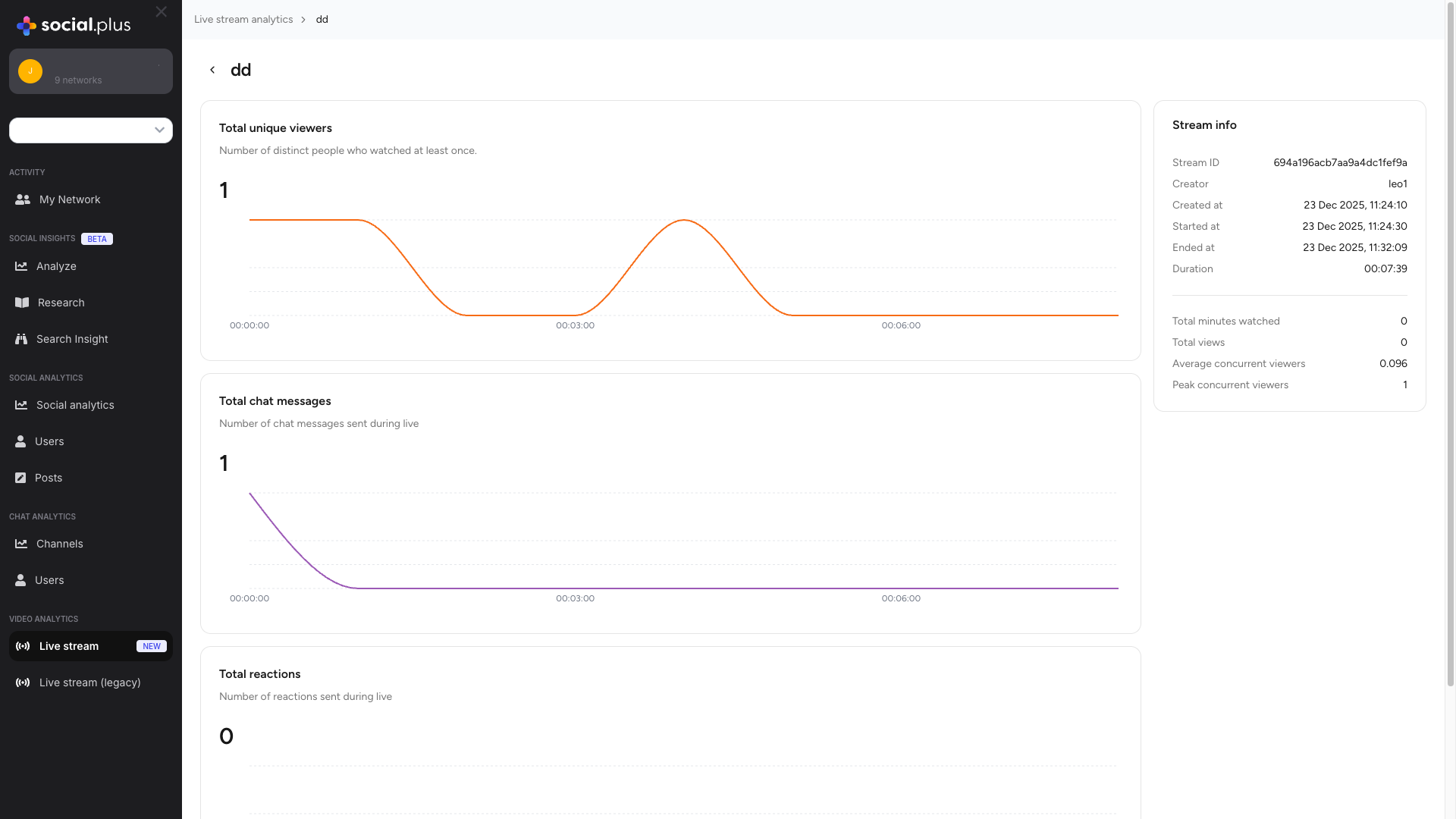 **Back Navigation**: Use the breadcrumb navigation at the top (Live stream analytics) to return to the overview page.
### Detail Page Metrics
#### Total Unique Viewers
**Description**: Number of distinct people who watched this specific livestream at least once
**Displayed With**:
* Total count of unique viewers
* Time-series chart showing viewer count throughout the stream duration
* X-axis: Stream timeline (HH:MM:SS format)
* Y-axis: Number of unique viewers at that moment
**Use Cases**:
* Identify peak viewership moments
* Understand viewer join/drop patterns
* Correlate content with viewership changes
**Time-Series Insights**:
**Steady Growth**: Content is discoverable and engaging, viewers staying throughout
**Early Peak, Then Decline**: Strong initial interest but retention issues
**Mid-Stream Peak**: Viral moment or notification spike
**Late Growth**: Word-of-mouth effect or delayed notifications
#### Total Chat Messages
**Description**: Number of chat messages sent during the livestream
**Displayed With**:
* Total message count
* Time-series chart showing message frequency over time
* Visualization of conversation peaks and valleys
**Indicates**:
* Audience engagement level
* Interactive content effectiveness
* Community participation
**High Message Activity**: Engaged, interactive audience with effective community building
**Message Spikes**: Identify what triggered conversation — controversial or exciting moments, Q\&A effectiveness
**Low Message Activity**: Passive viewing behavior — opportunity to add interactive elements
**Optimization Tips**:
* Ask questions to prompt chat
* Acknowledge and respond to messages
* Run polls or interactive segments
#### Total Reactions
**Description**: Number of reactions (likes, emojis, etc.) sent during the livestream
**Displayed With**:
* Total reaction count
* Time-series chart showing reaction frequency
* Visual representation of emotional response moments
**Reactions vs Messages Ratio**:
* **High Reactions, Low Messages**: Passive but appreciative audience
* **High Both**: Very engaged, interactive community
* **Low Both**: Need to improve engagement strategies
### Stream Information
The Stream Info panel provides comprehensive metadata about the livestream session.
* **Stream ID**: Unique alphanumeric identifier (e.g., `694a196acb7aa9a4dc1fef9a`) — useful for API integration and debugging
* **Creator**: Username or display name of the stream creator
* **Created At**: Timestamp when the livestream was created (format: `DD MMM YYYY, HH:MM:SS`)
* **Started At**: Exact timestamp when the livestream began broadcasting
* **Ended At**: Timestamp when the livestream ended
* **Duration**: Total length of the livestream (`HH:MM:SS`)
* **Total Minutes Watched**: Sum of all time spent watching by all viewers
* **Total Views**: Number of view instances (includes repeat views)
* **Average Concurrent Viewers**: Average number of viewers watching simultaneously (`Total Viewer-Minutes ÷ Stream Duration`)
* **Peak Concurrent Viewers**: Maximum number of viewers watching at the same time — indicates highest engagement moment
### Time-Series Chart Analysis
All three engagement metrics display time-series charts showing activity throughout the stream.
Shows stream timeline from start (00:00:00) to end. Hover over any point to see exact timestamp and value.
Number of viewers, messages, or reactions at that moment. Adjusts automatically to data range.
Identify peaks (highest engagement), valleys (low activity), and trends (growth, decline, or stability).
Growing engagement throughout stream — content getting more interesting, word-of-mouth sharing, or delayed notifications reaching users.
Declining engagement over time — content became repetitive, technical issues, or stream running too long.
Sudden increases in activity — exciting moments, Q\&A segments, or viral sharing. Review content at spike timestamp and replicate tactics.
Consistent, stable engagement — high flat indicates solid audience; low flat suggests room for improvement.
***
## Related Topics
Comprehensive analytics for posts, communities, and user interactions
Detailed metrics for channel and direct message engagement
User activity baseline and engagement patterns
**Back Navigation**: Use the breadcrumb navigation at the top (Live stream analytics) to return to the overview page.
### Detail Page Metrics
#### Total Unique Viewers
**Description**: Number of distinct people who watched this specific livestream at least once
**Displayed With**:
* Total count of unique viewers
* Time-series chart showing viewer count throughout the stream duration
* X-axis: Stream timeline (HH:MM:SS format)
* Y-axis: Number of unique viewers at that moment
**Use Cases**:
* Identify peak viewership moments
* Understand viewer join/drop patterns
* Correlate content with viewership changes
**Time-Series Insights**:
**Steady Growth**: Content is discoverable and engaging, viewers staying throughout
**Early Peak, Then Decline**: Strong initial interest but retention issues
**Mid-Stream Peak**: Viral moment or notification spike
**Late Growth**: Word-of-mouth effect or delayed notifications
#### Total Chat Messages
**Description**: Number of chat messages sent during the livestream
**Displayed With**:
* Total message count
* Time-series chart showing message frequency over time
* Visualization of conversation peaks and valleys
**Indicates**:
* Audience engagement level
* Interactive content effectiveness
* Community participation
**High Message Activity**: Engaged, interactive audience with effective community building
**Message Spikes**: Identify what triggered conversation — controversial or exciting moments, Q\&A effectiveness
**Low Message Activity**: Passive viewing behavior — opportunity to add interactive elements
**Optimization Tips**:
* Ask questions to prompt chat
* Acknowledge and respond to messages
* Run polls or interactive segments
#### Total Reactions
**Description**: Number of reactions (likes, emojis, etc.) sent during the livestream
**Displayed With**:
* Total reaction count
* Time-series chart showing reaction frequency
* Visual representation of emotional response moments
**Reactions vs Messages Ratio**:
* **High Reactions, Low Messages**: Passive but appreciative audience
* **High Both**: Very engaged, interactive community
* **Low Both**: Need to improve engagement strategies
### Stream Information
The Stream Info panel provides comprehensive metadata about the livestream session.
* **Stream ID**: Unique alphanumeric identifier (e.g., `694a196acb7aa9a4dc1fef9a`) — useful for API integration and debugging
* **Creator**: Username or display name of the stream creator
* **Created At**: Timestamp when the livestream was created (format: `DD MMM YYYY, HH:MM:SS`)
* **Started At**: Exact timestamp when the livestream began broadcasting
* **Ended At**: Timestamp when the livestream ended
* **Duration**: Total length of the livestream (`HH:MM:SS`)
* **Total Minutes Watched**: Sum of all time spent watching by all viewers
* **Total Views**: Number of view instances (includes repeat views)
* **Average Concurrent Viewers**: Average number of viewers watching simultaneously (`Total Viewer-Minutes ÷ Stream Duration`)
* **Peak Concurrent Viewers**: Maximum number of viewers watching at the same time — indicates highest engagement moment
### Time-Series Chart Analysis
All three engagement metrics display time-series charts showing activity throughout the stream.
Shows stream timeline from start (00:00:00) to end. Hover over any point to see exact timestamp and value.
Number of viewers, messages, or reactions at that moment. Adjusts automatically to data range.
Identify peaks (highest engagement), valleys (low activity), and trends (growth, decline, or stability).
Growing engagement throughout stream — content getting more interesting, word-of-mouth sharing, or delayed notifications reaching users.
Declining engagement over time — content became repetitive, technical issues, or stream running too long.
Sudden increases in activity — exciting moments, Q\&A segments, or viral sharing. Review content at spike timestamp and replicate tactics.
Consistent, stable engagement — high flat indicates solid audience; low flat suggests room for improvement.
***
## Related Topics
Comprehensive analytics for posts, communities, and user interactions
Detailed metrics for channel and direct message engagement
User activity baseline and engagement patterns