> ## Documentation Index
> Fetch the complete documentation index at: https://learn.social.plus/llms.txt
> Use this file to discover all available pages before exploring further.
# AI Moderation Usage & Budget Guard
> Track your monthly AI moderation allowances and understand how Budget Guard keeps your community protected and your costs predictable on flat-rate plans.
If you're on a flat-rate AI Moderation package, your plan includes a **monthly allowance** for each moderation feature. social.plus tracks your usage throughout the month and, if an allowance is used up, automatically switches that feature over to **basic, rules-based moderation** — so your community stays protected and you're never charged extra.
This is called **Budget Guard**, and you can monitor it at any time from the Admin Portal or the Console.
Flat-rate plans never bill overage. If an allowance runs out, moderation falls back to a basic mode instead of generating extra charges.
Even after an allowance is reached, your community keeps a baseline level of moderation until your usage resets.
## How your usage is tracked
* **Tracked per feature.** Text & Metadata Moderation, Image Moderation, and Video Moderation (posted minutes) each have their own allowance — running low on one doesn't affect the others.
* **Counted across your whole organization.** Usage is combined across all of your applications, not capped per app.
* **Resets monthly.** Your usage counters reset on the **1st day of every month**, in line with your billing cycle.
Your monthly allowances are determined by your subscribed plan tier. If your community is growing and you'd like to review your tier, [contact support](https://ekoapp.atlassian.net/servicedesk/customer/portal/3).
## Understanding your usage status
Each moderation feature shows a status badge based on how much of its monthly allowance has been used:
| Status | Usage | What it means |
| ------------ | --------- | ----------------------------------------------------------------------------------------------------------- |
| **Active** | Below 75% | You're comfortably within your monthly allowance. |
| **At risk** | 75–99% | You're approaching your allowance for this feature. You'll see a notification so you can plan ahead. |
| **Fallback** | 100% | The allowance is used up. Budget Guard has switched this feature to basic moderation until your next reset. |
## What happens when an allowance is reached
When a feature's month-to-date usage reaches 100% of its allowance, Budget Guard activates **immediately and only for that feature**:
* Remaining content for that feature is moderated using **basic, rules-based moderation** (keyword and block/allow-list filtering) instead of AI moderation, so your community continues to be protected.
* All other features that haven't reached their limit continue to run on full AI moderation as usual.
* The feature automatically returns to full AI moderation at the start of your next billing cycle — no action needed on your part.
**No surprise charges.** Flat-rate plans don't bill overage. Budget Guard exists precisely so that going over an allowance never results in an unexpected invoice.
## Where to check your usage
Usage is visible in two places — pick whichever fits how you work.
Go to **Account → Plan details** to see a single, organization-wide view of your AI moderation usage across all applications.
For each feature, you'll see:
* The monthly allowance and how much you've used so far
* The percentage used, with a visual progress bar
* The date your usage will next reset
* The current status (**Active**, **At risk**, or **Fallback**)
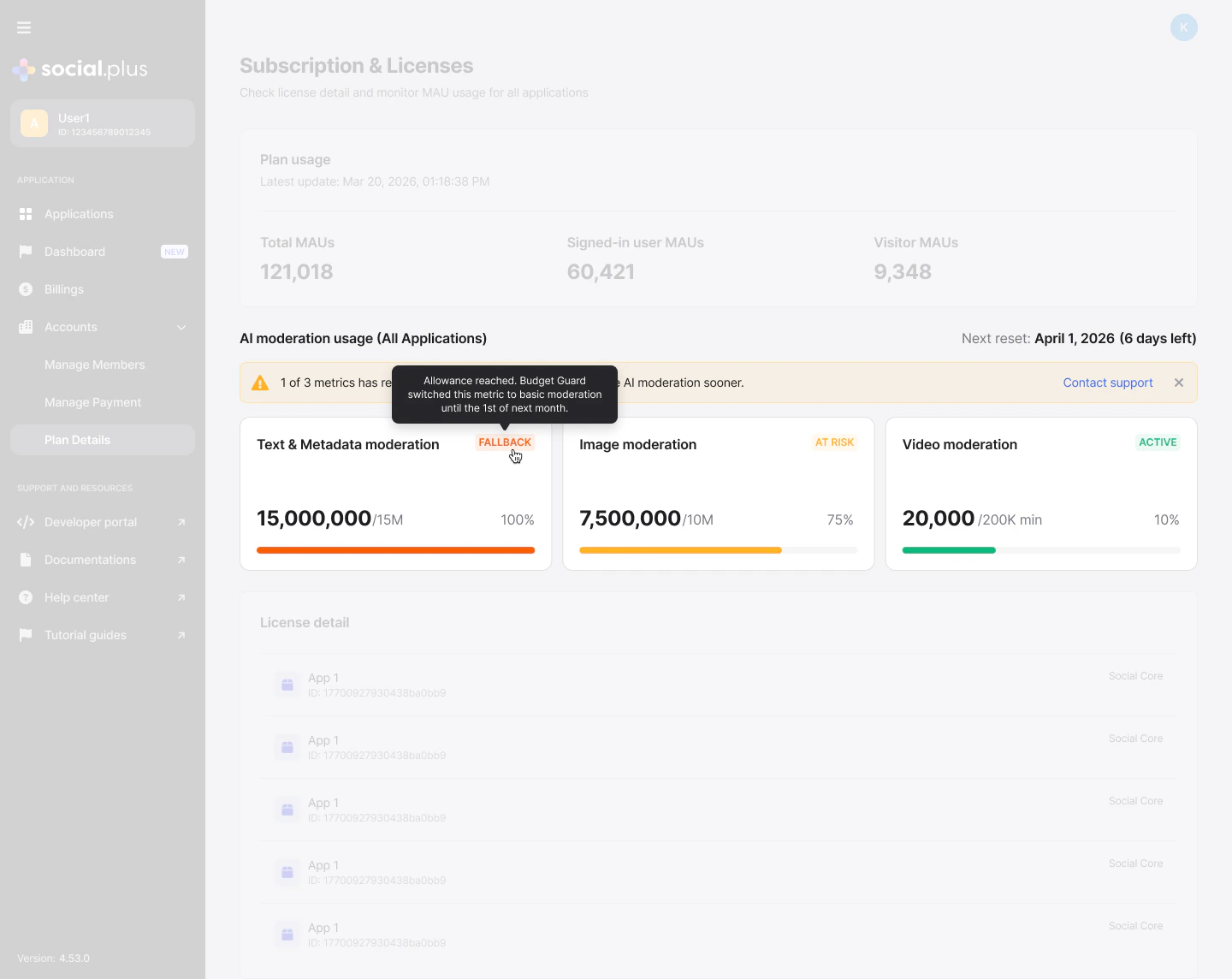 When any feature reaches **At risk** or **Fallback**, a notification banner appears at the top of the page with a link to **Contact support**. It can be dismissed — once dismissed, it won't reappear for you, though teammates who haven't seen it yet still will.
Go to **Usage** in the left-hand navigation to see AI moderation usage for the application you're currently working in.
For each feature, you'll see:
* This application's usage compared with your other applications and the remaining allowance
* The same allowance, percentage used, and status badge shown in the Admin Portal
* The organization-wide total, for context on how your apps contribute to the shared allowance
When any feature reaches **At risk** or **Fallback**, a notification banner appears at the top of the page with a link to **Contact support**. It can be dismissed — once dismissed, it won't reappear for you, though teammates who haven't seen it yet still will.
Go to **Usage** in the left-hand navigation to see AI moderation usage for the application you're currently working in.
For each feature, you'll see:
* This application's usage compared with your other applications and the remaining allowance
* The same allowance, percentage used, and status badge shown in the Admin Portal
* The organization-wide total, for context on how your apps contribute to the shared allowance
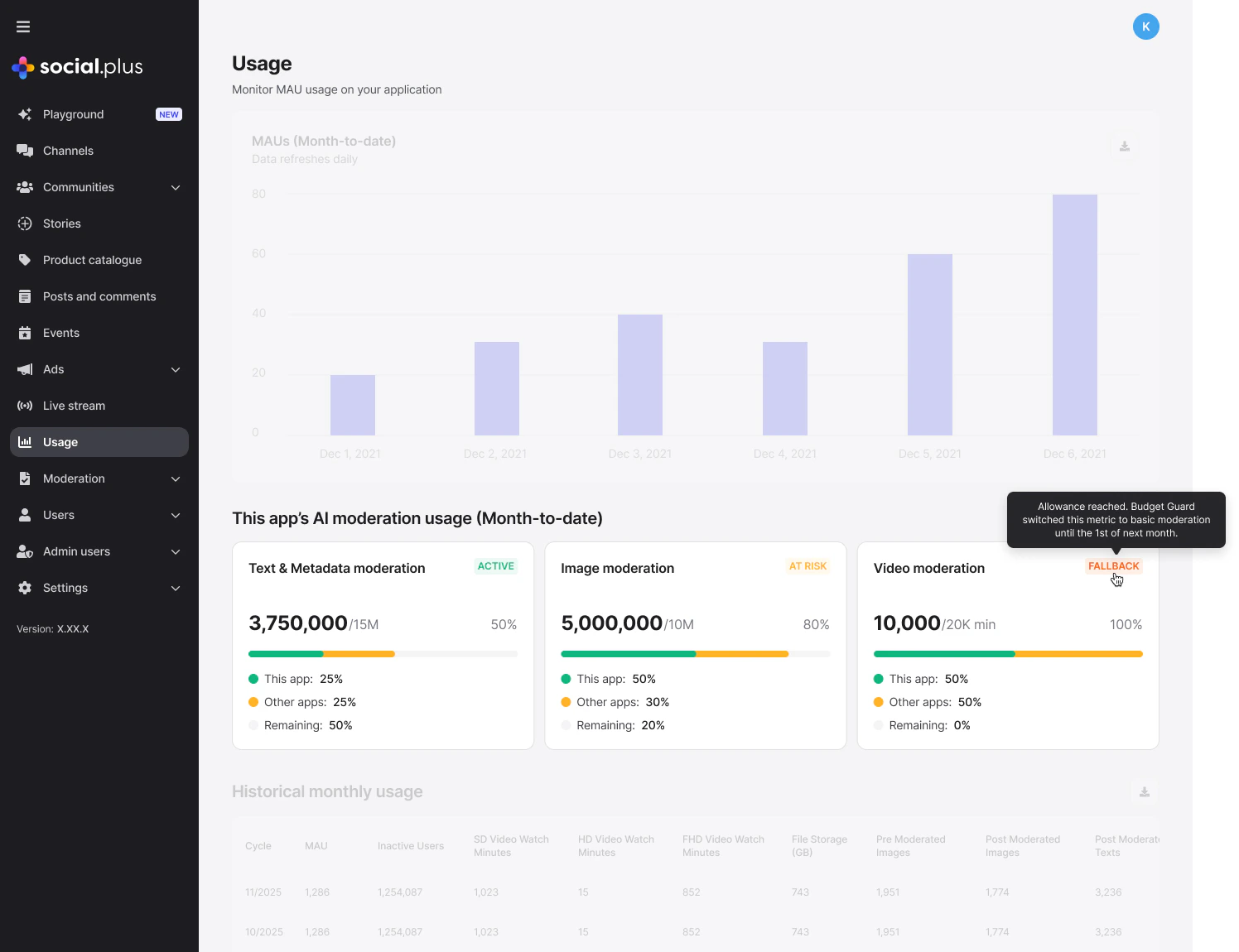 Usage shown in the Console and the Admin Portal is always kept in sync — whichever view you check, you'll see the same allowance, usage, and status for your organization.
## Staying ahead of your limit
* **Check in regularly**, especially if your community's activity is growing month over month.
* **Watch for the At risk notification** — it gives you advance notice before a feature switches to basic moderation.
* **Reach out early.** If you expect to consistently approach or exceed an allowance, [contact support](https://ekoapp.atlassian.net/servicedesk/customer/portal/3) to talk through your options, including moving to a higher tier.
Usage shown in the Console and the Admin Portal is always kept in sync — whichever view you check, you'll see the same allowance, usage, and status for your organization.
## Staying ahead of your limit
* **Check in regularly**, especially if your community's activity is growing month over month.
* **Watch for the At risk notification** — it gives you advance notice before a feature switches to basic moderation.
* **Reach out early.** If you expect to consistently approach or exceed an allowance, [contact support](https://ekoapp.atlassian.net/servicedesk/customer/portal/3) to talk through your options, including moving to a higher tier.