> ## Documentation Index
> Fetch the complete documentation index at: https://learn.social.plus/llms.txt
> Use this file to discover all available pages before exploring further.
# Comments Management
> Guide for moderators and administrators to view, moderate, create, and reply to multi-level comments in the Console
This page explains how Console moderators and administrators manage comment visibility, quality, safety, and engagement. Comments support **multi-level threading**, allowing nested conversations at multiple depths.
Open comment threads from Posts module
Assess content quality & context
Flag, edit, delete, or copy comment/reply IDs
Reply using self or Brand identity
Monitor reactions, replies, AI moderation status
Apply best-practice tone & governance
## Accessing Comments
There are two ways to access comments in the Console:
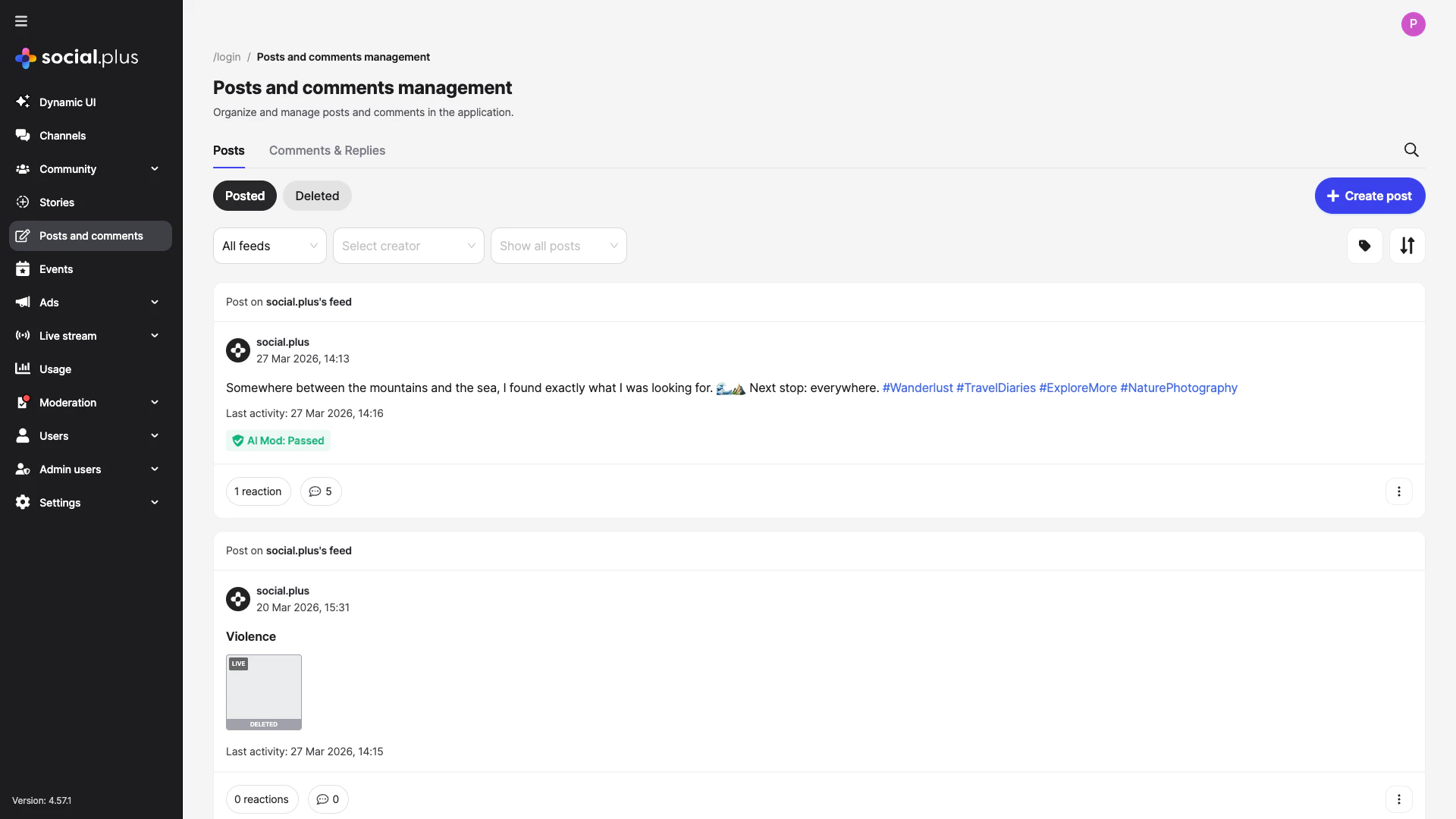
Go to Admin Console → **Posts and comments**.
Use the filter options (feed type, creator, post status) or search to locate the target post.
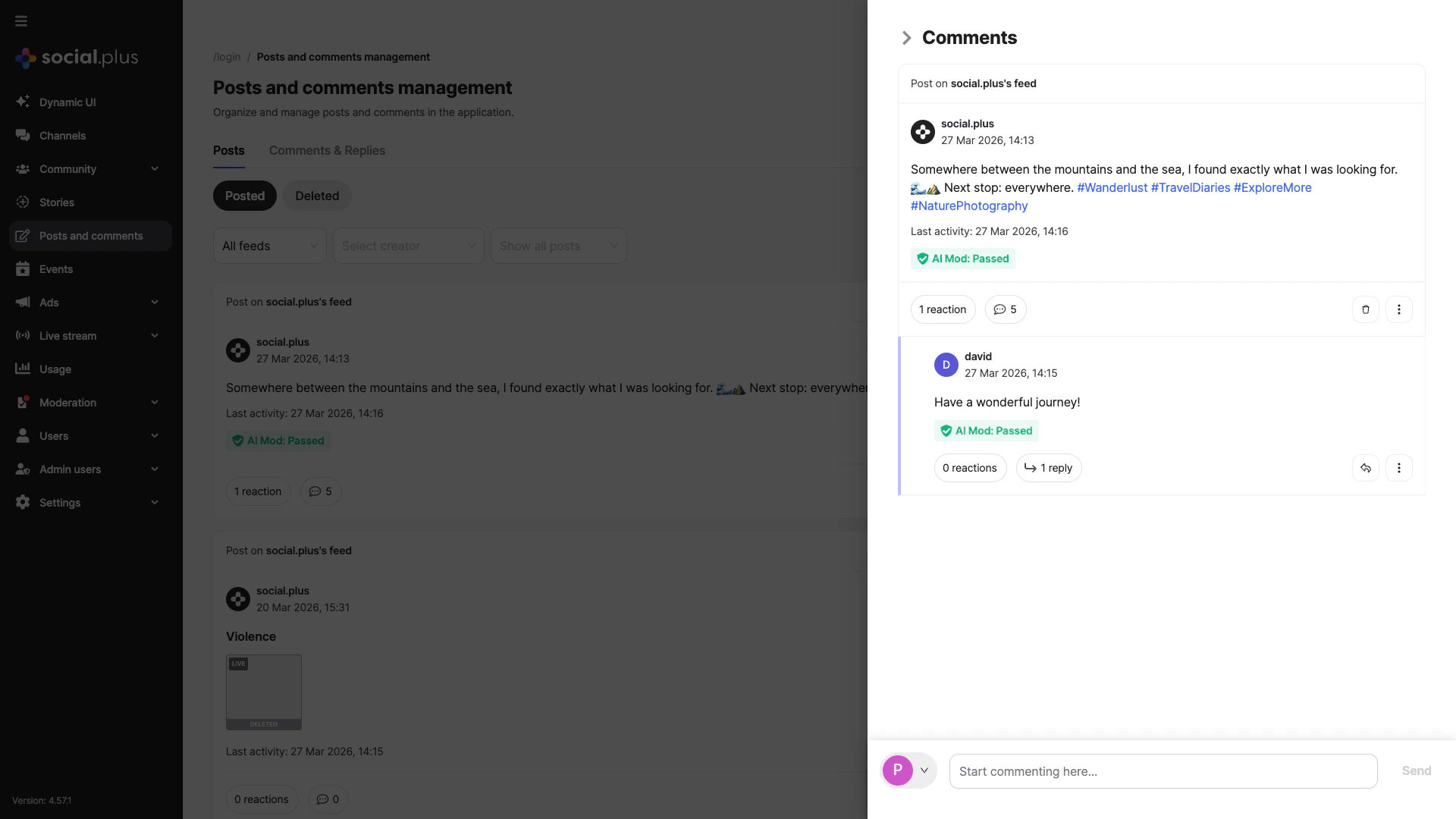
Click the **comment count** (💬 icon with number) on any post card. A panel slides open on the right showing the full comment thread for that post.
Identify flagged or high‑activity threads first. Each comment shows its AI Moderation status.
 Go to Admin Console → **Posts and comments**.
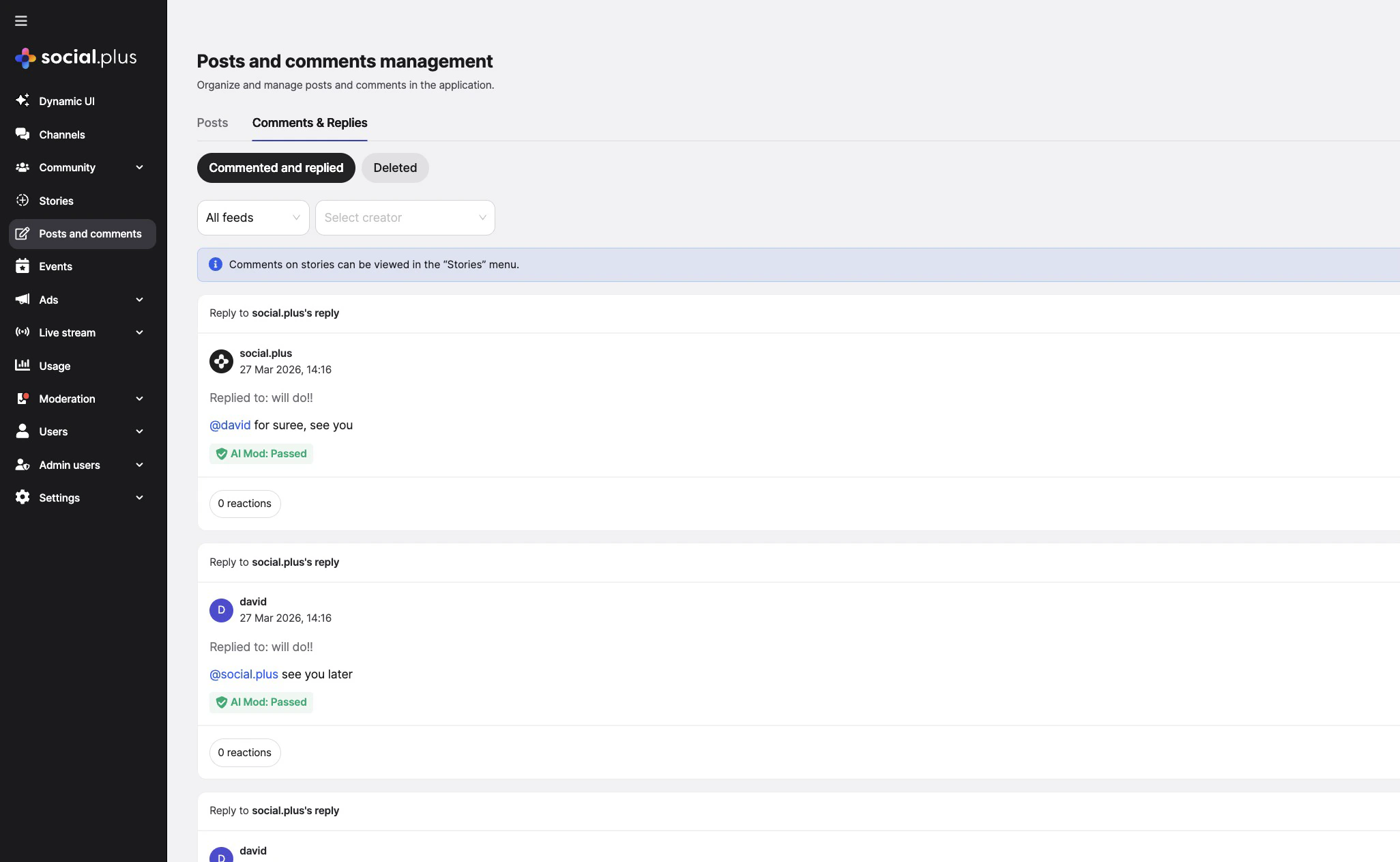
Select the **Comments & Replies** tab at the top of the page. This shows all comments and replies across all posts in a single list view.
Use the available filters to narrow down comments by status or other criteria.
Go to Admin Console → **Posts and comments**.
Select the **Comments & Replies** tab at the top of the page. This shows all comments and replies across all posts in a single list view.
Use the available filters to narrow down comments by status or other criteria.
 ## Comment Thread Structure
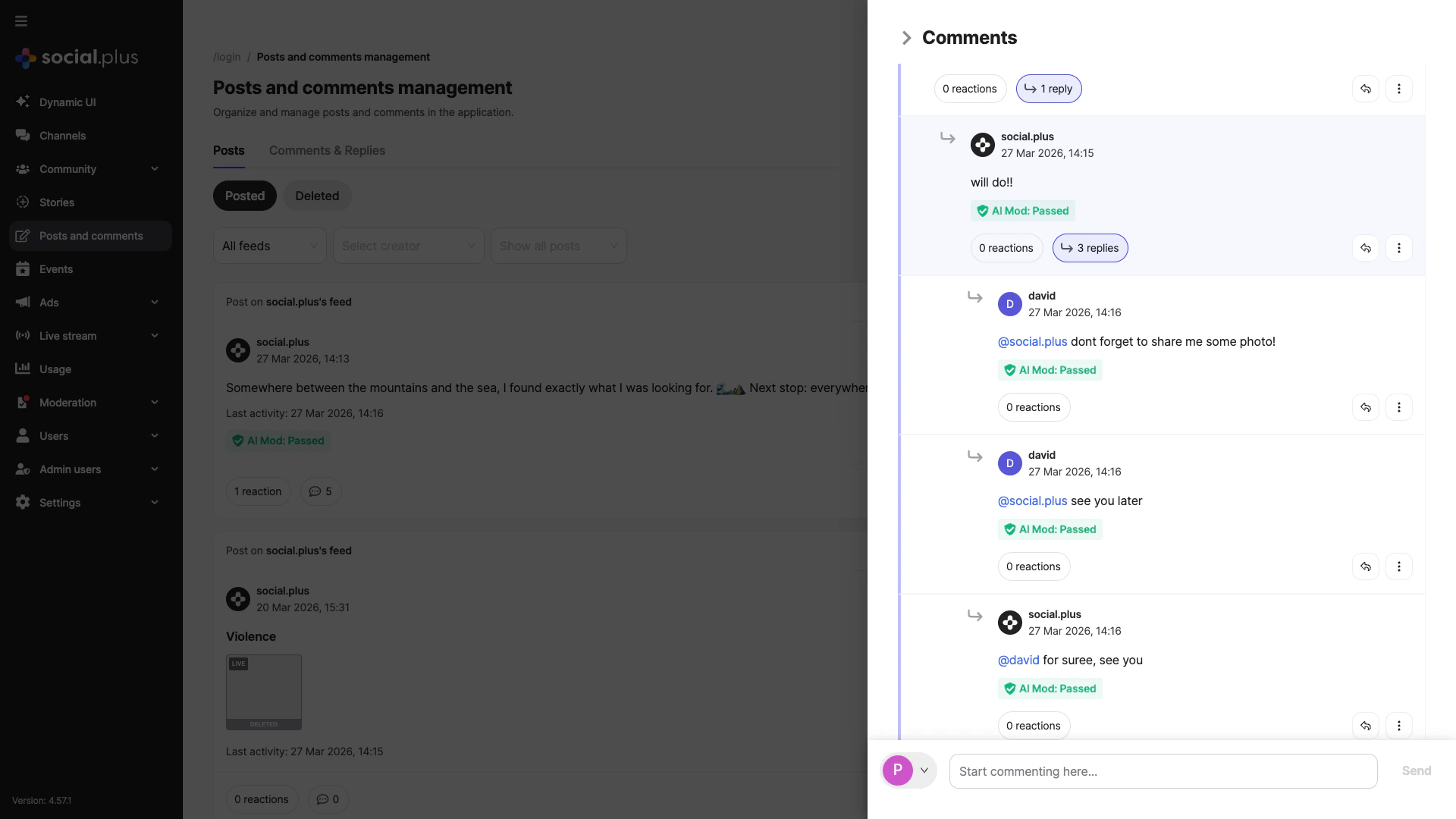
Comments support **multi-level threading** — replies can be nested multiple levels deep, creating branching conversations within a single post.
Each comment or reply shows:
* **Author photo & name** — click to view the user's history
* **Timestamp** — date and time the comment was posted
* **Comment text** — including **@mentions** (e.g., `@username`) that link to the mentioned user
* **AI Moderation status** — shows "AI Mod: Passed" in green, or the flagged category (e.g., "Harassment or bullying")
* **Engagement counts** — number of reactions and replies; click to expand replies
* **Flag button** — quickly flag a comment for review
* **More options menu** (⋮) — additional actions like edit, delete, and copy ID (see [Moderation Actions](#moderation-actions))
Comments are organized in a **nested tree structure**:
* **Level 1**: Top-level comments on a post
* **Level 2**: Replies to top-level comments
* **Level 3+**: Replies to replies, allowing deep conversational threads
Each level is shown with:
* **Indentation** and a reply arrow (↩) to show which comment is being replied to
* **"X replies" link** — click to expand or collapse replies underneath
* **"Hide replies"** — collapse an expanded reply thread to keep the view tidy
## Comment Thread Structure
Comments support **multi-level threading** — replies can be nested multiple levels deep, creating branching conversations within a single post.
Each comment or reply shows:
* **Author photo & name** — click to view the user's history
* **Timestamp** — date and time the comment was posted
* **Comment text** — including **@mentions** (e.g., `@username`) that link to the mentioned user
* **AI Moderation status** — shows "AI Mod: Passed" in green, or the flagged category (e.g., "Harassment or bullying")
* **Engagement counts** — number of reactions and replies; click to expand replies
* **Flag button** — quickly flag a comment for review
* **More options menu** (⋮) — additional actions like edit, delete, and copy ID (see [Moderation Actions](#moderation-actions))
Comments are organized in a **nested tree structure**:
* **Level 1**: Top-level comments on a post
* **Level 2**: Replies to top-level comments
* **Level 3+**: Replies to replies, allowing deep conversational threads
Each level is shown with:
* **Indentation** and a reply arrow (↩) to show which comment is being replied to
* **"X replies" link** — click to expand or collapse replies underneath
* **"Hide replies"** — collapse an expanded reply thread to keep the view tidy
 Users can mention other users in comments and replies using the `@username` syntax. Mentions are:
* Displayed as **clickable links** that navigate to the mentioned user's profile/history
* Visually distinguished from regular text
* Supported at all comment nesting levels
Use reaction & reply counts to surface:
* Emerging discussions needing moderation
* Popular threads for community amplification
* Potential hotspots for policy enforcement
* Deep reply chains that may indicate heated discussions
Every comment and reply is automatically checked by the AI moderation system:
* **Passed** — a green "AI Mod: Passed" label appears on the comment
* **Flagged** — the specific violation category is shown (e.g., "Harassment or bullying")
* This status is visible on every comment at any nesting level
* Flagged comments are highlighted in the thread
* Each comment has a **flag button** for quick flagging
* Prioritize review based on severity & volume
* Clearing a flag removes it from escalation metrics
## Comment Approval
A community can require that member comments are reviewed before anyone else sees them. While the setting is on, a member's comment is held the moment it is written: the author still sees their own comment, and nobody else does until a moderator approves it.
Comments left by moderators and admins are never held — a reviewer is not gated by their own setting. Comments on stories are never held either, because a story expires and an approval could publish a comment onto a story no member can still open.
### Turning it on
The setting belongs to a community, not the network, so you can require approval in one space and leave the rest open.
Go to Admin Console → **Communities** and open the community you want to moderate.
Select the **Permissions** tab.
Turn on **Approve member comments** — "Comments by members have to be reviewed and approved by community moderator."
Users can mention other users in comments and replies using the `@username` syntax. Mentions are:
* Displayed as **clickable links** that navigate to the mentioned user's profile/history
* Visually distinguished from regular text
* Supported at all comment nesting levels
Use reaction & reply counts to surface:
* Emerging discussions needing moderation
* Popular threads for community amplification
* Potential hotspots for policy enforcement
* Deep reply chains that may indicate heated discussions
Every comment and reply is automatically checked by the AI moderation system:
* **Passed** — a green "AI Mod: Passed" label appears on the comment
* **Flagged** — the specific violation category is shown (e.g., "Harassment or bullying")
* This status is visible on every comment at any nesting level
* Flagged comments are highlighted in the thread
* Each comment has a **flag button** for quick flagging
* Prioritize review based on severity & volume
* Clearing a flag removes it from escalation metrics
## Comment Approval
A community can require that member comments are reviewed before anyone else sees them. While the setting is on, a member's comment is held the moment it is written: the author still sees their own comment, and nobody else does until a moderator approves it.
Comments left by moderators and admins are never held — a reviewer is not gated by their own setting. Comments on stories are never held either, because a story expires and an approval could publish a comment onto a story no member can still open.
### Turning it on
The setting belongs to a community, not the network, so you can require approval in one space and leave the rest open.
Go to Admin Console → **Communities** and open the community you want to moderate.
Select the **Permissions** tab.
Turn on **Approve member comments** — "Comments by members have to be reviewed and approved by community moderator."
 Turning the setting on affects new comments only. Comments already published stay published.
### Reviewing the queue
Go to Admin Console → **Posts and comments**.
Choose the **Requires approval** chip. The queue is per community, so pick the community you are reviewing.
Comments are listed newest first. Each one shows the comment, its author, and the post it was left on.
Turning the setting on affects new comments only. Comments already published stay published.
### Reviewing the queue
Go to Admin Console → **Posts and comments**.
Choose the **Requires approval** chip. The queue is per community, so pick the community you are reviewing.
Comments are listed newest first. Each one shows the comment, its author, and the post it was left on.
 When nothing is waiting, the queue reads "No comments are waiting for approval in this community."
### Approving and declining
**Approve** publishes the comment to everyone who can see the post. The Console confirms with "Comment has been approved".
An approved comment appears in the thread **where it was written**, not at the end — so a comment approved some time after it was posted is inserted back into its original position, which readers may already have scrolled past.
**Decline** opens a confirmation: "Decline this comment?" — "Declining permanently deletes this comment. You can add a reason for your records."
The reason is optional and accepts up to 250 characters. It is kept with the record for your own audit, and is never shown to the comment's author. The Console confirms with "Comment has been declined".
Declining cannot be undone, and a declined comment cannot be restored or re-reviewed.
You cannot review your own comment. If you write a comment in a community where you hold review permission, it publishes immediately rather than entering the queue.
### After approval
An approved comment is an ordinary comment, with one exception: **editing it sends it back for review**. If the author edits an approved comment, it returns to the queue and is hidden again until a moderator approves the new text. This stops a comment being approved on innocuous wording and then changed.
Editing by someone who holds review permission does not send the comment back, and neither does a change made by automated moderation.
Whether an author may edit a comment at all while it is awaiting approval is a network-level setting, separate from this one. It is on by default.
### Who can review
| Role | Can review |
| ------------------------------------------------------- | --------------------------------------------------------------- |
| Community moderator with the review-comments permission | Yes, in that community |
| Admin with the manage post and comment permission | Yes, in any community |
| Community member | No — they cannot see held comments at all, apart from their own |
## Moderation Actions
Each comment and reply has a **more options menu** (⋮) with actions tailored to the item. The wording adjusts depending on whether it is a top-level comment or a nested reply.
When nothing is waiting, the queue reads "No comments are waiting for approval in this community."
### Approving and declining
**Approve** publishes the comment to everyone who can see the post. The Console confirms with "Comment has been approved".
An approved comment appears in the thread **where it was written**, not at the end — so a comment approved some time after it was posted is inserted back into its original position, which readers may already have scrolled past.
**Decline** opens a confirmation: "Decline this comment?" — "Declining permanently deletes this comment. You can add a reason for your records."
The reason is optional and accepts up to 250 characters. It is kept with the record for your own audit, and is never shown to the comment's author. The Console confirms with "Comment has been declined".
Declining cannot be undone, and a declined comment cannot be restored or re-reviewed.
You cannot review your own comment. If you write a comment in a community where you hold review permission, it publishes immediately rather than entering the queue.
### After approval
An approved comment is an ordinary comment, with one exception: **editing it sends it back for review**. If the author edits an approved comment, it returns to the queue and is hidden again until a moderator approves the new text. This stops a comment being approved on innocuous wording and then changed.
Editing by someone who holds review permission does not send the comment back, and neither does a change made by automated moderation.
Whether an author may edit a comment at all while it is awaiting approval is a network-level setting, separate from this one. It is on by default.
### Who can review
| Role | Can review |
| ------------------------------------------------------- | --------------------------------------------------------------- |
| Community moderator with the review-comments permission | Yes, in that community |
| Admin with the manage post and comment permission | Yes, in any community |
| Community member | No — they cannot see held comments at all, apart from their own |
## Moderation Actions
Each comment and reply has a **more options menu** (⋮) with actions tailored to the item. The wording adjusts depending on whether it is a top-level comment or a nested reply.
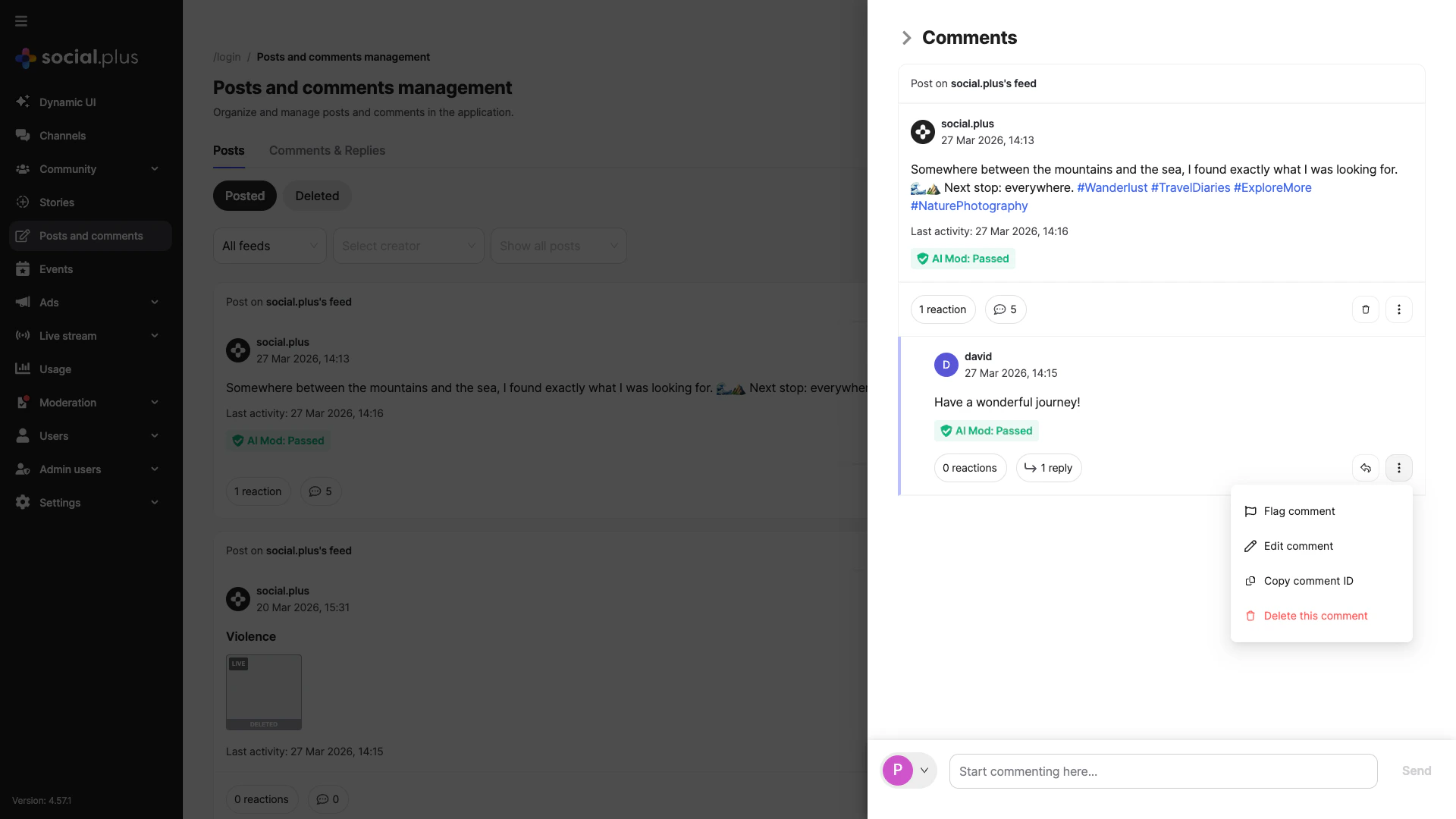 **Flag comment** / **Flag reply** — mark content for review. Also available via the flag button next to the more options menu.
**Edit comment** / **Edit reply** — modify the text content of the selected comment or reply.
**Copy comment ID** / **Copy reply ID** — copy the unique identifier for reference or internal tracking.
**Delete this comment** / **Delete this reply** — permanently remove the content. This action is immediate and cannot be undone. Shown in red as a warning.
## Replying & Engagement
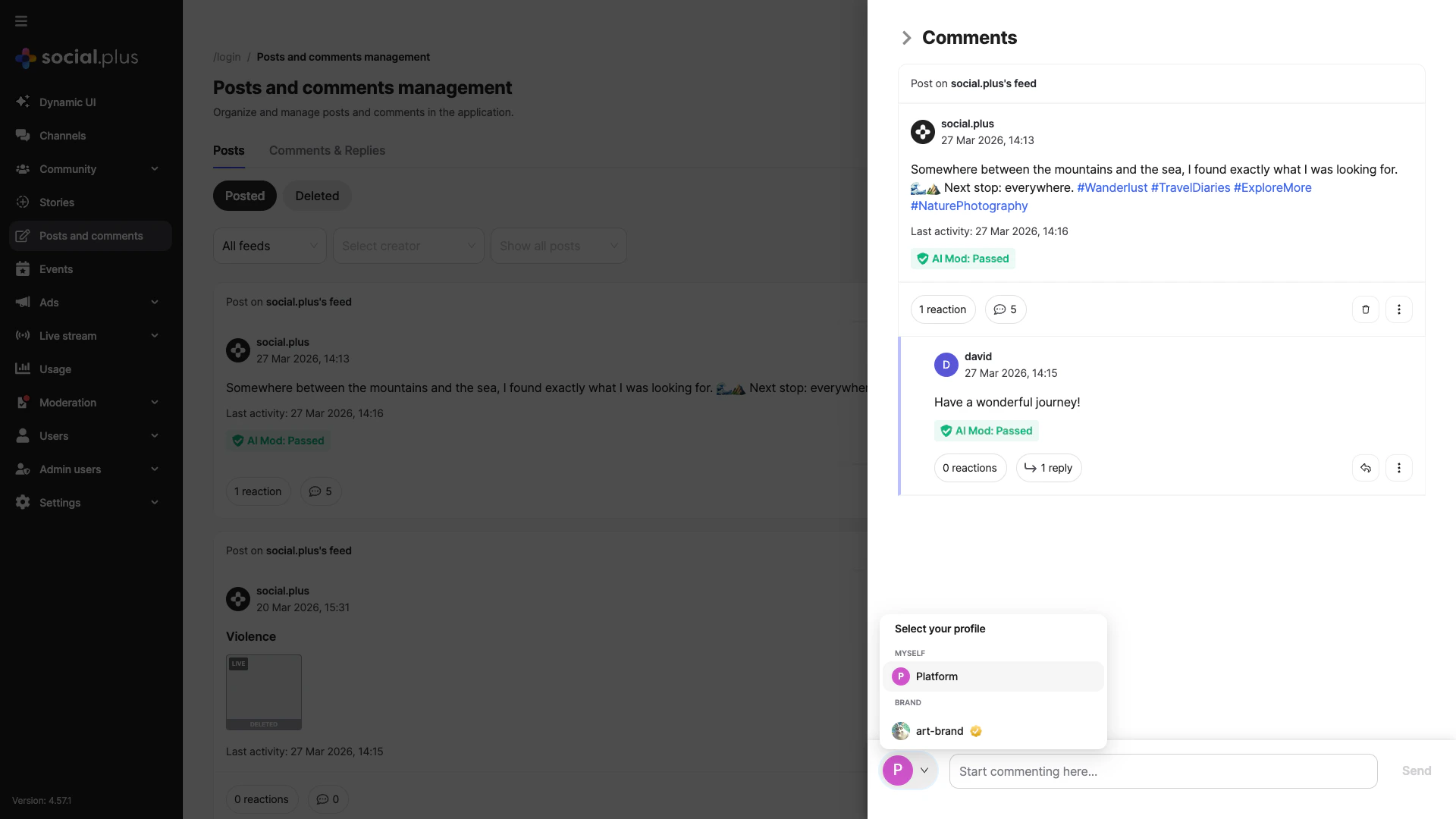
The comment panel includes a **comment bar** at the bottom where you can select your identity, type your message, and send.
Click your **profile picture** at the bottom-left of the panel. A "Select your profile" menu appears with two sections: **MYSELF** (your admin account) and **BRAND** (your official brand account).
Type in the "Start commenting here..." field. You can use **@mentions** to tag other users. The Send button becomes active once you start typing.
Click **Send** to publish. Your comment or reply appears immediately in the right place within the thread.
**Flag comment** / **Flag reply** — mark content for review. Also available via the flag button next to the more options menu.
**Edit comment** / **Edit reply** — modify the text content of the selected comment or reply.
**Copy comment ID** / **Copy reply ID** — copy the unique identifier for reference or internal tracking.
**Delete this comment** / **Delete this reply** — permanently remove the content. This action is immediate and cannot be undone. Shown in red as a warning.
## Replying & Engagement
The comment panel includes a **comment bar** at the bottom where you can select your identity, type your message, and send.
Click your **profile picture** at the bottom-left of the panel. A "Select your profile" menu appears with two sections: **MYSELF** (your admin account) and **BRAND** (your official brand account).
Type in the "Start commenting here..." field. You can use **@mentions** to tag other users. The Send button becomes active once you start typing.
Click **Send** to publish. Your comment or reply appears immediately in the right place within the thread.
 ### Identity Usage
Found under the **MYSELF** section. Shows your admin name and photo. Use for routine clarifications, community encouragement, and light moderation nudges.
Found under the **BRAND** section, marked with a verified badge. Use for formal statements, policy clarifications, resolution confirmations, and official announcements.
You can switch your identity at any time from the comment bar. Avoid switching identities mid-thread unless you need to escalate the tone (e.g., from a casual response to a formal resolution). Always check which identity is selected before sending.
Brand profile requires prior configuration in Settings → Brand Settings. If no brand is configured, only the MYSELF option will appear.
## Quality & Tone Guidelines
Use short sentences. Lead with resolution or key message. Avoid jargon.
Stay impartial especially in disputes. Do not take sides publicly prematurely.
Acknowledge concerns, restate guidelines, offer constructive next steps.
Match approved voice: professional, concise, empathetic when needed.
For sensitive removals, maintain internal notes (external system) referencing rationale.
## Monitoring & Metrics
Track:
* Comment volume per high-traffic posts
* Reaction-to-reply ratio (engagement depth)
* Flag rate (flags per 100 comments)
* Response latency (time to first moderator/admin reply)
* Recurring offenders (repeat policy friction)
Use metrics trends to refine staffing schedules and escalation thresholds.
## Best Practices
* Review high-activity posts at scheduled intervals.
* Prioritize flagged + high-engagement threads.
* Batch moderation actions to reduce context switching.
* Apply deletion criteria uniformly.
* Use saved internal templates for common responses (if available).
* Avoid over-moderating constructive critique.
* Encourage positive contributors with timely acknowledgment.
* Address misinformation early with factual, sourced replies.
* Track topics generating recurring friction for potential policy updates.
* Escalate threats, self-harm, or legal incidents per protocol.
* Archive (externally) severe violation context before deletion.
* Document patterns leading to account-level enforcement.
## Troubleshooting
| Issue | Likely Cause | Resolution |
| --------------------------------- | -------------------------------------- | -------------------------------------------------- |
| Comment not appearing | Network delay / stale view | Refresh thread; confirm submission |
| Cannot switch to Brand | Brand not configured / permission | Configure Brand or adjust role |
| Reply posted under wrong identity | Identity not re-selected | Verify identity before sending |
| Flag won’t clear | Insufficient permission / state change | Confirm role & refresh thread |
| High duplicate spam | Automated/bot activity | Apply broader anti-spam measures / escalate |
| Reactions not updating | Cached metrics | Refresh or wait for sync cycle |
| Deleted comment inquiries | User confusion | Provide neutral explanation referencing guidelines |
## Quick Reference
Reply → Identity → Compose → Send
Flags + High Activity
Flags / 100 Comments
Sensitive deletions
## Next Steps
Manage posts & visibility
Refine enforcement processes
Configure Brand identity
Analyze engagement trends
### Identity Usage
Found under the **MYSELF** section. Shows your admin name and photo. Use for routine clarifications, community encouragement, and light moderation nudges.
Found under the **BRAND** section, marked with a verified badge. Use for formal statements, policy clarifications, resolution confirmations, and official announcements.
You can switch your identity at any time from the comment bar. Avoid switching identities mid-thread unless you need to escalate the tone (e.g., from a casual response to a formal resolution). Always check which identity is selected before sending.
Brand profile requires prior configuration in Settings → Brand Settings. If no brand is configured, only the MYSELF option will appear.
## Quality & Tone Guidelines
Use short sentences. Lead with resolution or key message. Avoid jargon.
Stay impartial especially in disputes. Do not take sides publicly prematurely.
Acknowledge concerns, restate guidelines, offer constructive next steps.
Match approved voice: professional, concise, empathetic when needed.
For sensitive removals, maintain internal notes (external system) referencing rationale.
## Monitoring & Metrics
Track:
* Comment volume per high-traffic posts
* Reaction-to-reply ratio (engagement depth)
* Flag rate (flags per 100 comments)
* Response latency (time to first moderator/admin reply)
* Recurring offenders (repeat policy friction)
Use metrics trends to refine staffing schedules and escalation thresholds.
## Best Practices
* Review high-activity posts at scheduled intervals.
* Prioritize flagged + high-engagement threads.
* Batch moderation actions to reduce context switching.
* Apply deletion criteria uniformly.
* Use saved internal templates for common responses (if available).
* Avoid over-moderating constructive critique.
* Encourage positive contributors with timely acknowledgment.
* Address misinformation early with factual, sourced replies.
* Track topics generating recurring friction for potential policy updates.
* Escalate threats, self-harm, or legal incidents per protocol.
* Archive (externally) severe violation context before deletion.
* Document patterns leading to account-level enforcement.
## Troubleshooting
| Issue | Likely Cause | Resolution |
| --------------------------------- | -------------------------------------- | -------------------------------------------------- |
| Comment not appearing | Network delay / stale view | Refresh thread; confirm submission |
| Cannot switch to Brand | Brand not configured / permission | Configure Brand or adjust role |
| Reply posted under wrong identity | Identity not re-selected | Verify identity before sending |
| Flag won’t clear | Insufficient permission / state change | Confirm role & refresh thread |
| High duplicate spam | Automated/bot activity | Apply broader anti-spam measures / escalate |
| Reactions not updating | Cached metrics | Refresh or wait for sync cycle |
| Deleted comment inquiries | User confusion | Provide neutral explanation referencing guidelines |
## Quick Reference
Reply → Identity → Compose → Send
Flags + High Activity
Flags / 100 Comments
Sensitive deletions
## Next Steps
Manage posts & visibility
Refine enforcement processes
Configure Brand identity
Analyze engagement trends