> ## Documentation Index
> Fetch the complete documentation index at: https://learn.social.plus/llms.txt
> Use this file to discover all available pages before exploring further.
# Product Catalogue
> Upload, manage, and preview products used for tagging in community content through the social.plus Console
The Product Catalogue in the social.plus Console allows administrators to manage a centralized product database. Products added here can be tagged in community content such as posts, comments, and stories — enabling social commerce experiences and product discovery within your application.
View, search, and filter all products in a comprehensive table view
Create individual products with details, pricing, images, and URLs
Import multiple products at once via CSV file upload
Update existing product details in bulk using CSV files
Control product visibility with Active and Archived statuses
Enable products to be tagged in community content for social commerce
## Overview
The Product Catalogue provides a centralized dashboard for uploading, managing, and previewing products that can be tagged in community content. This enables social commerce workflows where users can discover and engage with products directly within posts, comments, and stories.
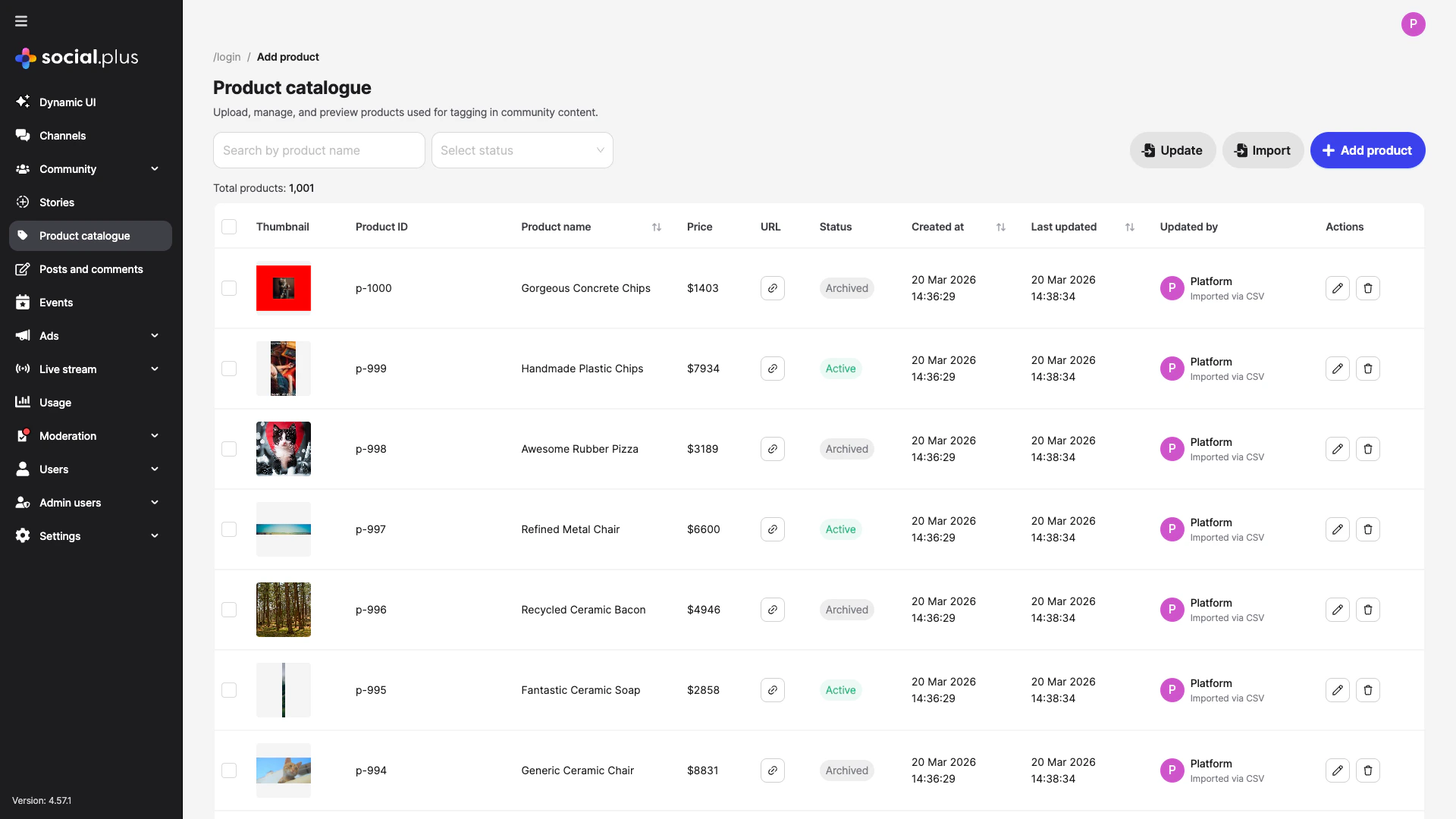 The product list displays all products with the following information at a glance:
| Column | Description |
| ---------------- | -------------------------------------------------------- |
| **Thumbnail** | Product image preview |
| **Product ID** | Unique alphanumeric identifier for the product |
| **Product name** | Display name shown when the product is tagged in content |
| **Price** | Product price with currency |
| **URL** | Link to the product page |
| **Status** | Current status — `Active` or `Archived` |
| **Created at** | Timestamp of product creation |
| **Last updated** | Timestamp of the most recent update |
| **Updated by** | The admin user who last modified the product |
| **Actions** | Edit or delete the product |
You can search products by **name** and filter by **status** using the controls at the top of the page. Columns such as **Product name**, **Created at**, and **Last updated** support sorting.
## Quick Start
Navigate to **Product catalogue** in the left sidebar of your social.plus Console
Click **+ Add product** to create a product with an ID, name, URL, price, and thumbnail image
Use the **Import** button to upload a CSV file with multiple products at once
Set products as **Active** to make them available for tagging, or **Archived** to hide them from content tagging
## Adding a Product
Click the **+ Add product** button in the top-right corner to create a new product entry.
The product list displays all products with the following information at a glance:
| Column | Description |
| ---------------- | -------------------------------------------------------- |
| **Thumbnail** | Product image preview |
| **Product ID** | Unique alphanumeric identifier for the product |
| **Product name** | Display name shown when the product is tagged in content |
| **Price** | Product price with currency |
| **URL** | Link to the product page |
| **Status** | Current status — `Active` or `Archived` |
| **Created at** | Timestamp of product creation |
| **Last updated** | Timestamp of the most recent update |
| **Updated by** | The admin user who last modified the product |
| **Actions** | Edit or delete the product |
You can search products by **name** and filter by **status** using the controls at the top of the page. Columns such as **Product name**, **Created at**, and **Last updated** support sorting.
## Quick Start
Navigate to **Product catalogue** in the left sidebar of your social.plus Console
Click **+ Add product** to create a product with an ID, name, URL, price, and thumbnail image
Use the **Import** button to upload a CSV file with multiple products at once
Set products as **Active** to make them available for tagging, or **Archived** to hide them from content tagging
## Adding a Product
Click the **+ Add product** button in the top-right corner to create a new product entry.
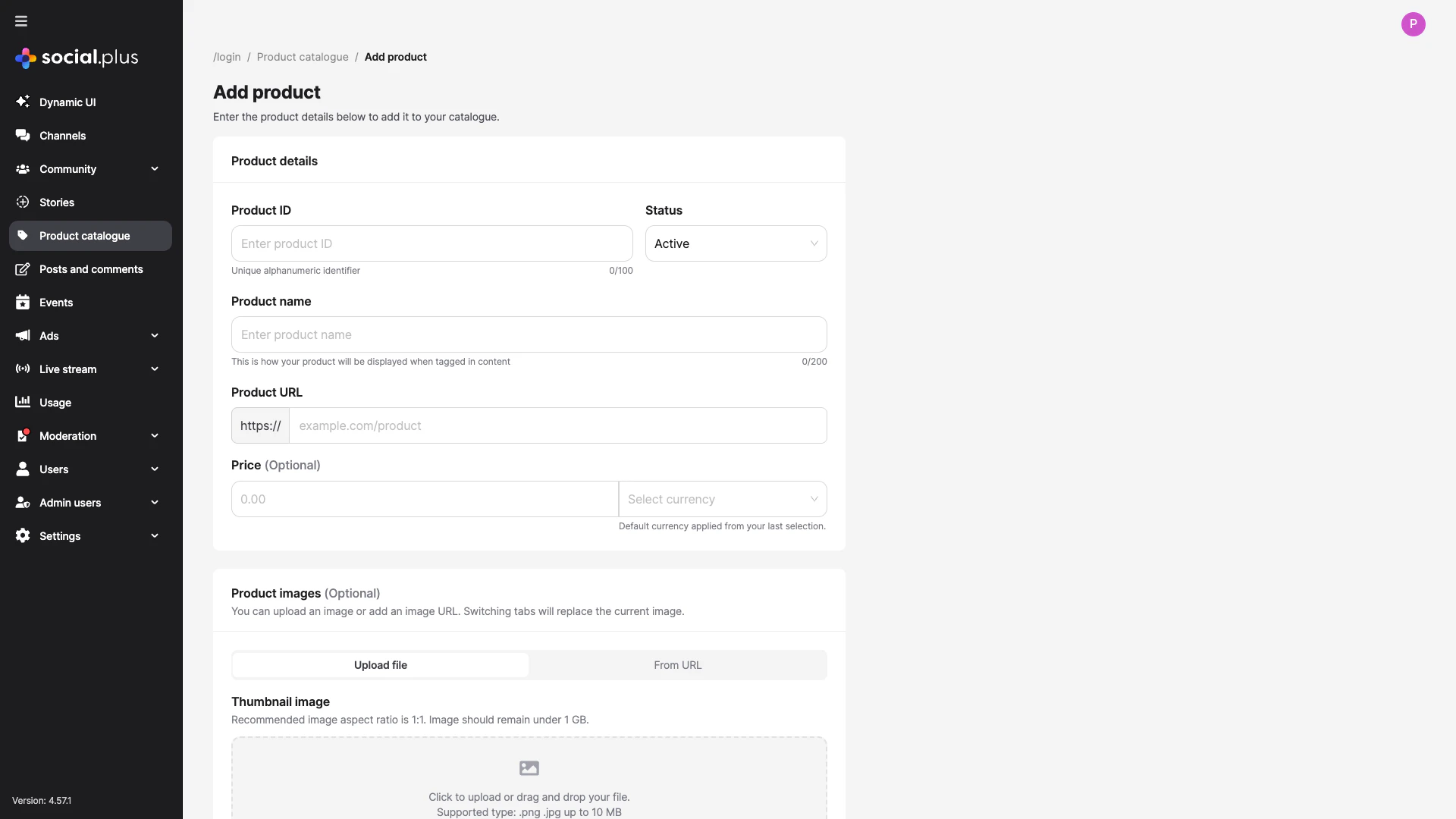 ### Product Details
**Required** — A unique alphanumeric identifier for the product (max 100 characters). This ID cannot be changed after creation.
**Example:** `SKU-12345`, `prod-widget-blue`
**Required** — Controls product visibility for content tagging:
* **Active**: Product is available for tagging in community content
* **Archived**: Product is hidden from content tagging but retained in the catalogue
**Required** — The display name shown when the product is tagged in content (max 200 characters). Choose a clear, recognizable name for your users.
**Required** — The URL linking to the product page. The `https://` prefix is automatically applied.
**Example:** `example.com/products/widget-blue`
**Optional** — The product price with a selectable currency. The default currency is remembered from your last selection.
**Optional** — A thumbnail image for the product. You can either:
* **Upload a file**: Drag and drop or click to upload (`.png`, `.jpg`, up to 10 MB)
* **Add from URL**: Provide a direct URL to the product image
Recommended image aspect ratio is **1:1**. Image file size should remain under **1 GB**.
## Editing a Product
Click the **edit icon** (pencil) in the **Actions** column of any product row to modify its details.
### Product Details
**Required** — A unique alphanumeric identifier for the product (max 100 characters). This ID cannot be changed after creation.
**Example:** `SKU-12345`, `prod-widget-blue`
**Required** — Controls product visibility for content tagging:
* **Active**: Product is available for tagging in community content
* **Archived**: Product is hidden from content tagging but retained in the catalogue
**Required** — The display name shown when the product is tagged in content (max 200 characters). Choose a clear, recognizable name for your users.
**Required** — The URL linking to the product page. The `https://` prefix is automatically applied.
**Example:** `example.com/products/widget-blue`
**Optional** — The product price with a selectable currency. The default currency is remembered from your last selection.
**Optional** — A thumbnail image for the product. You can either:
* **Upload a file**: Drag and drop or click to upload (`.png`, `.jpg`, up to 10 MB)
* **Add from URL**: Provide a direct URL to the product image
Recommended image aspect ratio is **1:1**. Image file size should remain under **1 GB**.
## Editing a Product
Click the **edit icon** (pencil) in the **Actions** column of any product row to modify its details.
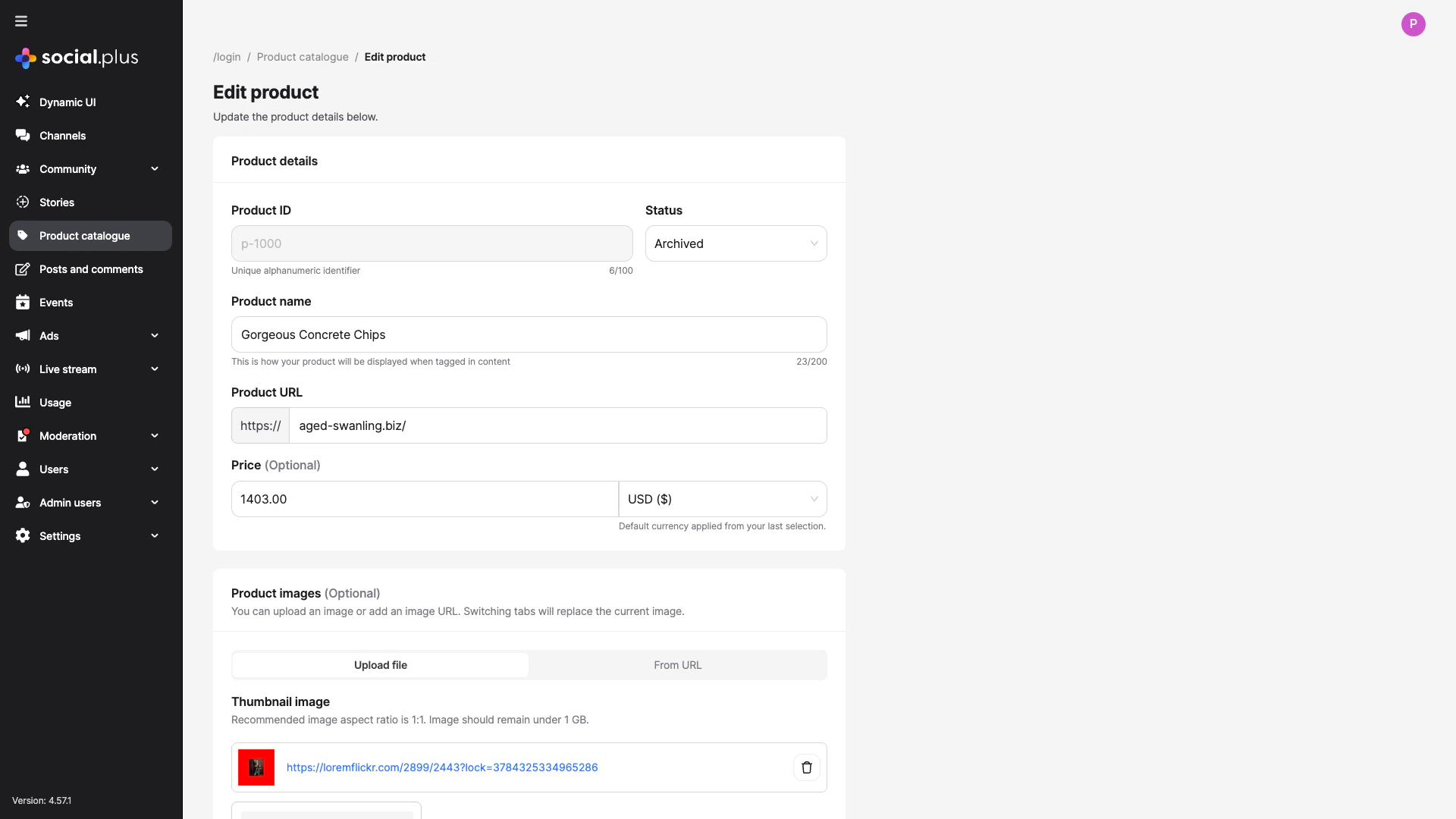 The edit form displays the same fields as the add form, with the following differences:
* **Product ID** is read-only and cannot be changed after creation
* All other fields (name, URL, price, status, images) can be updated
* Click **Save changes** to apply your modifications
## Importing Products via CSV
Click the **Import** button to bulk-create products from a CSV file.
The edit form displays the same fields as the add form, with the following differences:
* **Product ID** is read-only and cannot be changed after creation
* All other fields (name, URL, price, status, images) can be updated
* Click **Save changes** to apply your modifications
## Importing Products via CSV
Click the **Import** button to bulk-create products from a CSV file.
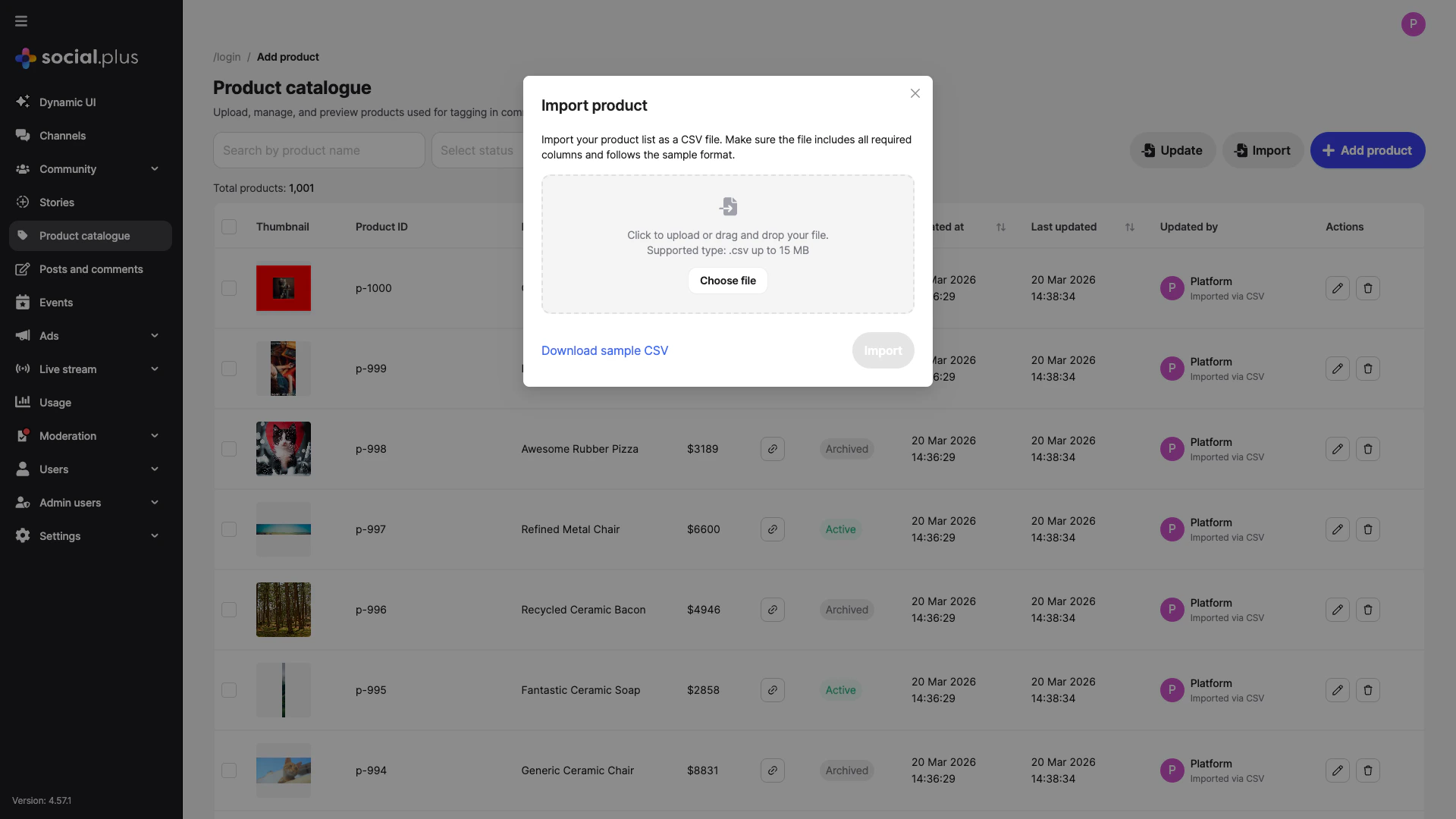 Click **Download sample CSV** to get the required file format and column structure
Fill in the CSV with your product data. Ensure all required columns are included and the file follows the sample format
Drag and drop your `.csv` file into the upload area, or click **Choose file** to browse. Maximum file size is **15 MB**
Click **Import** to begin processing. A status notification will appear showing the import progress and summary
The import function creates **new products** in your catalogue. Each row in the CSV should contain a unique product ID that does not already exist in the catalogue.
## Updating Products via CSV
Click the **Update** button to bulk-update existing products from a CSV file.
Click **Download sample CSV** to get the required file format and column structure
Fill in the CSV with your product data. Ensure all required columns are included and the file follows the sample format
Drag and drop your `.csv` file into the upload area, or click **Choose file** to browse. Maximum file size is **15 MB**
Click **Import** to begin processing. A status notification will appear showing the import progress and summary
The import function creates **new products** in your catalogue. Each row in the CSV should contain a unique product ID that does not already exist in the catalogue.
## Updating Products via CSV
Click the **Update** button to bulk-update existing products from a CSV file.
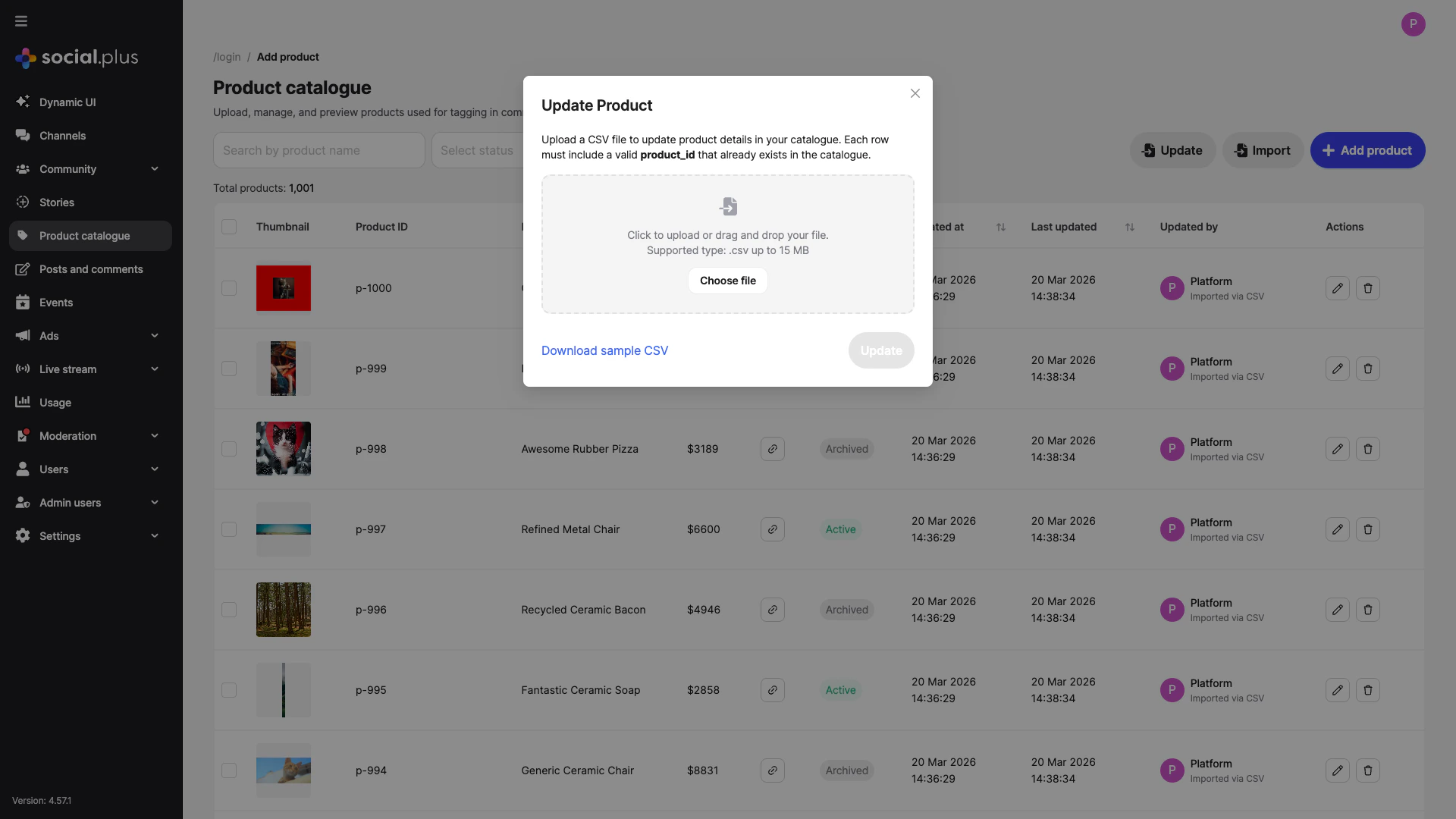 Each row in the update CSV must include a valid **product\_id** that already exists in the catalogue. Rows with unrecognized product IDs will be skipped.
Click **Download sample CSV** to see the expected column format for updates
Include the `product_id` column along with any fields you want to update
Upload the `.csv` file (up to **15 MB**) and click **Update** to apply changes
## Deleting Products
Click the **delete icon** (trash) in the **Actions** column to remove a product from the catalogue.
Deleting a product is permanent and cannot be undone. Products that have already been tagged in content may show as unavailable after deletion.
You can also select multiple products using the checkboxes in the leftmost column for batch operations.
### Product Tagging in Posts
You can tag products from the Product Catalogue directly in post content by typing `@` followed by the product name, then switching to the **Tag product** tab in the dropdown. Tagged products appear as interactive links in the post and display with thumbnails and pricing below the content.
For the full product tagging workflow, screenshots, and guidelines, see [Tagging Products in Posts](/analytics-and-moderation/console/social-management/social-management/posts#tagging-products-in-posts) in the Post Management documentation.
## Filtering and Searching
The Product Catalogue provides several ways to find specific products:
| Feature | Description |
| -------------------- | ------------------------------------------------------------------------------------------ |
| **Search by name** | Type in the search field to filter products by product name |
| **Filter by status** | Use the status dropdown to show only `Active` or `Archived` products |
| **Sort by column** | Click sortable column headers (Product name, Created at, Last updated) to reorder the list |
## Best Practices
* Use a consistent naming scheme for product IDs (e.g., `SKU-001`, `prod-category-name`)
* Product IDs cannot be changed after creation, so plan your ID structure carefully
* Keep IDs alphanumeric and under 100 characters
* Use the **Import** feature for initial catalogue setup with many products
* Use the **Update** feature for ongoing maintenance and price/status changes
* Always download and review the **sample CSV** before preparing your data
* Validate your CSV before uploading to minimize errors
* Use a **1:1 aspect ratio** for consistent thumbnail display
* Keep images under **10 MB** for file uploads
* Use high-quality images that clearly represent the product
* Provide image URLs from reliable, fast-loading CDNs when using the URL method
* Set seasonal or discontinued products to **Archived** rather than deleting them
* Use the status filter to quickly audit active vs. archived products
* Archived products are retained in the catalogue but hidden from content tagging
## Related Topics
Manage communities where products can be tagged in content
Create and manage events alongside product promotions
Learn about all Console features and administration capabilities
Each row in the update CSV must include a valid **product\_id** that already exists in the catalogue. Rows with unrecognized product IDs will be skipped.
Click **Download sample CSV** to see the expected column format for updates
Include the `product_id` column along with any fields you want to update
Upload the `.csv` file (up to **15 MB**) and click **Update** to apply changes
## Deleting Products
Click the **delete icon** (trash) in the **Actions** column to remove a product from the catalogue.
Deleting a product is permanent and cannot be undone. Products that have already been tagged in content may show as unavailable after deletion.
You can also select multiple products using the checkboxes in the leftmost column for batch operations.
### Product Tagging in Posts
You can tag products from the Product Catalogue directly in post content by typing `@` followed by the product name, then switching to the **Tag product** tab in the dropdown. Tagged products appear as interactive links in the post and display with thumbnails and pricing below the content.
For the full product tagging workflow, screenshots, and guidelines, see [Tagging Products in Posts](/analytics-and-moderation/console/social-management/social-management/posts#tagging-products-in-posts) in the Post Management documentation.
## Filtering and Searching
The Product Catalogue provides several ways to find specific products:
| Feature | Description |
| -------------------- | ------------------------------------------------------------------------------------------ |
| **Search by name** | Type in the search field to filter products by product name |
| **Filter by status** | Use the status dropdown to show only `Active` or `Archived` products |
| **Sort by column** | Click sortable column headers (Product name, Created at, Last updated) to reorder the list |
## Best Practices
* Use a consistent naming scheme for product IDs (e.g., `SKU-001`, `prod-category-name`)
* Product IDs cannot be changed after creation, so plan your ID structure carefully
* Keep IDs alphanumeric and under 100 characters
* Use the **Import** feature for initial catalogue setup with many products
* Use the **Update** feature for ongoing maintenance and price/status changes
* Always download and review the **sample CSV** before preparing your data
* Validate your CSV before uploading to minimize errors
* Use a **1:1 aspect ratio** for consistent thumbnail display
* Keep images under **10 MB** for file uploads
* Use high-quality images that clearly represent the product
* Provide image URLs from reliable, fast-loading CDNs when using the URL method
* Set seasonal or discontinued products to **Archived** rather than deleting them
* Use the status filter to quickly audit active vs. archived products
* Archived products are retained in the catalogue but hidden from content tagging
## Related Topics
Manage communities where products can be tagged in content
Create and manage events alongside product promotions
Learn about all Console features and administration capabilities