> ## Documentation Index
> Fetch the complete documentation index at: https://learn.social.plus/llms.txt
> Use this file to discover all available pages before exploring further.
# Live Stream Management (Legacy)
> Manage legacy live streams with multi-stream support in the social.plus Console
Use Live Stream Management (Legacy) in the social.plus Console to manage streams created before migration to the room-based live stream architecture. Legacy live streams support parent streams, up to two child feeds, stream status monitoring, post integration, and moderation review.
This page documents the legacy live stream management system. For current room-based streams, use [Live Stream Management](/analytics-and-moderation/console/management/live-stream-management-new).
## Dashboard overview
The legacy live stream dashboard lists parent streams and summarizes status across any child feeds attached to each parent.
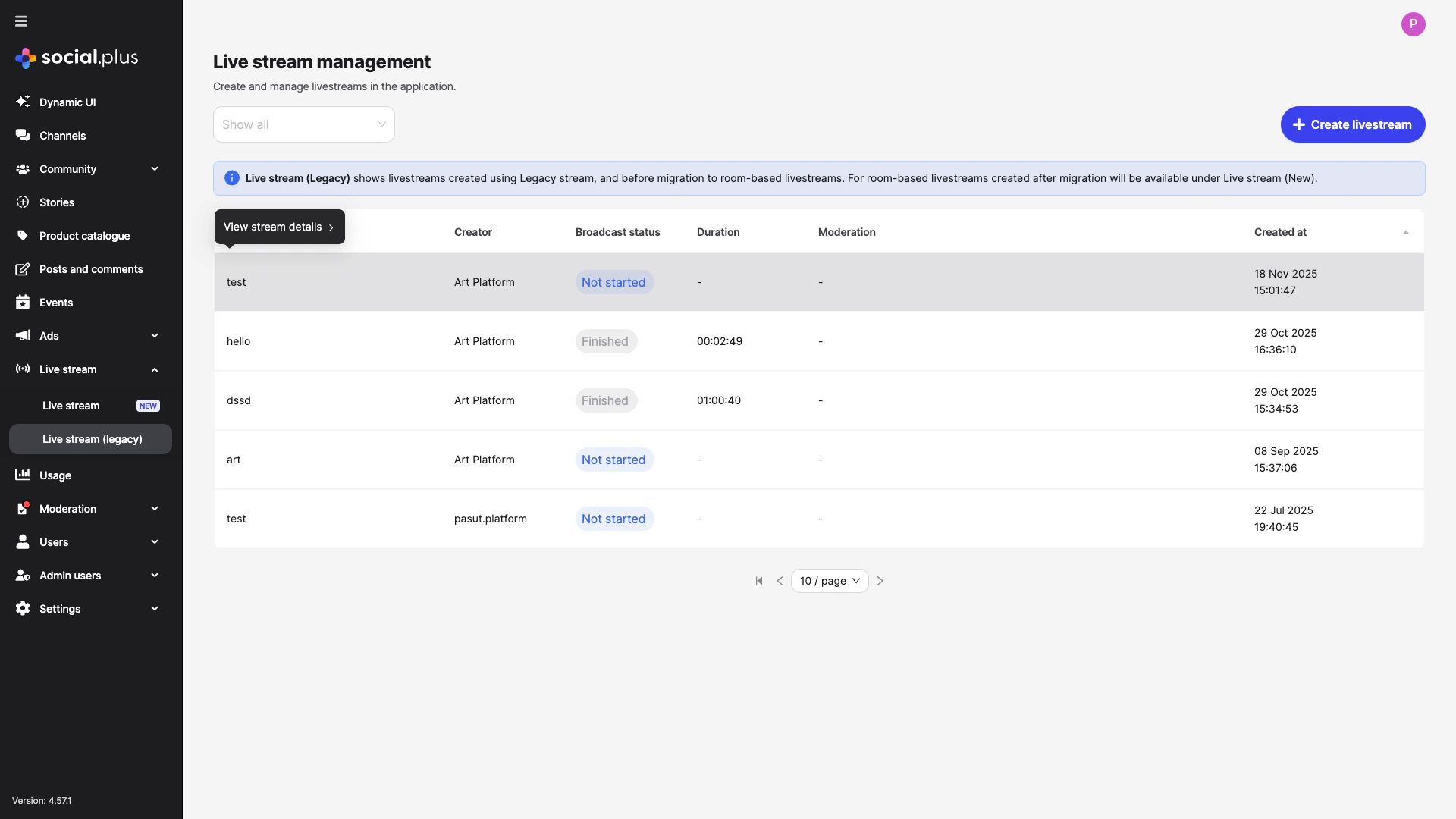 | Column | Description | Logic |
| --------------------- | -------------------- | ------------------------------------------------ |
| **Title** | Parent stream title | Always displays the parent stream title |
| **Creator** | Stream creator | Uses the parent stream creator |
| **Broadcast status** | Current stream state | Unified across the parent stream and child feeds |
| **Duration** | Stream length | Shows the longest completed stream duration |
| **Moderation status** | Content review state | Shows up to five unique status codes |
| **Created at** | Stream creation time | Uses the parent stream creation timestamp |
Multi-stream child feeds are not supported in UIKit. UIKit displays the parent stream only. Use the SDK or API directly for multi-stream selection logic.
Use stream metadata to distinguish parent and child stream purposes, such as `mobile-view` or `desktop-view`. SDK and API integrations can use that metadata to select the best stream for each viewer.
## Quick start
Set up the main live stream with a title, optional description, and optional thumbnail.
Add up to two additional feeds for device-specific views, camera angles, or other variants.
Link the parent stream to a post so audiences can discover and join the live stream.
Track status, duration, and moderation across the parent stream and child feeds.
## Create a parent stream
A parent stream is the primary live stream and the default feed for the live event.
### Parent stream fields
| Field | Type | Required | Description |
| ---------------- | ------------ | -------- | ----------------------------------------------------------------------------------------- |
| Title | Text | Yes | Clear title for the live stream event. |
| Description | Text | No | Context about the stream or event. |
| Thumbnail | Image upload | No | Preview image for the stream. Recommended for audience engagement. |
| Secure streaming | Toggle | No | Restricts stream access with authentication when enabled. |
| Camera feed name | Text | No | Display name for the parent feed. Defaults to `Main Feed`. Maximum length: 30 characters. |
After creation, the Console generates a unique stream ID. Use this ID to link child streams and create posts. Broadcast setup choices, such as secure streaming and stream relationships, cannot be changed after the stream goes live.
Go to **Console > Live stream > Live stream (Legacy)**.
Click **Create live stream**.
Fill in the title, description, and thumbnail.
Enable secure streaming if needed and customize the camera feed name.
Review the details and click **Create** to generate the parent stream.
## Add child streams
Child streams provide additional video feeds under one parent stream. A parent stream can have up to two child streams, for a total of three simultaneous feeds.
### Child stream use cases
Add a vertical 9:16 feed for mobile viewers.
Add a horizontal 16:9 feed for desktop and tablet viewers.
Provide different camera angles for the same event.
Use the same visual event with different commentary tracks.
### Add a child stream
Select the parent stream from the legacy live stream dashboard.
Click **Add Child Stream**. This action is available only when fewer than two child streams exist.
The child stream inherits the parent title and description.
Set a camera feed name. The default is `Additional feed 1` or `Additional feed 2`.
Create the child stream and use its unique stream ID for broadcasting.
| Behavior | Description |
| ---------------- | ------------------------------------------------------------------------------------ |
| Inherited fields | Child streams inherit title and description from the parent stream. |
| Feed name | Each child stream can have a custom camera feed name. Maximum length: 30 characters. |
| Stream ID | Each child stream receives its own stream ID for independent broadcasting. |
| Moderation | Moderation status is consolidated with the parent stream in the dashboard. |
| Post association | Child streams share the parent stream's post association. |
You can add a maximum of two child streams per parent stream. Plan multi-stream production needs before going live.
## Edit stream details
Update stream details before or during broadcasts when event information changes.
| Stream | Editable fields |
| ------------- | ------------------------------------------------------------ |
| Parent stream | Title, description, thumbnail, and camera feed name |
| Child stream | Inherited title, inherited description, and camera feed name |
## Copy live stream links
The available copy-link action depends on broadcast status.
| Broadcast status | Copy action | Description |
| ---------------- | -------------------------- | --------------------------------------------------- |
| Not started | No copy link button | Link generation begins when the broadcast starts. |
| Ongoing | Copy live stream link | Shares real-time access to the active live stream. |
| Ended | Copy live stream post link | Shares the recorded content and related engagement. |
## Delete child streams
Remove child streams that are no longer needed or were created in error.
Open the parent stream and locate the child stream to delete.
Click the delete icon next to the child stream.
Check the confirmation modal. If the child stream is live, deletion immediately disconnects the stream.
Confirm to permanently delete the child stream.
Deleting a child stream that is currently broadcasting immediately disconnects that stream. Active viewers lose access.
Parent streams cannot be deleted while they have associated posts or child streams. Remove child streams and unlink posts first.
## Broadcast status
Broadcast status is unified across the parent stream and its child feeds.
| Status | Displayed when | Notes |
| ----------- | --------------------------------------------------------------------------------- | --------------------------------------- |
| Not started | No parent or child stream has started broadcasting. | Initial state after stream creation. |
| Live | At least one parent or child stream is currently broadcasting. | Takes priority over other statuses. |
| Finished | All streams finished, or at least one stream finished while others never started. | Indicates the live event has concluded. |
## Duration
The duration column shows the **longest completed stream** among the parent stream and child feeds.
* Duration is calculated from stream start time to end time.
* Duration appears only after at least one stream has finished.
* If multiple streams have completed, the longest duration is shown.
* Duration remains empty until at least one stream completes.
## Moderation status
Moderation status consolidates content review across the parent stream and child feeds.
| Rule | Description |
| ------------------ | ------------------------------------------------------------------------------------ |
| Unique statuses | Shows up to five unique status codes across the parent stream and child feeds. |
| Duplicate handling | Hides duplicate status codes from different streams. |
| Severity order | Sorts by severity: red, then yellow, then green. |
| Overflow handling | If more than five unique status codes exist, shows the highest severity codes first. |
Prioritize red status codes first because they indicate critical content that may violate community guidelines or require immediate action.
## Post integration
Create live stream posts that link to parent streams and automatically include associated child streams.
For detailed information about creating and managing posts, see [Posts Management](/analytics-and-moderation/console/social-management/social-management/posts).
When users view a live stream post, SDK or API based client applications can select the best stream based on device type, screen orientation, or custom metadata. UIKit applications display the parent stream only.
Use stream metadata to identify stream purpose. For example, metadata such as `{"deviceType":"mobile","orientation":"vertical"}` can help your application choose the right feed for each viewer.
## API-created streams
Streams created through the API appear in the Console. If the API request does not specify a camera feed name, the Console displays the default feed name. You can edit feed names later in the Console.
## Best practices
* **Plan ahead**: Decide which devices or production angles need optimized feeds before going live.
* **Test thoroughly**: Verify every stream is configured before broadcast.
* **Name clearly**: Use camera feed names such as `Mobile View`, `Desktop View`, or `Camera 2`.
* **Use metadata**: Add metadata that identifies stream purpose for SDK or API selection logic.
* **Account for UIKit**: Remember that UIKit displays only the parent stream.
* **Choose strong thumbnails**: Use engaging, high-quality preview images.
* **Write clear titles**: Make the event title easy to understand.
* **Add useful descriptions**: Give viewers context before they join.
* **Enable secure streaming**: Use secure streaming for private or restricted events.
* **Watch unified status**: Monitor all feeds from the Console during live events.
* **Plan bandwidth**: Ensure upload capacity for each simultaneous feed.
* **Respect child limits**: A parent stream supports up to two child streams.
* **Review moderation**: Investigate high-severity moderation statuses promptly.
## Troubleshooting
| Issue | Likely cause | Resolution |
| ---------------------------------- | ---------------------------------------------------- | ---------------------------------------------------------- |
| Cannot add child stream | Parent already has two child streams | Delete an existing child stream before adding another. |
| Stream not showing as `Live` | Status update delay or broadcaster not actually live | Refresh the page and verify the stream is broadcasting. |
| Cannot delete parent stream | Parent has associated posts or child streams | Remove child streams and unlink posts before deletion. |
| Copy link not available | Broadcast has not started | Start the broadcast before copying the live stream link. |
| Child stream creation fails | Network or permission issue | Verify permissions, check the connection, and retry. |
| Duration not displaying | No stream has completed | Duration appears after at least one stream finishes. |
| Moderation status unclear | Multiple flags exist across streams | Review each stream individually for detailed status. |
| Stream disconnects on deletion | Live child stream was deleted | Avoid deleting child streams during active broadcasts. |
| Feed name too long | Name exceeds 30 characters | Shorten the feed name. |
| Child streams not showing in UIKit | UIKit does not support multi-stream child feeds | Use SDK or API integrations for multi-stream behavior. |
| Cannot identify stream purpose | Missing metadata | Add metadata when creating streams through the SDK or API. |
## Use cases
Offer a vertical feed for mobile audiences while keeping a horizontal feed for desktop viewers.
Support multi-camera productions with main-stage and close-up feeds.
Let client applications choose the best feed for each viewer's device.
Provide polished desktop viewing while preserving mobile accessibility for remote attendees.
## Technical specifications
| Area | Specification |
| ------------------------ | -------------------------------------------------------------------------------------- |
| Parent streams | Unlimited creation |
| Child streams per parent | Maximum of two |
| Total concurrent feeds | Three: one parent stream and two child streams |
| Camera feed name length | Maximum of 30 characters |
| Status updates | Broadcast status updates in real time; moderation status may require page refresh |
| API-created streams | Appear in Console with default feed names if none are specified |
| UIKit behavior | Displays and interacts with parent streams only |
| Metadata | Custom metadata can identify device type, orientation, camera angle, or stream purpose |
## Related topics
Manage current room-based live streams.
Create and manage posts with live stream integration.
Understand content moderation workflows for live streams.
Track live stream performance and engagement metrics.
| Column | Description | Logic |
| --------------------- | -------------------- | ------------------------------------------------ |
| **Title** | Parent stream title | Always displays the parent stream title |
| **Creator** | Stream creator | Uses the parent stream creator |
| **Broadcast status** | Current stream state | Unified across the parent stream and child feeds |
| **Duration** | Stream length | Shows the longest completed stream duration |
| **Moderation status** | Content review state | Shows up to five unique status codes |
| **Created at** | Stream creation time | Uses the parent stream creation timestamp |
Multi-stream child feeds are not supported in UIKit. UIKit displays the parent stream only. Use the SDK or API directly for multi-stream selection logic.
Use stream metadata to distinguish parent and child stream purposes, such as `mobile-view` or `desktop-view`. SDK and API integrations can use that metadata to select the best stream for each viewer.
## Quick start
Set up the main live stream with a title, optional description, and optional thumbnail.
Add up to two additional feeds for device-specific views, camera angles, or other variants.
Link the parent stream to a post so audiences can discover and join the live stream.
Track status, duration, and moderation across the parent stream and child feeds.
## Create a parent stream
A parent stream is the primary live stream and the default feed for the live event.
### Parent stream fields
| Field | Type | Required | Description |
| ---------------- | ------------ | -------- | ----------------------------------------------------------------------------------------- |
| Title | Text | Yes | Clear title for the live stream event. |
| Description | Text | No | Context about the stream or event. |
| Thumbnail | Image upload | No | Preview image for the stream. Recommended for audience engagement. |
| Secure streaming | Toggle | No | Restricts stream access with authentication when enabled. |
| Camera feed name | Text | No | Display name for the parent feed. Defaults to `Main Feed`. Maximum length: 30 characters. |
After creation, the Console generates a unique stream ID. Use this ID to link child streams and create posts. Broadcast setup choices, such as secure streaming and stream relationships, cannot be changed after the stream goes live.
Go to **Console > Live stream > Live stream (Legacy)**.
Click **Create live stream**.
Fill in the title, description, and thumbnail.
Enable secure streaming if needed and customize the camera feed name.
Review the details and click **Create** to generate the parent stream.
## Add child streams
Child streams provide additional video feeds under one parent stream. A parent stream can have up to two child streams, for a total of three simultaneous feeds.
### Child stream use cases
Add a vertical 9:16 feed for mobile viewers.
Add a horizontal 16:9 feed for desktop and tablet viewers.
Provide different camera angles for the same event.
Use the same visual event with different commentary tracks.
### Add a child stream
Select the parent stream from the legacy live stream dashboard.
Click **Add Child Stream**. This action is available only when fewer than two child streams exist.
The child stream inherits the parent title and description.
Set a camera feed name. The default is `Additional feed 1` or `Additional feed 2`.
Create the child stream and use its unique stream ID for broadcasting.
| Behavior | Description |
| ---------------- | ------------------------------------------------------------------------------------ |
| Inherited fields | Child streams inherit title and description from the parent stream. |
| Feed name | Each child stream can have a custom camera feed name. Maximum length: 30 characters. |
| Stream ID | Each child stream receives its own stream ID for independent broadcasting. |
| Moderation | Moderation status is consolidated with the parent stream in the dashboard. |
| Post association | Child streams share the parent stream's post association. |
You can add a maximum of two child streams per parent stream. Plan multi-stream production needs before going live.
## Edit stream details
Update stream details before or during broadcasts when event information changes.
| Stream | Editable fields |
| ------------- | ------------------------------------------------------------ |
| Parent stream | Title, description, thumbnail, and camera feed name |
| Child stream | Inherited title, inherited description, and camera feed name |
## Copy live stream links
The available copy-link action depends on broadcast status.
| Broadcast status | Copy action | Description |
| ---------------- | -------------------------- | --------------------------------------------------- |
| Not started | No copy link button | Link generation begins when the broadcast starts. |
| Ongoing | Copy live stream link | Shares real-time access to the active live stream. |
| Ended | Copy live stream post link | Shares the recorded content and related engagement. |
## Delete child streams
Remove child streams that are no longer needed or were created in error.
Open the parent stream and locate the child stream to delete.
Click the delete icon next to the child stream.
Check the confirmation modal. If the child stream is live, deletion immediately disconnects the stream.
Confirm to permanently delete the child stream.
Deleting a child stream that is currently broadcasting immediately disconnects that stream. Active viewers lose access.
Parent streams cannot be deleted while they have associated posts or child streams. Remove child streams and unlink posts first.
## Broadcast status
Broadcast status is unified across the parent stream and its child feeds.
| Status | Displayed when | Notes |
| ----------- | --------------------------------------------------------------------------------- | --------------------------------------- |
| Not started | No parent or child stream has started broadcasting. | Initial state after stream creation. |
| Live | At least one parent or child stream is currently broadcasting. | Takes priority over other statuses. |
| Finished | All streams finished, or at least one stream finished while others never started. | Indicates the live event has concluded. |
## Duration
The duration column shows the **longest completed stream** among the parent stream and child feeds.
* Duration is calculated from stream start time to end time.
* Duration appears only after at least one stream has finished.
* If multiple streams have completed, the longest duration is shown.
* Duration remains empty until at least one stream completes.
## Moderation status
Moderation status consolidates content review across the parent stream and child feeds.
| Rule | Description |
| ------------------ | ------------------------------------------------------------------------------------ |
| Unique statuses | Shows up to five unique status codes across the parent stream and child feeds. |
| Duplicate handling | Hides duplicate status codes from different streams. |
| Severity order | Sorts by severity: red, then yellow, then green. |
| Overflow handling | If more than five unique status codes exist, shows the highest severity codes first. |
Prioritize red status codes first because they indicate critical content that may violate community guidelines or require immediate action.
## Post integration
Create live stream posts that link to parent streams and automatically include associated child streams.
For detailed information about creating and managing posts, see [Posts Management](/analytics-and-moderation/console/social-management/social-management/posts).
When users view a live stream post, SDK or API based client applications can select the best stream based on device type, screen orientation, or custom metadata. UIKit applications display the parent stream only.
Use stream metadata to identify stream purpose. For example, metadata such as `{"deviceType":"mobile","orientation":"vertical"}` can help your application choose the right feed for each viewer.
## API-created streams
Streams created through the API appear in the Console. If the API request does not specify a camera feed name, the Console displays the default feed name. You can edit feed names later in the Console.
## Best practices
* **Plan ahead**: Decide which devices or production angles need optimized feeds before going live.
* **Test thoroughly**: Verify every stream is configured before broadcast.
* **Name clearly**: Use camera feed names such as `Mobile View`, `Desktop View`, or `Camera 2`.
* **Use metadata**: Add metadata that identifies stream purpose for SDK or API selection logic.
* **Account for UIKit**: Remember that UIKit displays only the parent stream.
* **Choose strong thumbnails**: Use engaging, high-quality preview images.
* **Write clear titles**: Make the event title easy to understand.
* **Add useful descriptions**: Give viewers context before they join.
* **Enable secure streaming**: Use secure streaming for private or restricted events.
* **Watch unified status**: Monitor all feeds from the Console during live events.
* **Plan bandwidth**: Ensure upload capacity for each simultaneous feed.
* **Respect child limits**: A parent stream supports up to two child streams.
* **Review moderation**: Investigate high-severity moderation statuses promptly.
## Troubleshooting
| Issue | Likely cause | Resolution |
| ---------------------------------- | ---------------------------------------------------- | ---------------------------------------------------------- |
| Cannot add child stream | Parent already has two child streams | Delete an existing child stream before adding another. |
| Stream not showing as `Live` | Status update delay or broadcaster not actually live | Refresh the page and verify the stream is broadcasting. |
| Cannot delete parent stream | Parent has associated posts or child streams | Remove child streams and unlink posts before deletion. |
| Copy link not available | Broadcast has not started | Start the broadcast before copying the live stream link. |
| Child stream creation fails | Network or permission issue | Verify permissions, check the connection, and retry. |
| Duration not displaying | No stream has completed | Duration appears after at least one stream finishes. |
| Moderation status unclear | Multiple flags exist across streams | Review each stream individually for detailed status. |
| Stream disconnects on deletion | Live child stream was deleted | Avoid deleting child streams during active broadcasts. |
| Feed name too long | Name exceeds 30 characters | Shorten the feed name. |
| Child streams not showing in UIKit | UIKit does not support multi-stream child feeds | Use SDK or API integrations for multi-stream behavior. |
| Cannot identify stream purpose | Missing metadata | Add metadata when creating streams through the SDK or API. |
## Use cases
Offer a vertical feed for mobile audiences while keeping a horizontal feed for desktop viewers.
Support multi-camera productions with main-stage and close-up feeds.
Let client applications choose the best feed for each viewer's device.
Provide polished desktop viewing while preserving mobile accessibility for remote attendees.
## Technical specifications
| Area | Specification |
| ------------------------ | -------------------------------------------------------------------------------------- |
| Parent streams | Unlimited creation |
| Child streams per parent | Maximum of two |
| Total concurrent feeds | Three: one parent stream and two child streams |
| Camera feed name length | Maximum of 30 characters |
| Status updates | Broadcast status updates in real time; moderation status may require page refresh |
| API-created streams | Appear in Console with default feed names if none are specified |
| UIKit behavior | Displays and interacts with parent streams only |
| Metadata | Custom metadata can identify device type, orientation, camera angle, or stream purpose |
## Related topics
Manage current room-based live streams.
Create and manage posts with live stream integration.
Understand content moderation workflows for live streams.
Track live stream performance and engagement metrics.