> ## Documentation Index
> Fetch the complete documentation index at: https://learn.social.plus/llms.txt
> Use this file to discover all available pages before exploring further.
# Live Stream Management
> Create, manage, and monitor room-based live streams in the social.plus Console, including direct streams, co-streams, product tagging, and content moderation
Use Live Stream Management in the social.plus Console to create, review, and monitor room-based live streams. This page covers the current room-based live stream system, including direct streams, co-streams, product tagging, broadcast status, and moderation review.
This is the current live stream management system. Streams created before migration remain available in [Live Stream Management (Legacy)](/analytics-and-moderation/console/management/live-stream-management).
## Dashboard overview
The live stream dashboard lists room-based streams created after migration to the room-based architecture.
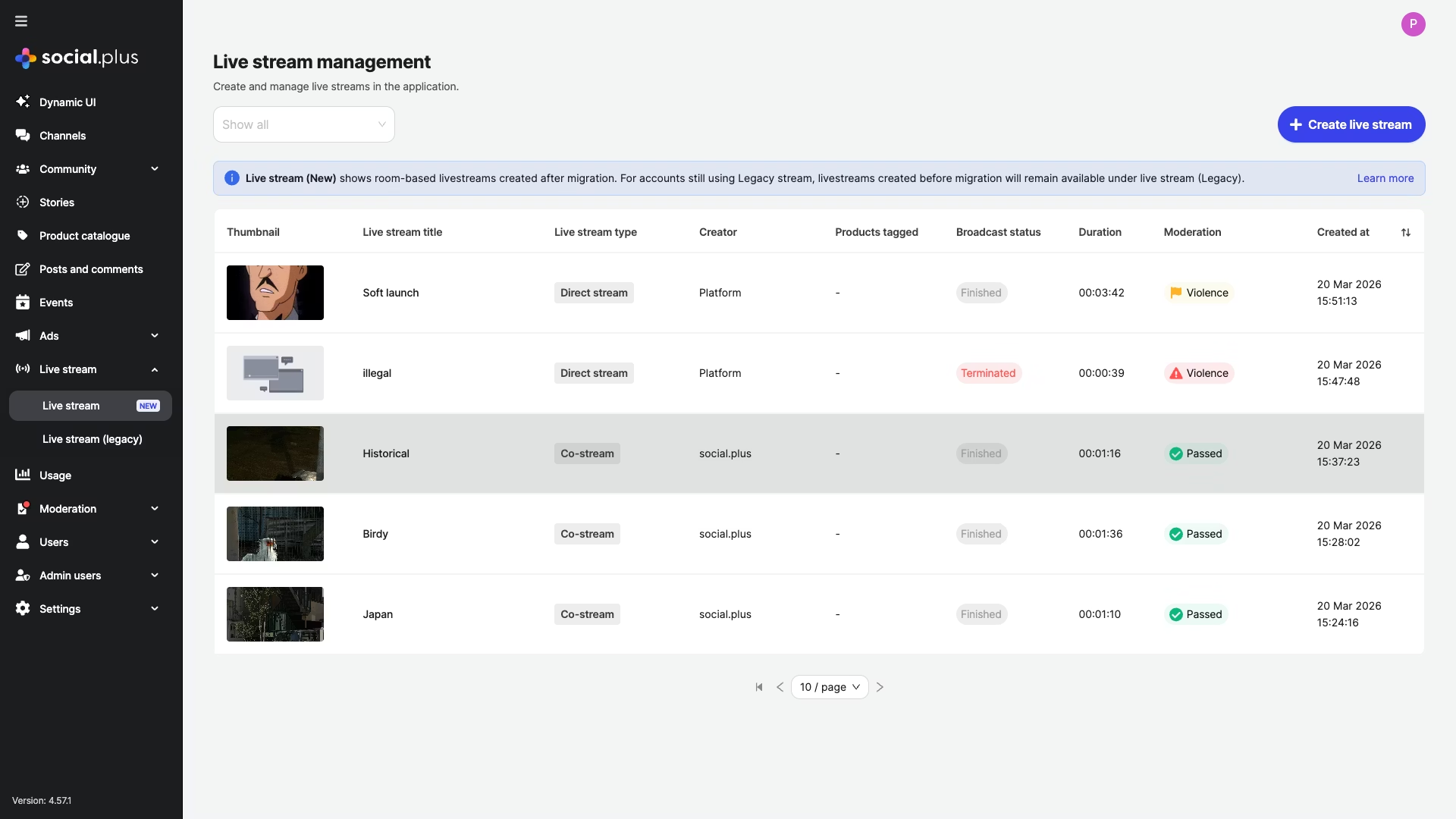 Live Stream Management shows room-based live streams. For accounts still using legacy streams, streams created before migration remain available under [Live Stream Management (Legacy)](/analytics-and-moderation/console/management/live-stream-management).
| Column | Description |
| --------------------- | ------------------------------------------------------------------ |
| **Thumbnail** | Preview image of the live stream |
| **Live stream title** | Name of the stream |
| **Live stream type** | Stream type: `Direct stream` or `Co-stream` |
| **Creator** | User who created the stream |
| **Products tagged** | Number of products tagged to the stream |
| **Broadcast status** | Current status: `Not started`, `Live`, `Finished`, or `Terminated` |
| **Duration** | Total broadcast duration, displayed after the stream ends |
| **Moderation** | AI moderation result, such as `Passed` or a flagged category |
| **Created at** | Stream creation timestamp |
Use the **broadcast status** filter at the top of the dashboard to find streams by state.
## Quick start
Go to **Console > Live stream > Live stream** from the left sidebar navigation.
Click **Create live stream** in the top-right corner.
Add the title, optional description, and optional thumbnail.
Turn on **Enable Live Chat** to let viewers send messages during the broadcast.
Review the details and click **Create live stream**.
## Create a live stream
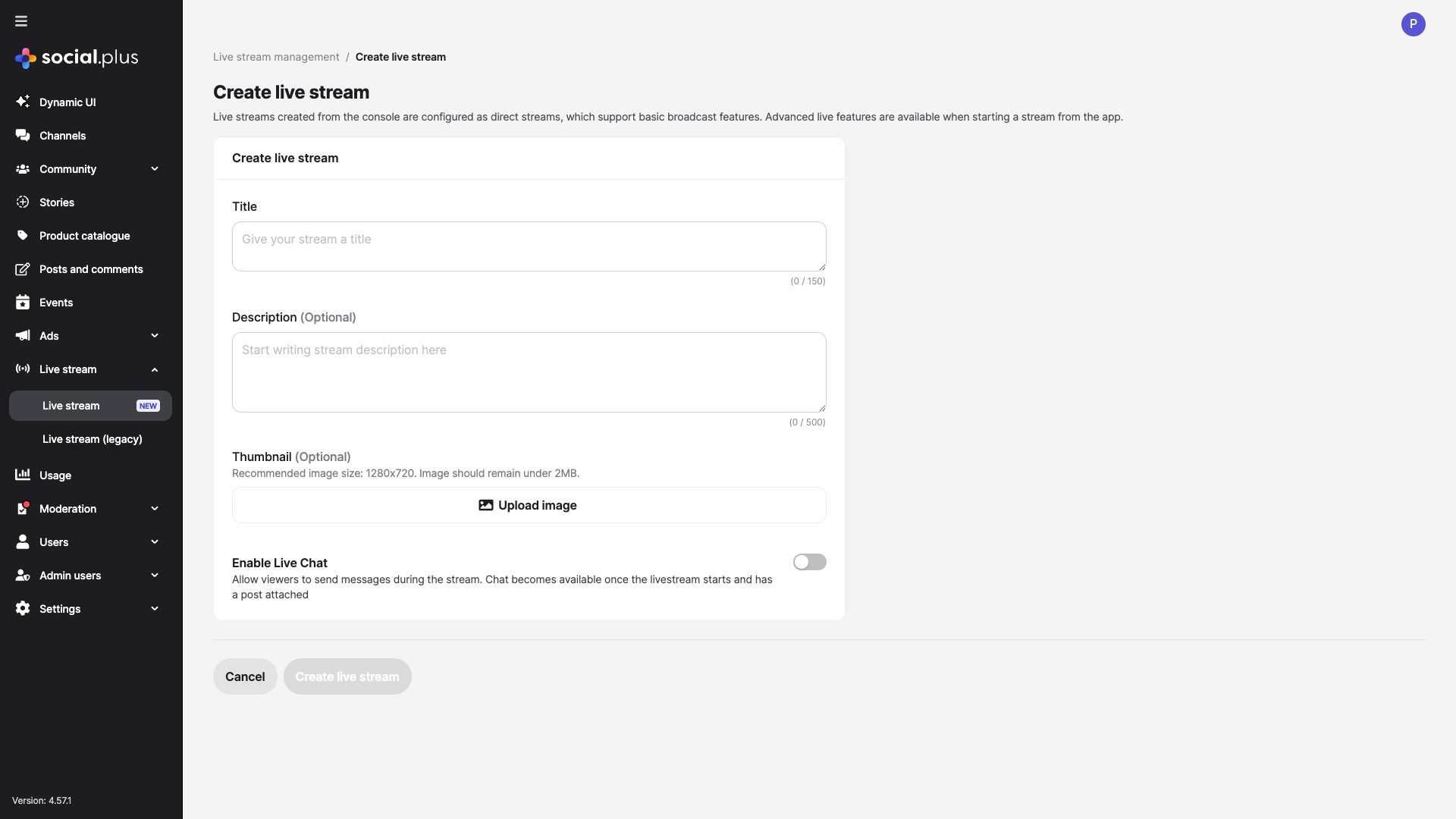
To create a new live stream, click **Create live stream** from the dashboard. Streams created from the Console are configured as **direct streams**. Advanced live features, such as co-streaming, are available when starting a stream from your app with the SDK or API.
Live Stream Management shows room-based live streams. For accounts still using legacy streams, streams created before migration remain available under [Live Stream Management (Legacy)](/analytics-and-moderation/console/management/live-stream-management).
| Column | Description |
| --------------------- | ------------------------------------------------------------------ |
| **Thumbnail** | Preview image of the live stream |
| **Live stream title** | Name of the stream |
| **Live stream type** | Stream type: `Direct stream` or `Co-stream` |
| **Creator** | User who created the stream |
| **Products tagged** | Number of products tagged to the stream |
| **Broadcast status** | Current status: `Not started`, `Live`, `Finished`, or `Terminated` |
| **Duration** | Total broadcast duration, displayed after the stream ends |
| **Moderation** | AI moderation result, such as `Passed` or a flagged category |
| **Created at** | Stream creation timestamp |
Use the **broadcast status** filter at the top of the dashboard to find streams by state.
## Quick start
Go to **Console > Live stream > Live stream** from the left sidebar navigation.
Click **Create live stream** in the top-right corner.
Add the title, optional description, and optional thumbnail.
Turn on **Enable Live Chat** to let viewers send messages during the broadcast.
Review the details and click **Create live stream**.
## Create a live stream
To create a new live stream, click **Create live stream** from the dashboard. Streams created from the Console are configured as **direct streams**. Advanced live features, such as co-streaming, are available when starting a stream from your app with the SDK or API.
 ### Stream details
| Field | Type | Required | Description |
| ---------------- | ------------ | -------- | ---------------------------------------------------------------------------------------------------------------------- |
| Title | Text | Yes | Clear stream title shown in the dashboard and detail page. Maximum length: 150 characters. |
| Description | Text | No | Context for viewers about what to expect. Maximum length: 500 characters. |
| Thumbnail | Image upload | No | Preview image shown in the dashboard and before broadcast starts. Recommended size: 1280x720. Maximum file size: 2 MB. |
| Enable Live Chat | Toggle | No | Allow viewers to send messages during the stream. Off by default. |
Streams created from the Console are always configured as **direct streams**. To create co-streams or access advanced live features, start the stream from your application using the SDK or API.
### Live chat
Turn on **Enable Live Chat** in the create form to let viewers send messages during the broadcast. The chat becomes available once the live stream starts and has a post attached.
Live chat is off by default. Enable it before creating the stream so viewers can participate in real time once the broadcast goes live.
## Live stream types
| Type | Description | Creation path |
| ------------- | ------------------------------------------------------------------------- | -------------------- |
| Direct stream | Single-broadcaster stream with one video feed. | Console, SDK, or API |
| Co-stream | Multi-participant stream where multiple broadcasters can stream together. | SDK or API |
## View stream details
Click any stream row to open the stream detail page.
### Stream details
| Field | Type | Required | Description |
| ---------------- | ------------ | -------- | ---------------------------------------------------------------------------------------------------------------------- |
| Title | Text | Yes | Clear stream title shown in the dashboard and detail page. Maximum length: 150 characters. |
| Description | Text | No | Context for viewers about what to expect. Maximum length: 500 characters. |
| Thumbnail | Image upload | No | Preview image shown in the dashboard and before broadcast starts. Recommended size: 1280x720. Maximum file size: 2 MB. |
| Enable Live Chat | Toggle | No | Allow viewers to send messages during the stream. Off by default. |
Streams created from the Console are always configured as **direct streams**. To create co-streams or access advanced live features, start the stream from your application using the SDK or API.
### Live chat
Turn on **Enable Live Chat** in the create form to let viewers send messages during the broadcast. The chat becomes available once the live stream starts and has a post attached.
Live chat is off by default. Enable it before creating the stream so viewers can participate in real time once the broadcast goes live.
## Live stream types
| Type | Description | Creation path |
| ------------- | ------------------------------------------------------------------------- | -------------------- |
| Direct stream | Single-broadcaster stream with one video feed. | Console, SDK, or API |
| Co-stream | Multi-participant stream where multiple broadcasters can stream together. | SDK or API |
## View stream details
Click any stream row to open the stream detail page.
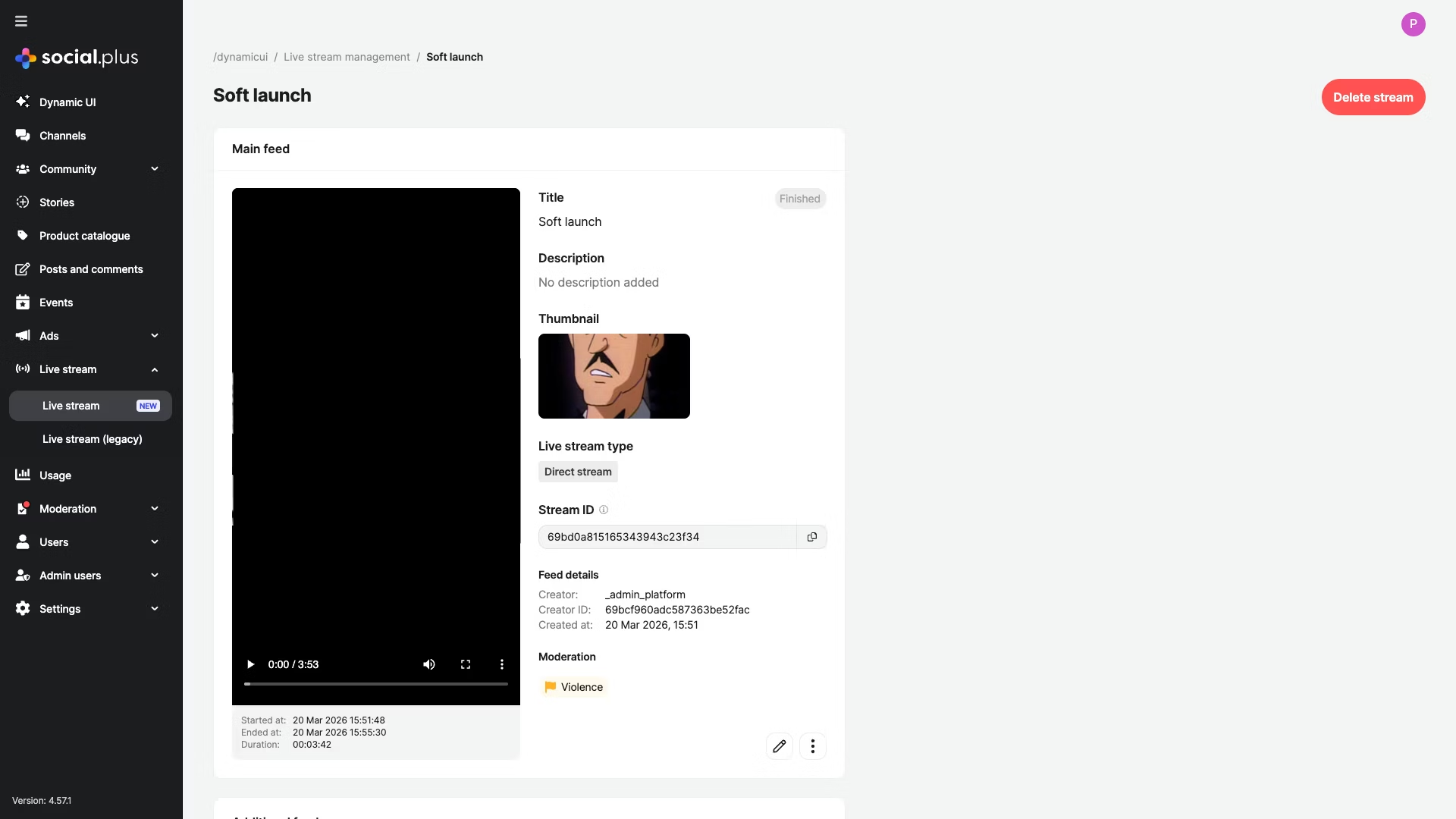 The detail page includes stream information, feed details, broadcast information, and moderation results.
| Section | Details |
| ------------------ | -------------------------------------------------------------------------------- |
| Stream information | Title, description, thumbnail, live stream type, broadcast status, and stream ID |
| Feed details | Creator, creator ID, and creation timestamp |
| Broadcast info | Started time, ended time, duration, and recorded video playback when available |
| Moderation | Moderation status, flagged categories, and severity indicators |
### Stream actions
* **Edit stream**: Update the title, description, and thumbnail.
* **Delete stream**: Permanently remove the stream.
* **Copy stream ID**: Copy the unique stream identifier.
Deleting a stream is permanent. Associated data, including recordings and moderation history, is removed.
## Broadcast status
| Status | Description |
| ----------- | -------------------------------------------------------------------------------------------------- |
| Not started | The stream has been created, but broadcasting has not begun. |
| Live | The stream is currently broadcasting and viewers can watch in real time. |
| Finished | The broadcast ended normally. Playback and final duration are available when processing completes. |
| Terminated | The stream was forcibly ended, usually because of moderation or policy enforcement. |
## Content moderation
Live streams are automatically reviewed by AI content moderation. Results appear in the dashboard and stream detail page.
| Status | Indicator | Description |
| ----------- | ------------- | --------------------------------------------------- |
| Passed | Green | Stream content passed moderation checks. |
| Violence | Yellow or red | Violent content was detected. Severity can vary. |
| Nudity | Red | Adult or explicit content was detected. |
| Other flags | Varies | Additional content policy violations were detected. |
Prioritize red-flagged streams first because they indicate critical content that may violate community guidelines or require immediate action.
## Product tagging
Live streams support product tagging for shoppable live commerce experiences. The **Products tagged** column shows how many products are associated with each stream.
| Area | Description |
| ------------------ | --------------------------------------------------------------------------------- |
| Tag source | Products are tagged to streams through the SDK or API. |
| Console visibility | Tagged products appear on the stream detail page and as a count in the dashboard. |
| Viewer experience | Viewers can browse tagged products during or after the stream. |
## Best practices
* **Use descriptive titles**: Help viewers find and understand your stream content.
* **Upload thumbnails**: Use a 1280x720 image when possible.
* **Add descriptions**: Provide context about what viewers can expect.
* **Plan ahead**: Create streams in advance and share details before going live.
* **Monitor broadcast status**: Keep the Console open during live events.
* **Review moderation flags**: Check flagged streams promptly and take appropriate action.
* **Use status filters**: Filter by broadcast status to find active or problematic streams.
* **Track terminated streams**: Investigate terminated streams to understand policy violations.
* **Tag before going live**: Ensure products are tagged before the broadcast starts.
* **Limit product count**: Focus on featured items rather than overwhelming viewers.
* **Update tags post-stream**: Keep product associations current for replay viewers.
## Troubleshooting
| Issue | Likely cause | Resolution |
| ------------------------------ | ---------------------------------------------------------------------------- | ------------------------------------------------------------------------------------------------------------------------ |
| Cannot create stream | Missing required title field | Enter a stream title. Maximum length: 150 characters. |
| Thumbnail upload fails | Image exceeds 2 MB or uses an unsupported format | Use an image under 2 MB in a supported format such as PNG or JPG. |
| Stream shows `Not started` | Broadcaster has not gone live yet | Wait for the broadcaster to start the stream from the app. |
| Stream terminated unexpectedly | Content moderation flag triggered | Review moderation details on the stream detail page. |
| Products not showing | Product tags have not synced yet | Refresh the page and verify product tagging through the SDK or API. |
| Co-stream not in Console | Co-streams are created from the app | Co-streams created from the app appear in the list automatically. |
| Live chat not available | Stream has not started or has no post attached, or live chat was not enabled | Enable **Live Chat** when creating the stream. Chat becomes available once the broadcast starts and has a post attached. |
| Duration not displaying | Stream has not finished yet | Duration appears after the broadcast ends. |
| Cannot find legacy streams | Legacy streams are in a separate view | Go to **Live stream > Live stream (Legacy)** in the sidebar. |
## Use cases
Create direct streams with tagged products for real-time shopping experiences during broadcasts.
Enable multiple participants to broadcast together for interviews, panels, or collaborative content.
Monitor AI moderation results across all streams to maintain community safety standards.
Set up and manage scheduled live stream events with preconfigured titles, descriptions, and thumbnails.
## Related topics
Review and manage content moderation for live stream broadcasts.
Manage legacy live streams created before migration to room-based architecture.
Manage products available for tagging in live streams.
The detail page includes stream information, feed details, broadcast information, and moderation results.
| Section | Details |
| ------------------ | -------------------------------------------------------------------------------- |
| Stream information | Title, description, thumbnail, live stream type, broadcast status, and stream ID |
| Feed details | Creator, creator ID, and creation timestamp |
| Broadcast info | Started time, ended time, duration, and recorded video playback when available |
| Moderation | Moderation status, flagged categories, and severity indicators |
### Stream actions
* **Edit stream**: Update the title, description, and thumbnail.
* **Delete stream**: Permanently remove the stream.
* **Copy stream ID**: Copy the unique stream identifier.
Deleting a stream is permanent. Associated data, including recordings and moderation history, is removed.
## Broadcast status
| Status | Description |
| ----------- | -------------------------------------------------------------------------------------------------- |
| Not started | The stream has been created, but broadcasting has not begun. |
| Live | The stream is currently broadcasting and viewers can watch in real time. |
| Finished | The broadcast ended normally. Playback and final duration are available when processing completes. |
| Terminated | The stream was forcibly ended, usually because of moderation or policy enforcement. |
## Content moderation
Live streams are automatically reviewed by AI content moderation. Results appear in the dashboard and stream detail page.
| Status | Indicator | Description |
| ----------- | ------------- | --------------------------------------------------- |
| Passed | Green | Stream content passed moderation checks. |
| Violence | Yellow or red | Violent content was detected. Severity can vary. |
| Nudity | Red | Adult or explicit content was detected. |
| Other flags | Varies | Additional content policy violations were detected. |
Prioritize red-flagged streams first because they indicate critical content that may violate community guidelines or require immediate action.
## Product tagging
Live streams support product tagging for shoppable live commerce experiences. The **Products tagged** column shows how many products are associated with each stream.
| Area | Description |
| ------------------ | --------------------------------------------------------------------------------- |
| Tag source | Products are tagged to streams through the SDK or API. |
| Console visibility | Tagged products appear on the stream detail page and as a count in the dashboard. |
| Viewer experience | Viewers can browse tagged products during or after the stream. |
## Best practices
* **Use descriptive titles**: Help viewers find and understand your stream content.
* **Upload thumbnails**: Use a 1280x720 image when possible.
* **Add descriptions**: Provide context about what viewers can expect.
* **Plan ahead**: Create streams in advance and share details before going live.
* **Monitor broadcast status**: Keep the Console open during live events.
* **Review moderation flags**: Check flagged streams promptly and take appropriate action.
* **Use status filters**: Filter by broadcast status to find active or problematic streams.
* **Track terminated streams**: Investigate terminated streams to understand policy violations.
* **Tag before going live**: Ensure products are tagged before the broadcast starts.
* **Limit product count**: Focus on featured items rather than overwhelming viewers.
* **Update tags post-stream**: Keep product associations current for replay viewers.
## Troubleshooting
| Issue | Likely cause | Resolution |
| ------------------------------ | ---------------------------------------------------------------------------- | ------------------------------------------------------------------------------------------------------------------------ |
| Cannot create stream | Missing required title field | Enter a stream title. Maximum length: 150 characters. |
| Thumbnail upload fails | Image exceeds 2 MB or uses an unsupported format | Use an image under 2 MB in a supported format such as PNG or JPG. |
| Stream shows `Not started` | Broadcaster has not gone live yet | Wait for the broadcaster to start the stream from the app. |
| Stream terminated unexpectedly | Content moderation flag triggered | Review moderation details on the stream detail page. |
| Products not showing | Product tags have not synced yet | Refresh the page and verify product tagging through the SDK or API. |
| Co-stream not in Console | Co-streams are created from the app | Co-streams created from the app appear in the list automatically. |
| Live chat not available | Stream has not started or has no post attached, or live chat was not enabled | Enable **Live Chat** when creating the stream. Chat becomes available once the broadcast starts and has a post attached. |
| Duration not displaying | Stream has not finished yet | Duration appears after the broadcast ends. |
| Cannot find legacy streams | Legacy streams are in a separate view | Go to **Live stream > Live stream (Legacy)** in the sidebar. |
## Use cases
Create direct streams with tagged products for real-time shopping experiences during broadcasts.
Enable multiple participants to broadcast together for interviews, panels, or collaborative content.
Monitor AI moderation results across all streams to maintain community safety standards.
Set up and manage scheduled live stream events with preconfigured titles, descriptions, and thumbnails.
## Related topics
Review and manage content moderation for live stream broadcasts.
Manage legacy live streams created before migration to room-based architecture.
Manage products available for tagging in live streams.